

Utility Template - Sub-category: Order Status
The Order status template allows you to create the template using the body and the footer. It helps your end-user to get the order status.
Note:
All the following paragraph applies for Templates created within a WABA ID associated with the Kaleyra WhatsApp API v2.
To create the Utility Template for Order Status, perform the following steps:
- Follow the steps 1 to step 3 of Create WhatsApp V2 Utility Template.
-
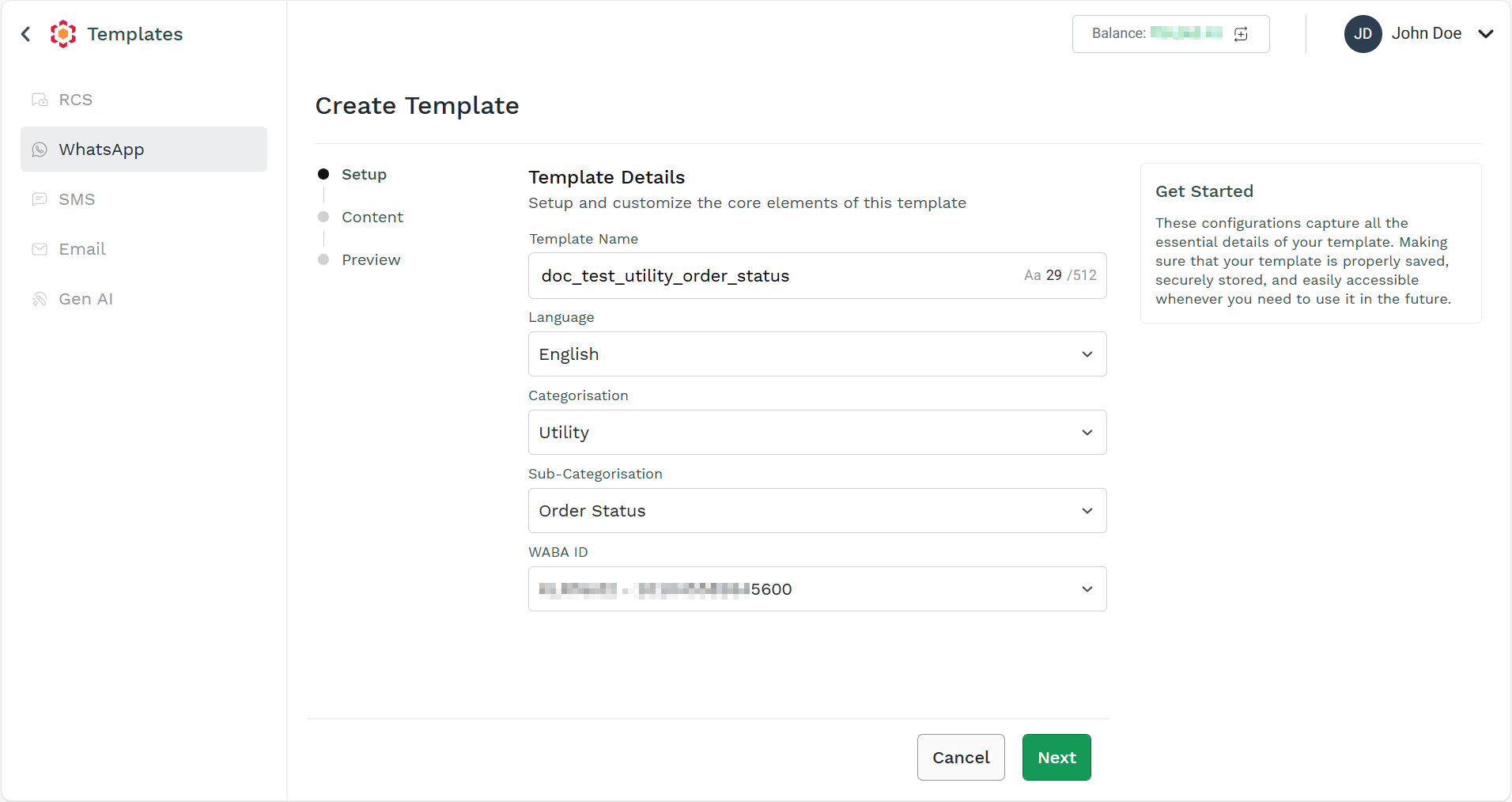
In the Setup step, perform the following:
- In the Template Name field, enter the template name. A maximum length of 512 characters is supported.
- The default language for the template is English. If you wish to change the language, click the drop-down in the Language field, and then select the language of your preference.
- Click the drop-down in the Categorisation field and select the Utility option.
- Click the drop-down in the Sub-Categorisation field and the Order Status option.
- Click the drop-down in the WABA ID field and select the WABA ID through which you want to send a message using the template.
-
Click Next.
The Content step appears.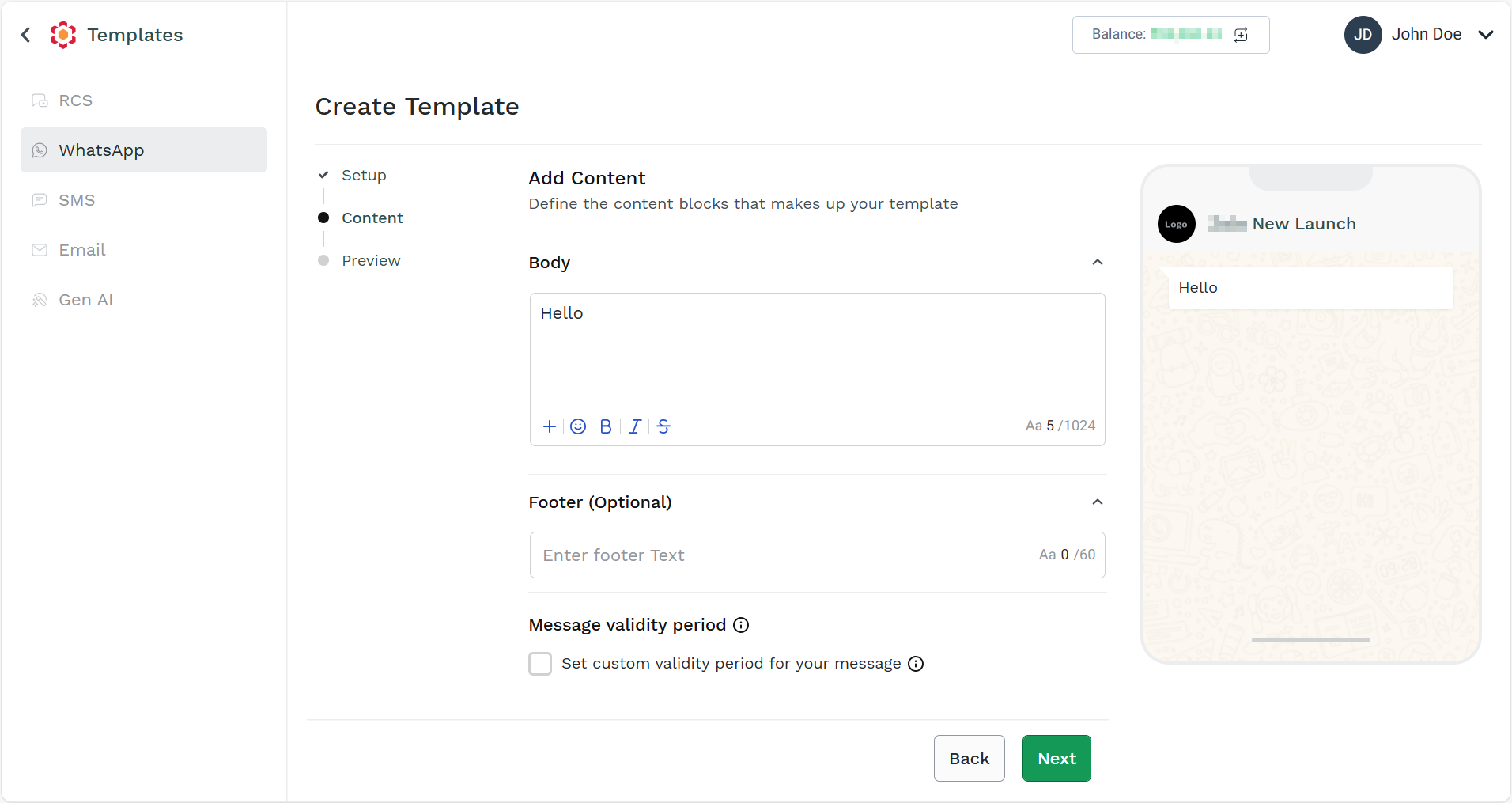
Note:
A preview of the message that will be delivered to the end-user based on the current template is displayed.
-
In the Content step, perform the following:
- The body component represents the core text of your message template and is a text-only template component. Templates are limited to one body component. In the Body field, enter the body text. You can use dynamic variables to insert data dynamically into your template. Use the dynamic variables inside the template by simply entering
{{. The new Variable Samples field appears at the bottom of the Body field. Enter the variable details. A maximum length of 1024 characters is supported for the body. - (Optional) Footer components that appear immediately after the body component. Templates are limited to one footer component. In the Footer field, enter the footer text. A maximum length of 60 characters is supported for the footer.
- The default validity period for your message if you do not set is 30 days for Marketing Templates and Utility templates and 10 minutes for Authentication Templates. For authentication templates created before October 23, 2024, default validity is 30 days. To set the validity period of the WhatsApp marketing message before it expires according to the configured timing in case the end-user's WhatsApp account is unreachable, select the Set custom validity period for your message check box. If the message is not delivered within the configured timeframe, you will not be charged, no webhook would be received, and your end-user will not view or get the message.
Notes:
- For marketing templates, a custom TTL will only be applicable if you are MM lite enabled.
- For Marketing Template, custom range is 12 hours to 30 days.
- For Utility Template custom range is 30 seconds to 12 hours.
- For Authentication Templates: the custom range is 30 seconds to 15 minutes.
- The body component represents the core text of your message template and is a text-only template component. Templates are limited to one body component. In the Body field, enter the body text. You can use dynamic variables to insert data dynamically into your template. Use the dynamic variables inside the template by simply entering
-
Click Next.
The Preview step appears.
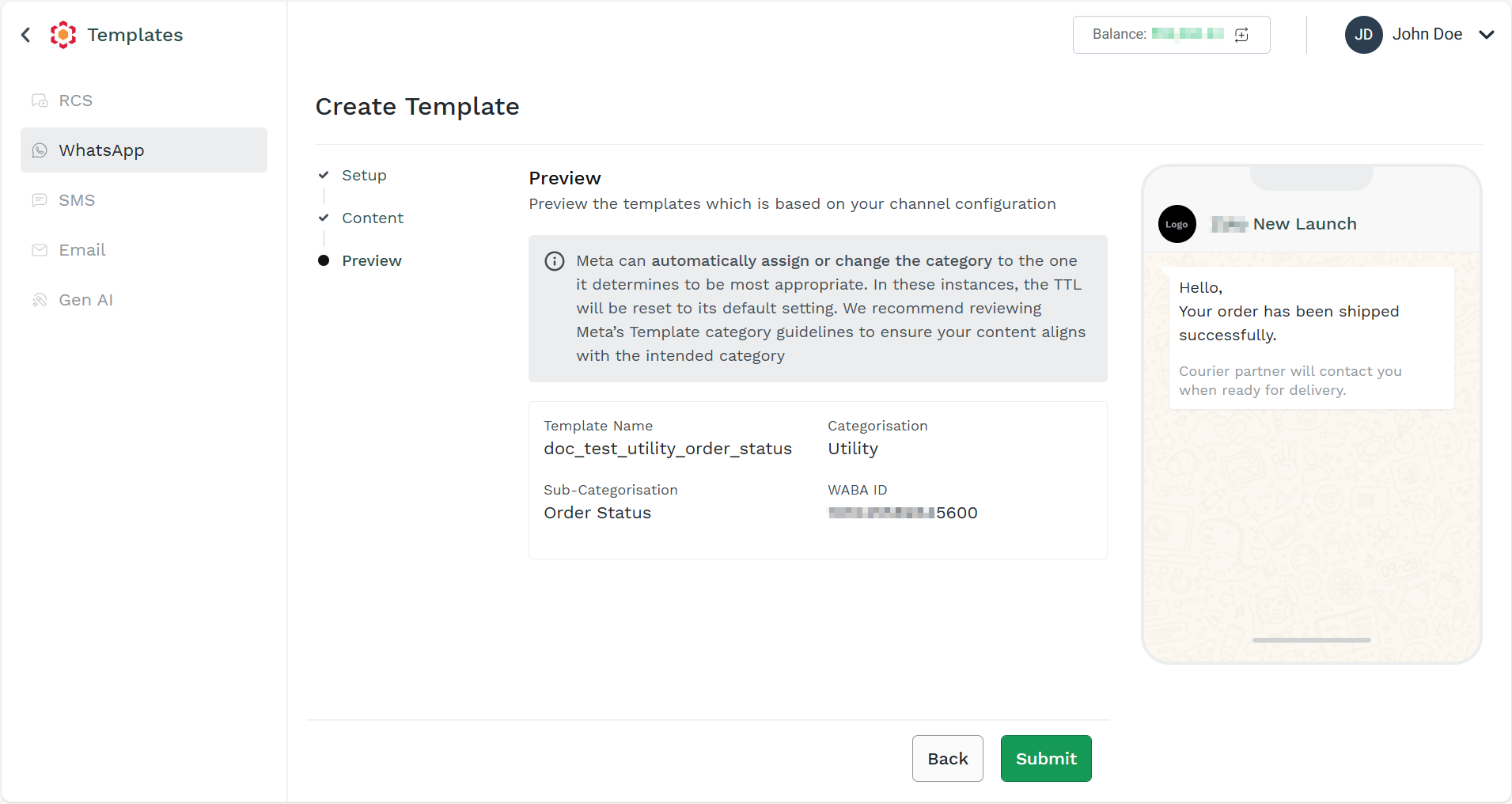
- Preview the WhatsApp template details and click Submit. The order status for the marketing template gets created successfully.
Note:
The new template will be in pending status. It gets either approved or rejected after Meta's review.
Updated about 2 months ago
Did this page help you?