

Upload Media
The Upload Media feature allows you to upload and manage media assets such as images, documents, and videos. These assets can later be used in templates associated to a WABA belonging to Kaleyra WhatApp API V2, particularly for Utility and Marketing template categories. It supports resumable media uploads, improving reliability during media upload and management.
Notes:
- The Upload Media feature is available only for WhatsApp Business Accounts (WABA) belonging to Kaleyra WhatsApp API V2.
- The uploaded file will be valid for 24 hours from the upload. After 24 hours, the file will be considered as expired.
To upload media on the Kaleyra platform, perform the following steps:
- Sign in to your kaleyra account.
The Channels page appears.
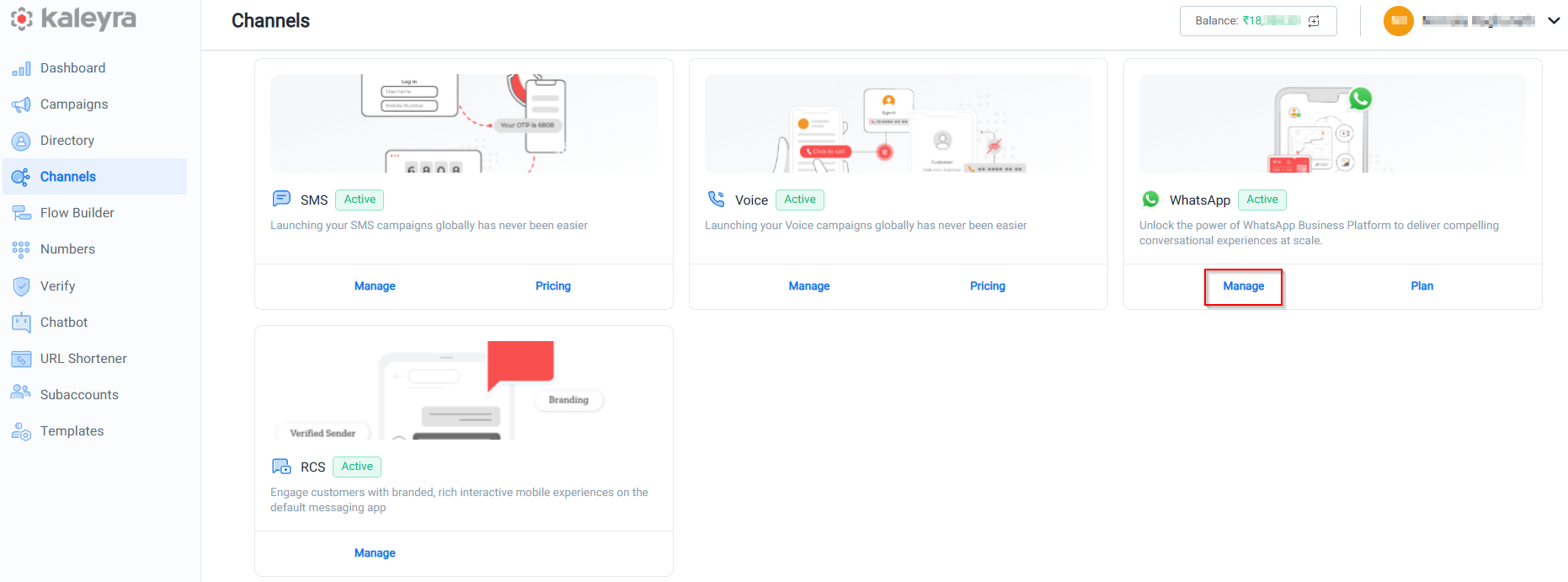
- On the WhatsApp widget, click Manage.
The Business Details page appears.
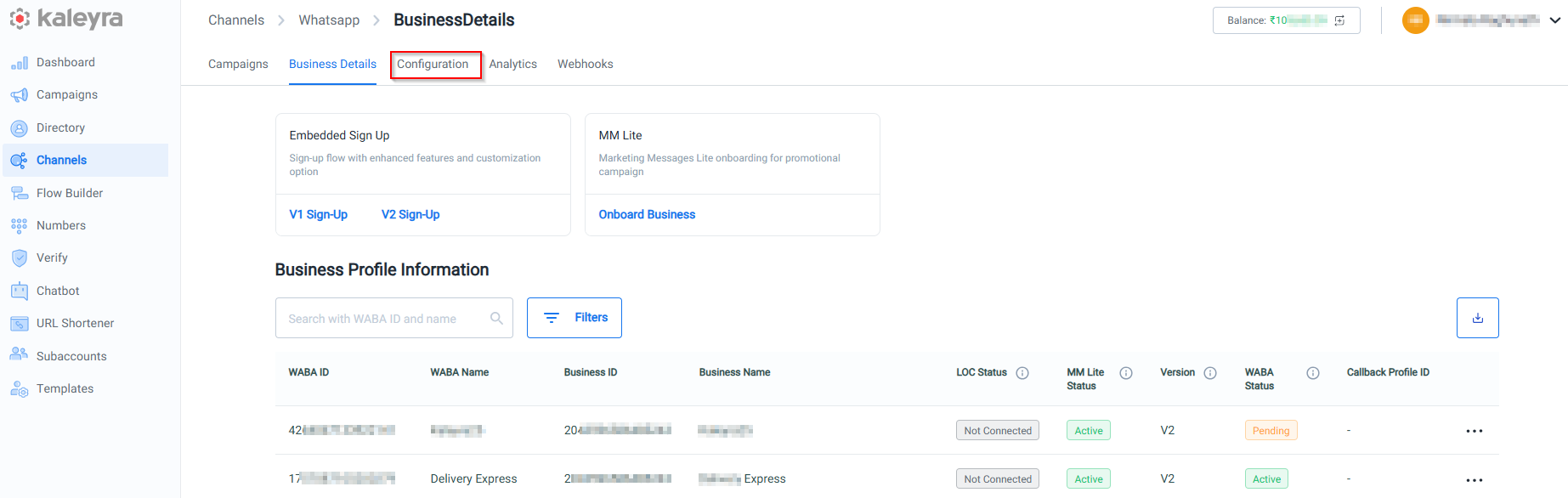
- Click Configuration. The Configuration details page appears.
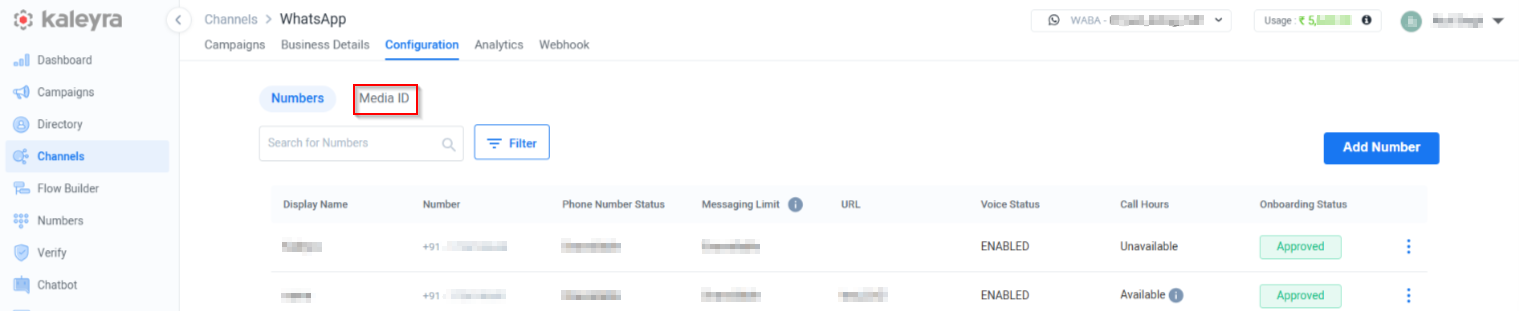
- Click Media ID. The Media details page appears.

- Click Upload Media. The Upload Media pop-up appears.
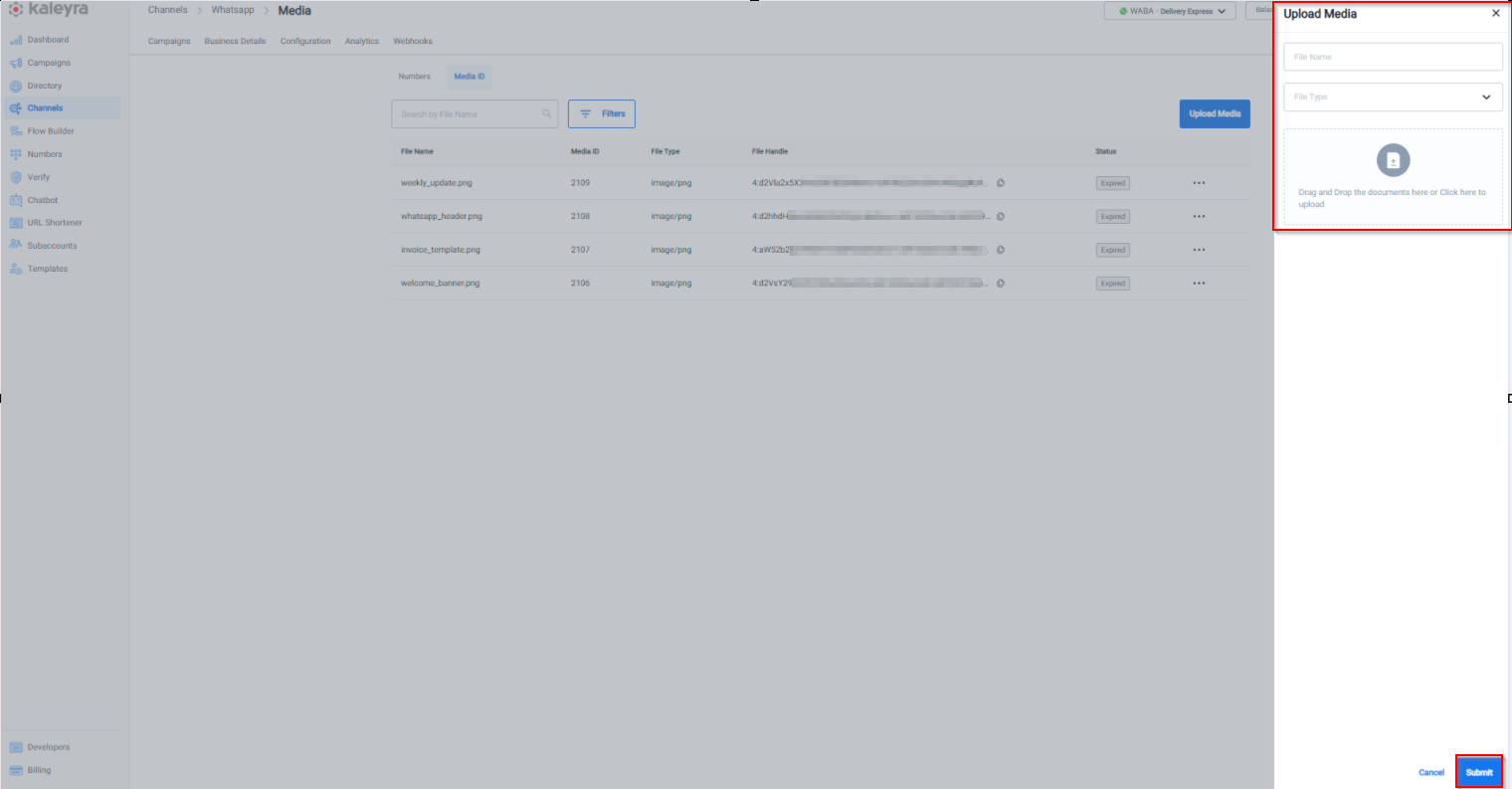
The Upload Media pop-up has the following fields:
-
File Name - Enter the name of the file. The filename must contain at least one character (it cannot be empty) and should not exceed 255 characters in length, including the file extension.
- The filename cannot contain any of these characters:
\(backslash)/(forward slash)<(less than)@(at symbol)%(percent symbol)
- The filename cannot contain any of these characters:
-
File Type - Select the file type from the drop-down list. The supported file types are Image, Document, and Video.
- Image - Use this option to upload image files such as JPEG, JPG, or PNG formats. Maximum size supported is 5MB.
- Document - Use this option to upload document files in the PDF format. Maximum size supported is 100 MB.
- Video - Use this option to upload video files in the MP4 form. Maximum size supported is 16 MB.
- You can drag and drop files or click to upload supported file types (Image, Document, or Video), according to the supported formats and size limits.
- Click Submit. Once the upload is successful, the system automatically generates a Media ID.
- Click three dots (...) next to the Status column and click Download.
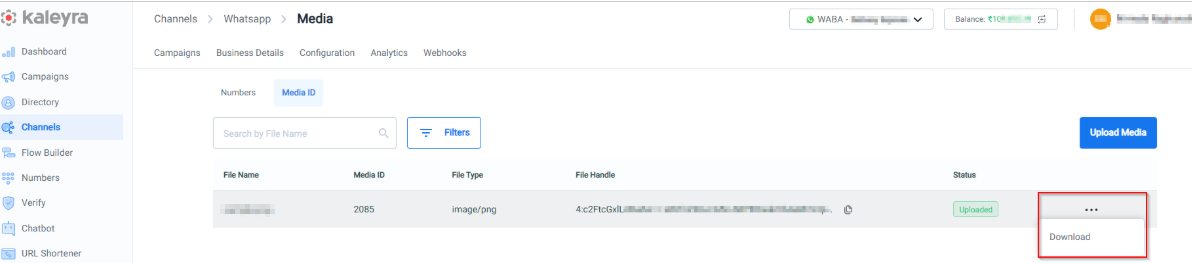
- The system retrieves the originally uploaded image, document, or video and stores it on your local system.
Search and Filters Upload Media
The Search and Filters feature in Upload Media allows you to search media by File Name and filters option helps you to filter the media according to File Type and Status.
The topic contains the following sections:
Search Upload Media
You can search uploaded media from the Media details page based on the file name provided during upload.
To search uploaded media, perform the following steps:
- Perform the steps from 1 through 4 of the Upload Media page.
- Enter the partial or complete media file name you want to search, then click the Search icon or press ENTER.
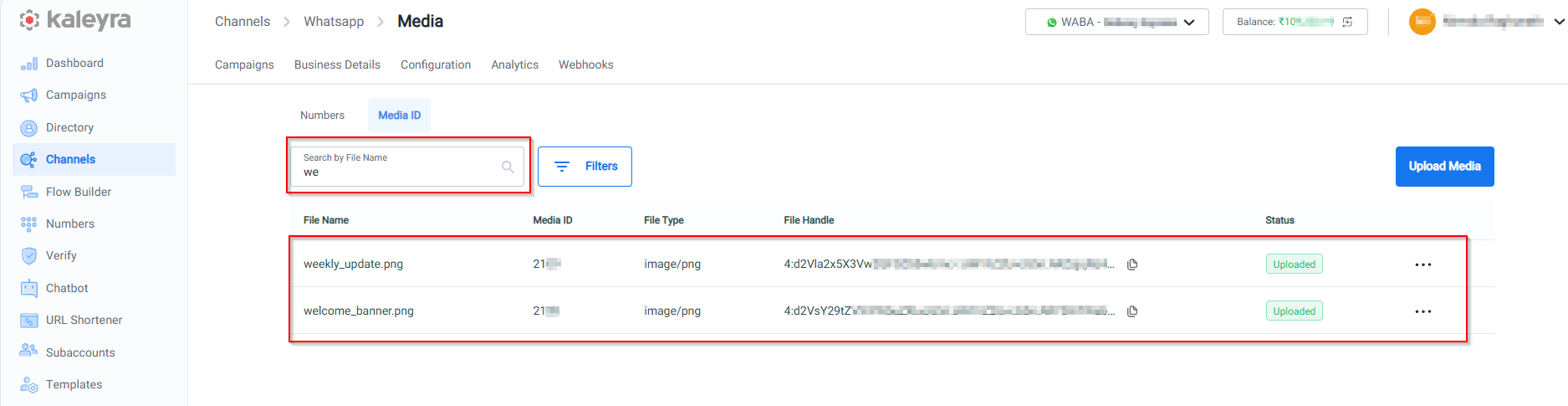
- The system displays the list of media files that match the entered file name.
Filters Upload Media
The Filters feature in Upload Media allows you to narrow down the list of uploaded media based on specific criteria. You can filter media files by file type (Image, Document, or Video) and status, making it easier to locate the required media.
To filter the uploaded media, perform the following steps:
- Perform the steps from 1 through 4 of the Upload Media page.
- Click Filters.
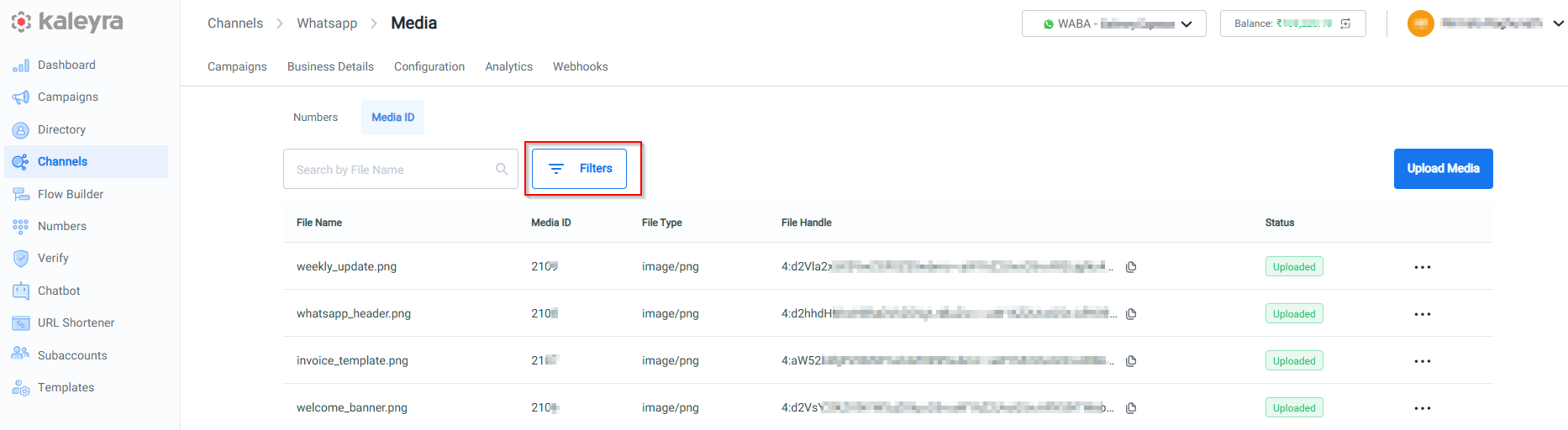
The Filterspop-up page appears.
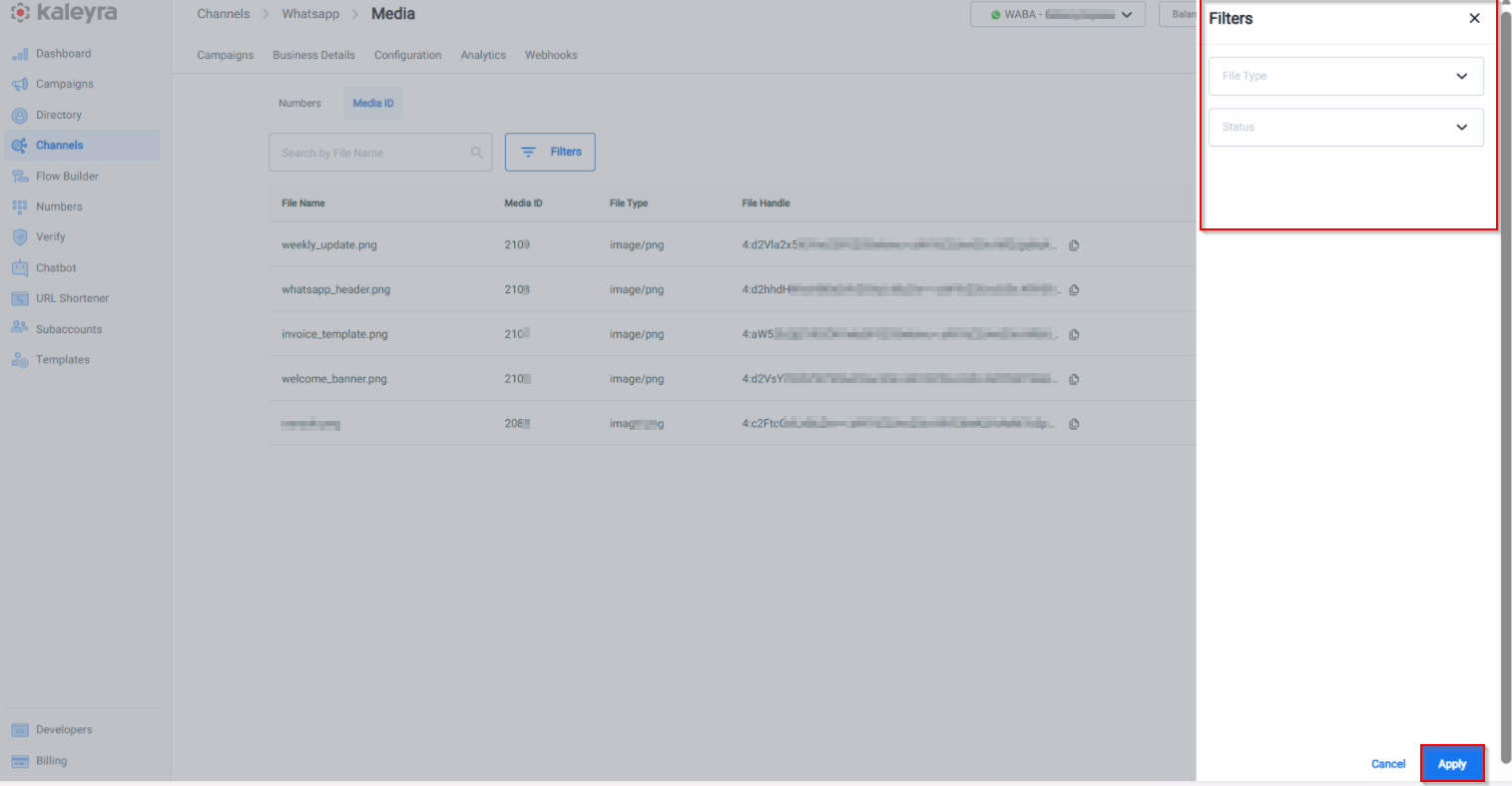
- Select a File Type from the drop-down list. The supported options are Application PDF, Image JPEG, Image JPG, Image PNG, and Video MP4.
- Select the Status from the drop-down list. The supported options are Uploaded, Pending, Failed, and Expired.
- Uploaded - The Image, Document, or Video has been successfully uploaded and stored in the system.
- Pending - The Image, Document, or Video upload is not yet completed or is awaiting processing or review.
- Failed - The Image, Document, or Video upload was unsuccessful due to an error (for example, a network issue or invalid file).
- Expired - The Image, Document, or Video is no longer valid or has passed its validity period and may require re-upload.
- Click Apply. Based on the selected filter, the filtered results appear.
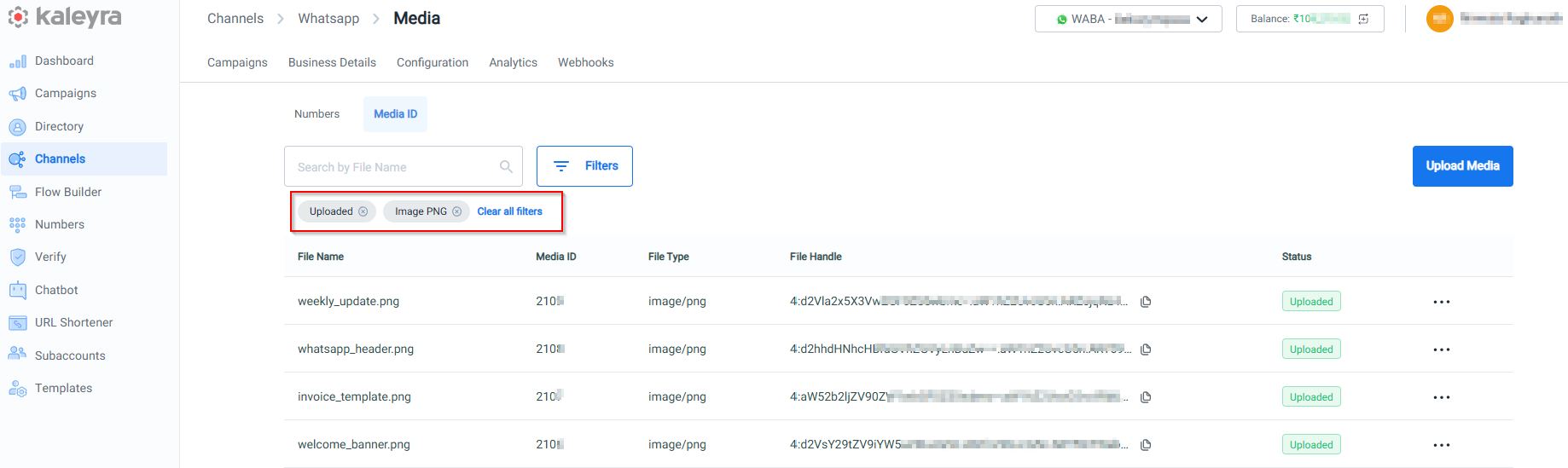
- You can click either the x (close) icon next to the selected filter or Clear all filters to clear the filter and return to the default page.
Updated 20 days ago