

Marketing Template - Sub-category: Carousel
You can send carousel WhatsApp messages to your end-users using the marketing template.
Note:
All the following paragraph applies for Templates created within a WABA ID associated with the Kaleyra WhatsApp API v2.
The following carousel types are supported by the Kaleyra platform:
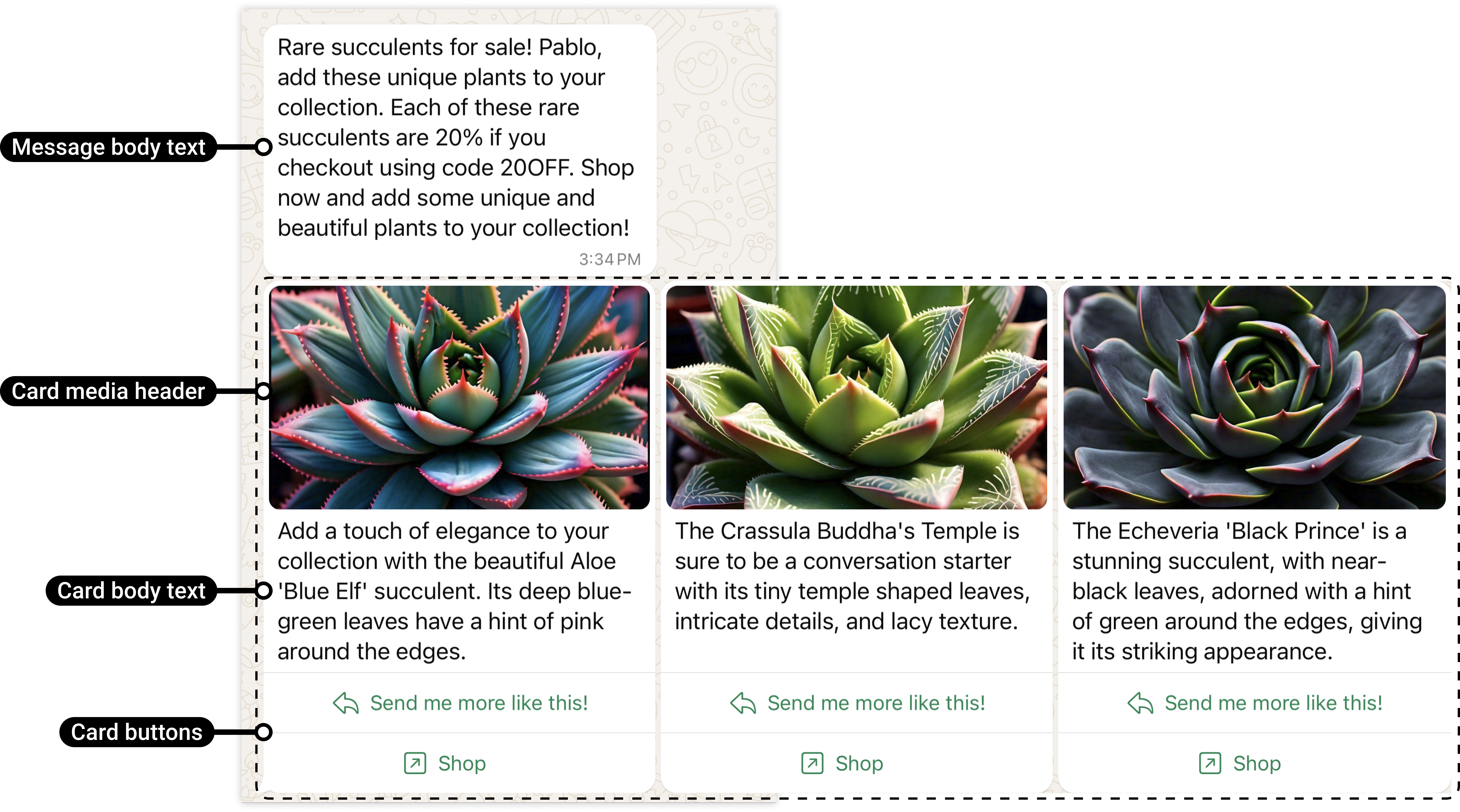
- Media Card Carousel - Allows you send a single text message accompanied by a set of minimum 2 and maximum 10 media cards in a horizontally scrollable view. Each card in the template has an image or video header asset and can optionally include a body text and up to two buttons. For more information on media card carousel by Meta, see Media Card Carousel.
Sample media card carousel:
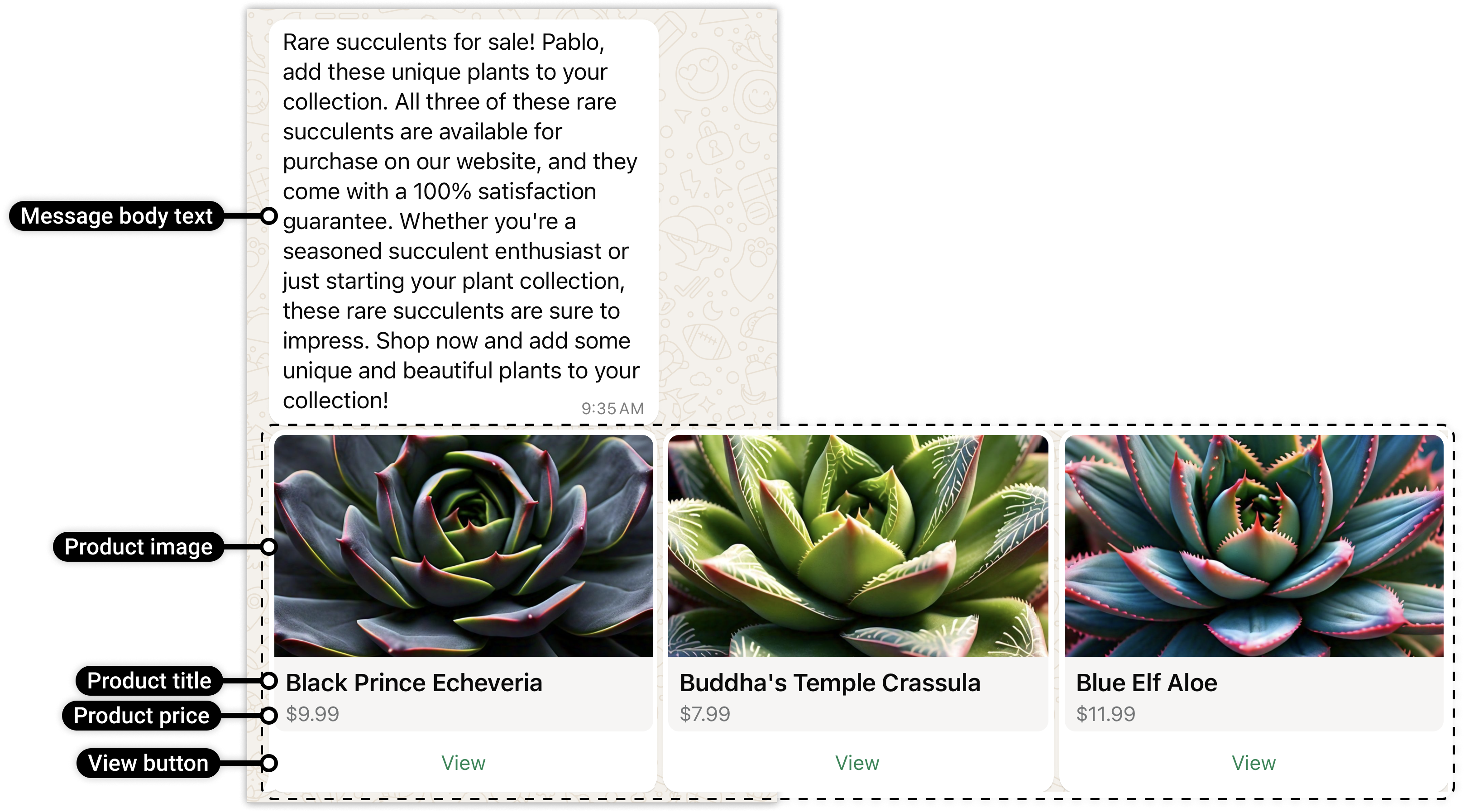
- Product Card carousel - Allows you to send a single text message accompanied by a set of up to 10 product cards in a horizontally scrollable view. Each card is composed of message body text, a product image, a product title, product price, and a single View button or URL button. For more information on the product card carousel by Meta, see Product Card Carousel.
Sample product card carousel:
To create the carousel message using the marketing template, perform the following steps:
-
Follow the steps 1 to step 3 of Create WhatsApp Marketing Template.
-
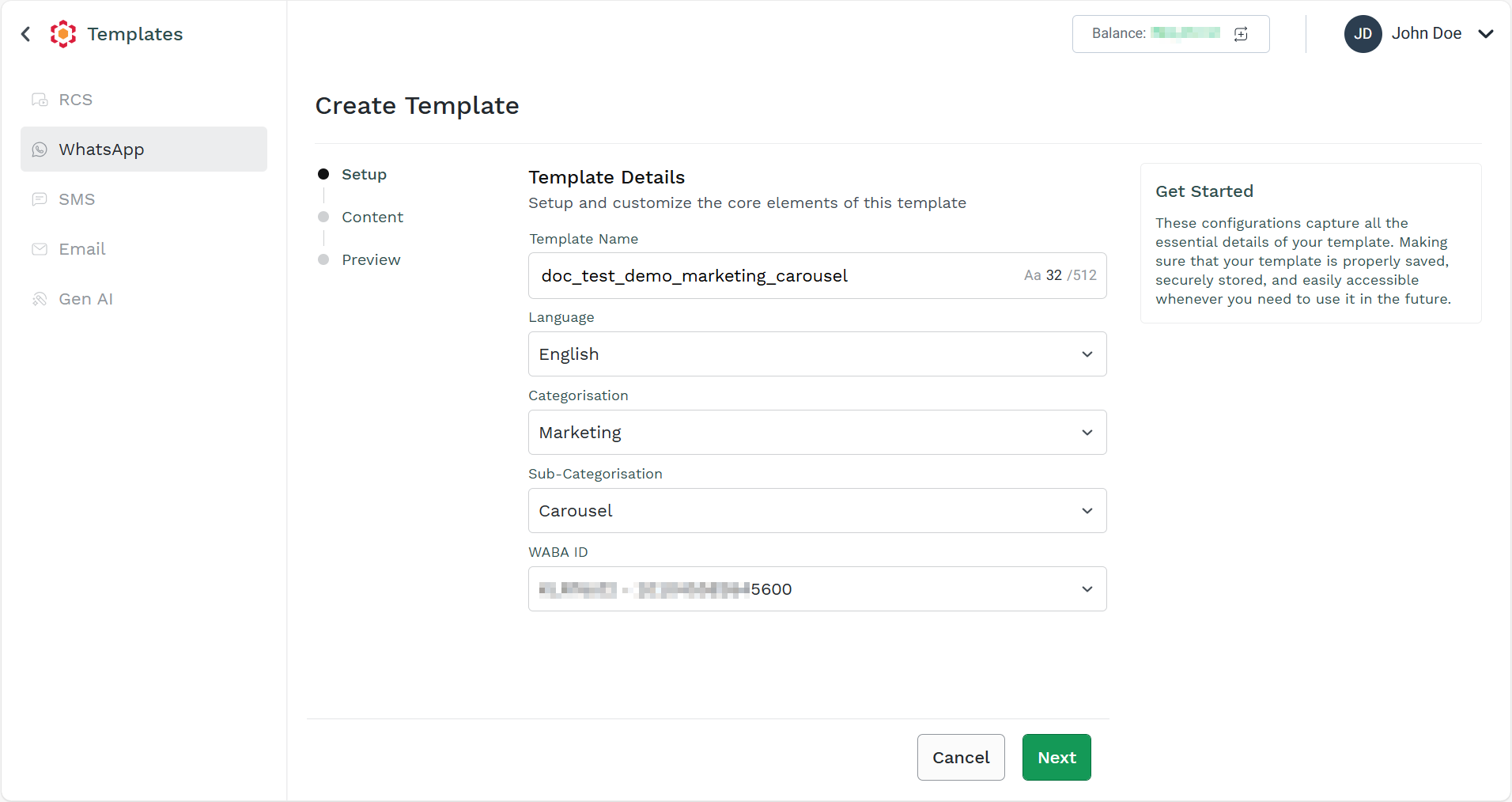
In the Setup step, perform the following:
- In the Template Name field, enter the template name. A maximum 512 characters length is supported.
- The default language for the template is English. If you wish to change the language, click the drop-down in the Language field, and then select the language of your preference.
- Click the drop-down in the Categorisation field and select the Marketing option.
- Click the drop-down in the Sub-Categorisation field and select Carousel option.
- Click the drop-down in the WABA ID field and select the WABA ID through which you want to send a message using the template.
-
Click Next.
The Content step appears.
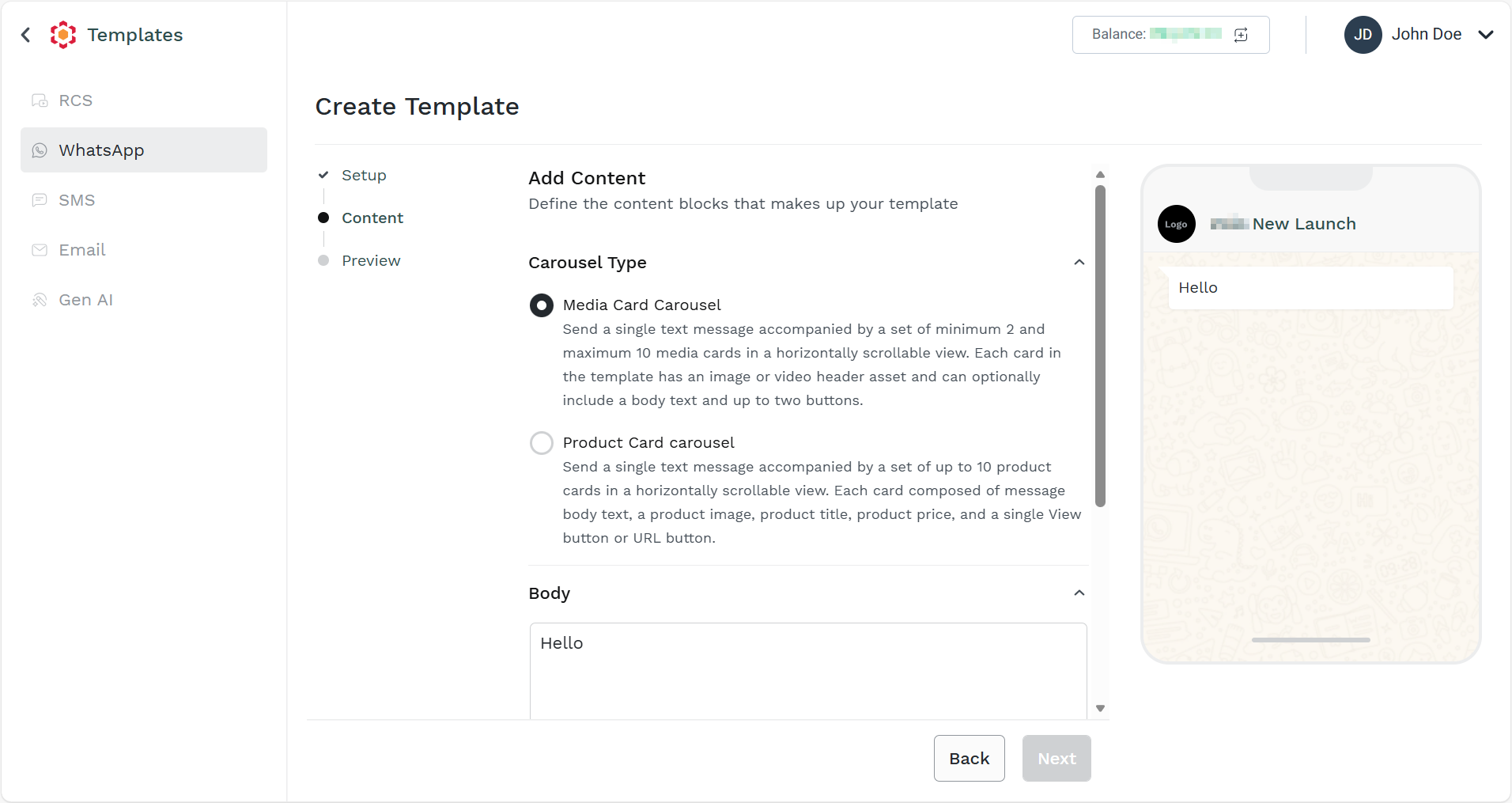
- Select one of the following options:
- Media Card Carousel - For more information, see Media Card Carousel.
- Product Card carousel - For more information, see Product Card carousel.
Media Card Carousel
You can create a media card carousel template and send the WhatsApp message to your end-users using media files such as images and videos. You have options to configure the visit website and calling feature to configured phone number.
To create the media card carousel, perform the following steps:
- Follow step 1 to step 4 of Marketing Template - Carousel. (Default) The Media Card Carousel option is selected.
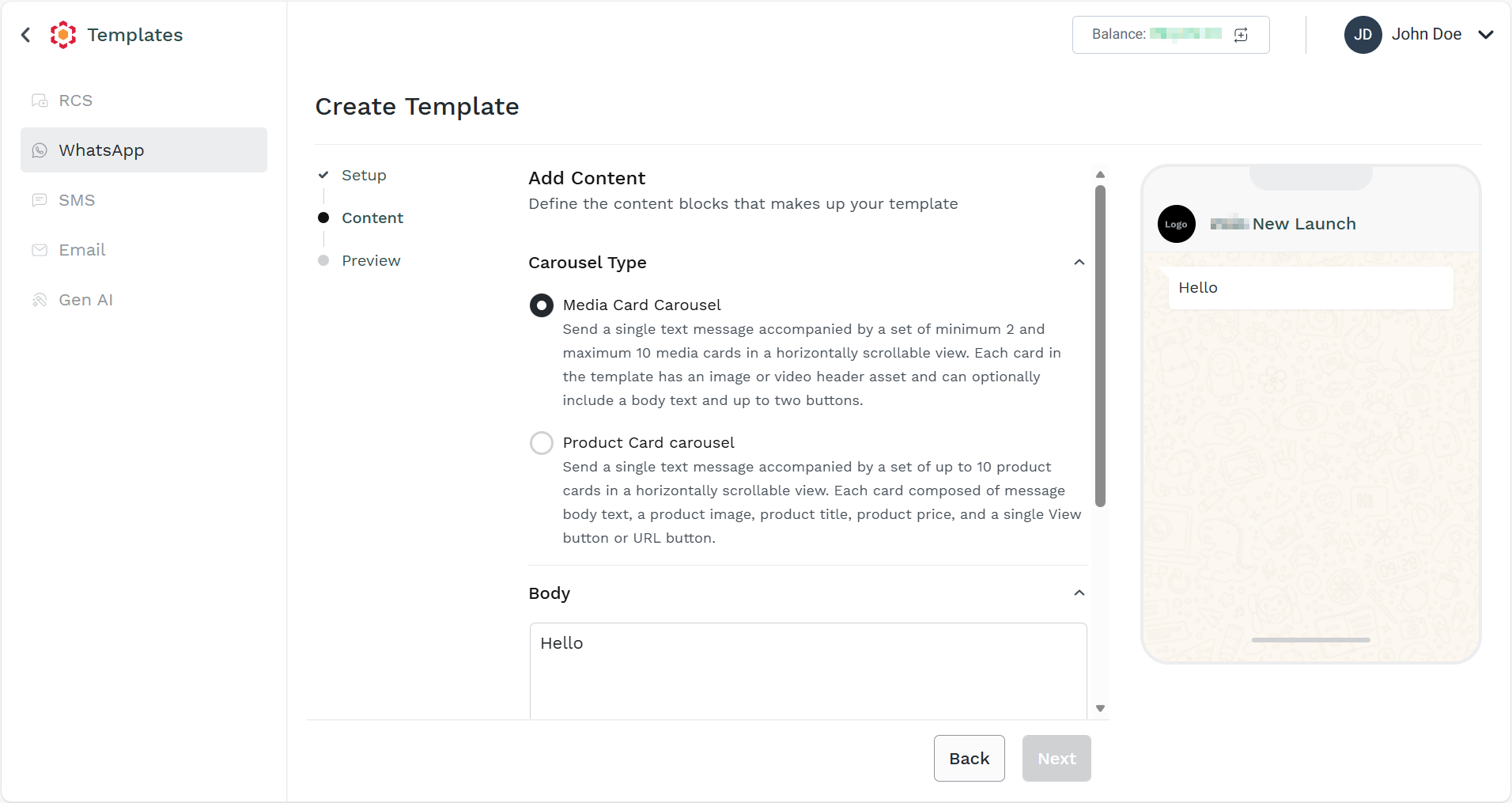
- The body component represents the core text of your message template and is a text-only template component. Templates are limited to one body component. In the Body field, enter the body text. A maximum length of 1024 characters is supported.
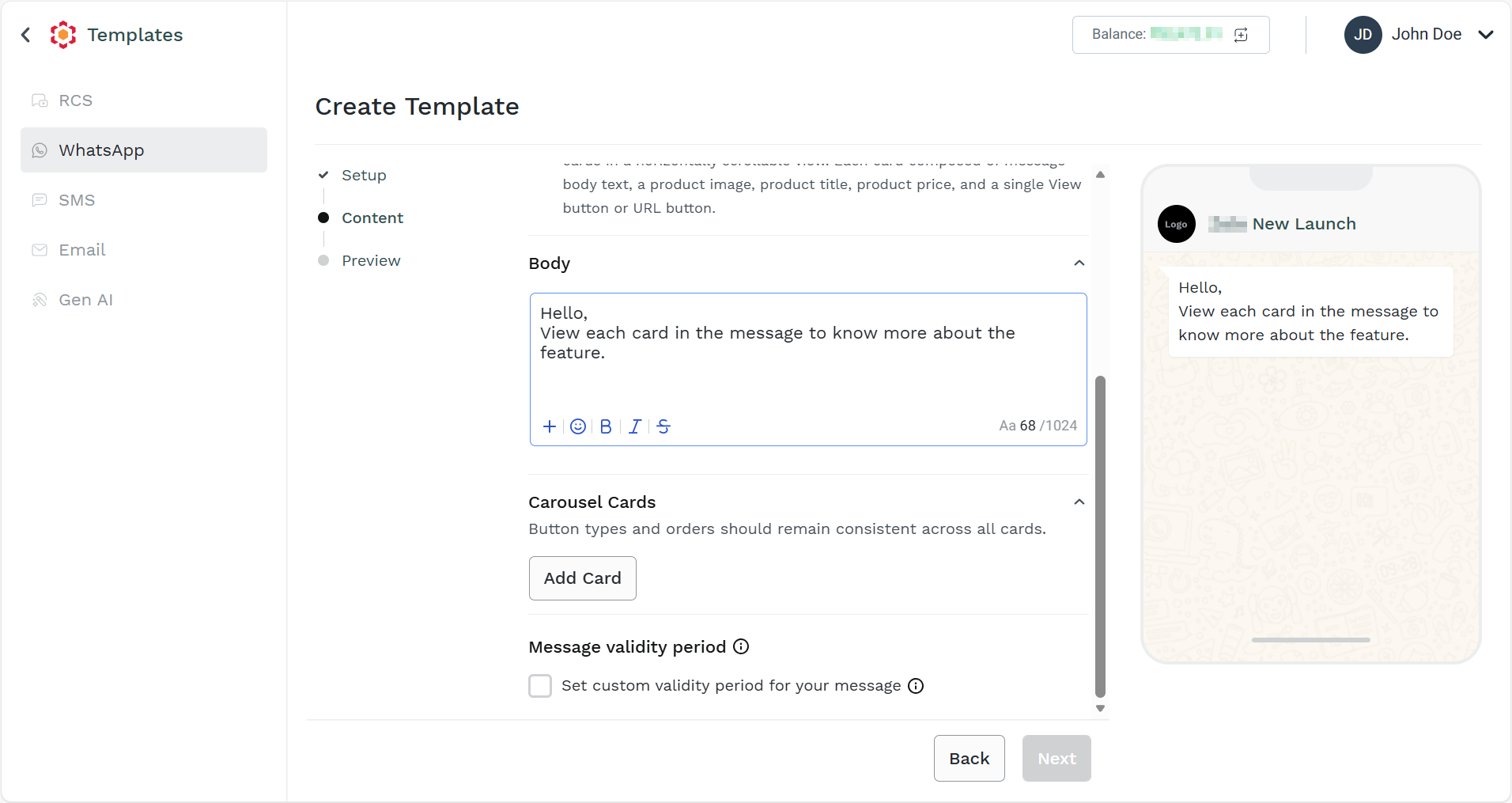
- Click the Add Card button.
The Configure Carousel Card pane appears on the right side of the page.
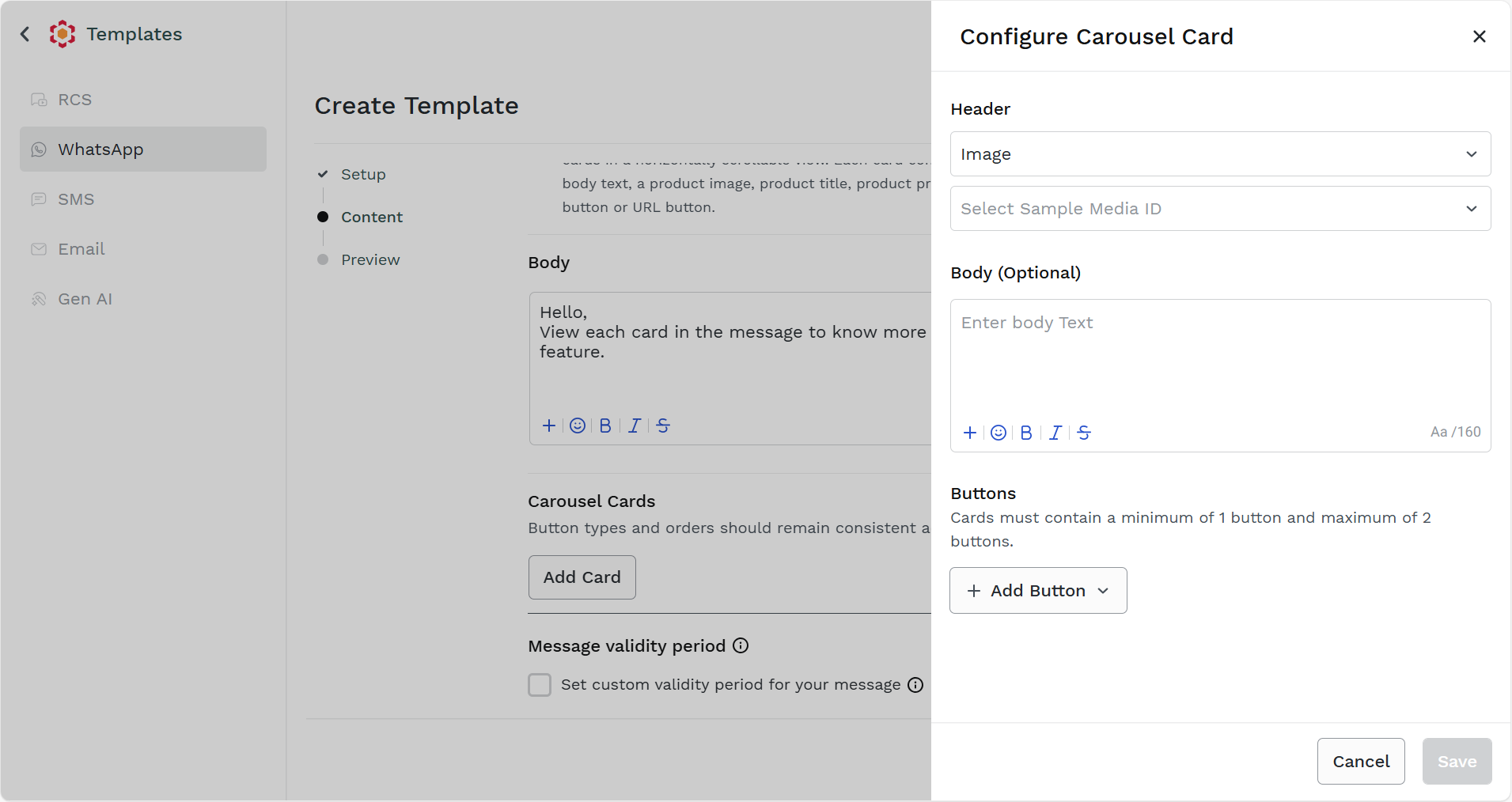
- In the Configure Carousel Card pane, perform the following steps:
-
Click the image drop-down to select the media type. The following are the available options:
- (Default) Image - Set the header as Image. To upload a resumable media file on the Kaleyra platform, see Upload Media. If you have already uploaded the media file, select the image.
Note:
The Media IDs used during template creation are sample values. You should use any active Media ID of the same media type for template creation, instead of uploading a new media file. - Video - Set the header as video. To upload a resumable media file on the Kaleyra platform, see Upload Media. If you have already uploaded the media file, select the video.
- (Default) Image - Set the header as Image. To upload a resumable media file on the Kaleyra platform, see Upload Media. If you have already uploaded the media file, select the image.
-
(Optional) The body component represents the core text of your message template and is a text-only template component. Templates are limited to one body component. In the Body field, enter the body text. The 120 characters text length is supported for the body in the carousel card.
-
Click the Add Button drop-down to select the button type. The following are the available options:
- Quick Reply - Quick reply buttons are custom text-only buttons that immediately message you with the specified text string when tapped by the app user. A common use case is a button that allows your customer to easily opt-out of any marketing messages.
- Call to Action - Call to action button has two options. You can either add a link to the Visit website, or you can enable the phone number using it the end-users can contact you by Call phone number. You have the option add two buttons for Visit website and Call phone number.
Notes:
- The phone number is set as the number configured while creating the WABA ID. For more information see, Add a Number and Add a new WABA ID.
- You can add any URL to the Visit website link.
- You can delete the button using the delete icon from the right side of the Configure Carousel Card pane.
- You have the option to swipe the buttons according to your choice using the buttons available before the delete icon.
-
- Click Save. The Configure Carousel Card is configured.
- The default validity period for your message if you do not set is 30 days for Marketing Templates and Utility templates and 10 minutes for Authentication Templates. For authentication templates created before October 23, 2024, default validity is 30 days. To set the validity period of the WhatsApp marketing message before it expires according to the configured timing in case the end-user's WhatsApp account is unreachable, select the Set custom validity period for your message check box. If the message is not delivered within the configured timeframe, you will not be charged, no webhook would be received, and your end-user will not view or get the message.
Notes:
- For marketing templates, a custom TTL will only be applicable if you are MM lite enabled.
- For Marketing Template, custom range is 12 hours to 30 days.
- For Utility Template custom range is 30 seconds to 12 hours.
- For Authentication Templates: the custom range is 30 seconds to 15 minutes.
- Click the Next button.
The Preview step appears.
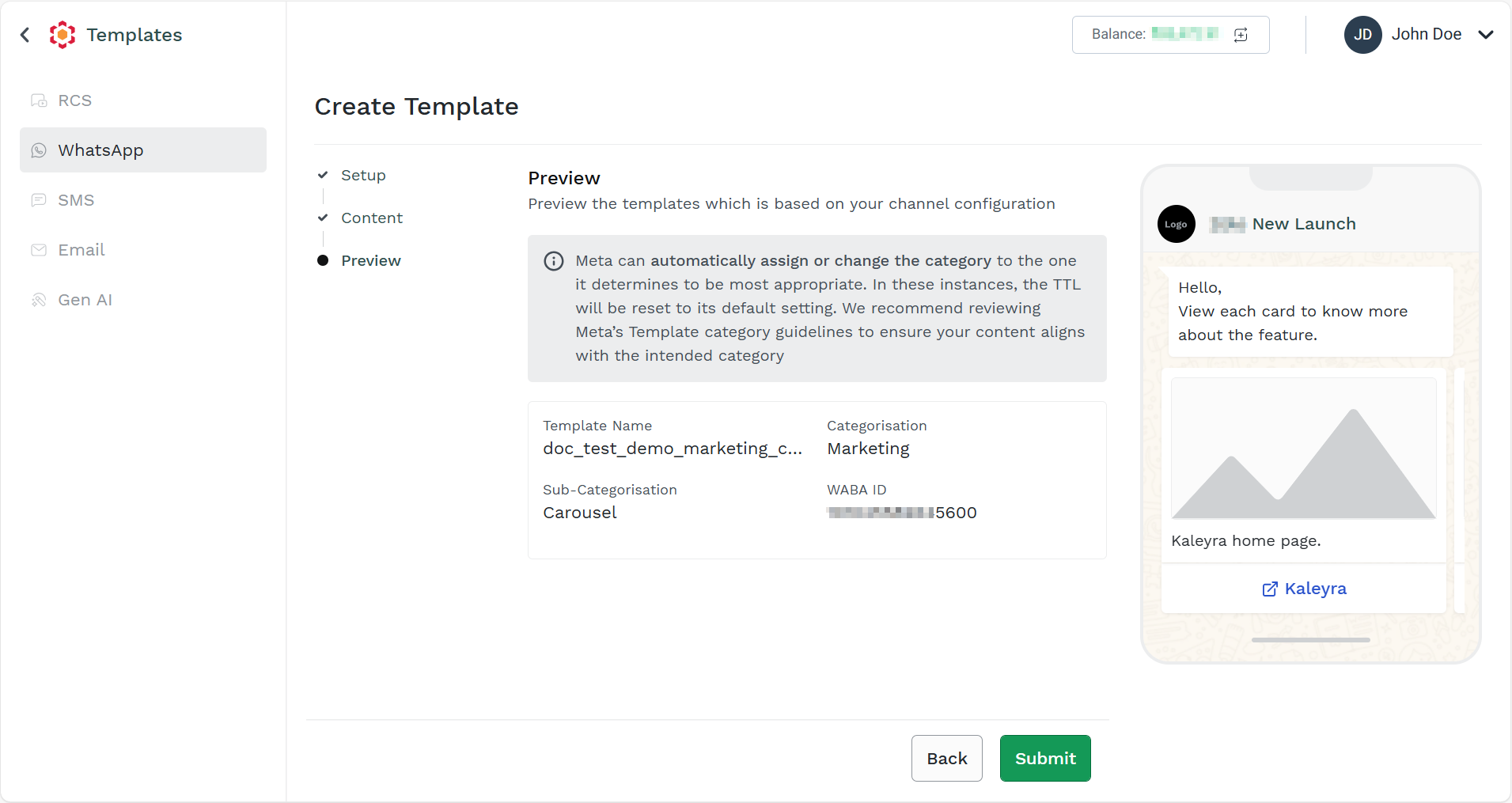
- Click the Submit button. The media card carousel template gets created successfully.
Note:
The new template will be in pending status. It gets either approved or rejected after the Meta's review.
Product Card carousel
You can create a product card carousel template to be used to send the WhatsApp message to your end-users with product carousel.
Disclaimer:
To use product card carousel templates, you must have an e-commerce product catalog with inventory, connected to your WhatsApp Business Account. For more information, see Meta's Sell Products & Services.
To create the product card carousel, perform the following steps:
- Follow step 1 to step 3 of Marketing Template - Carousel.
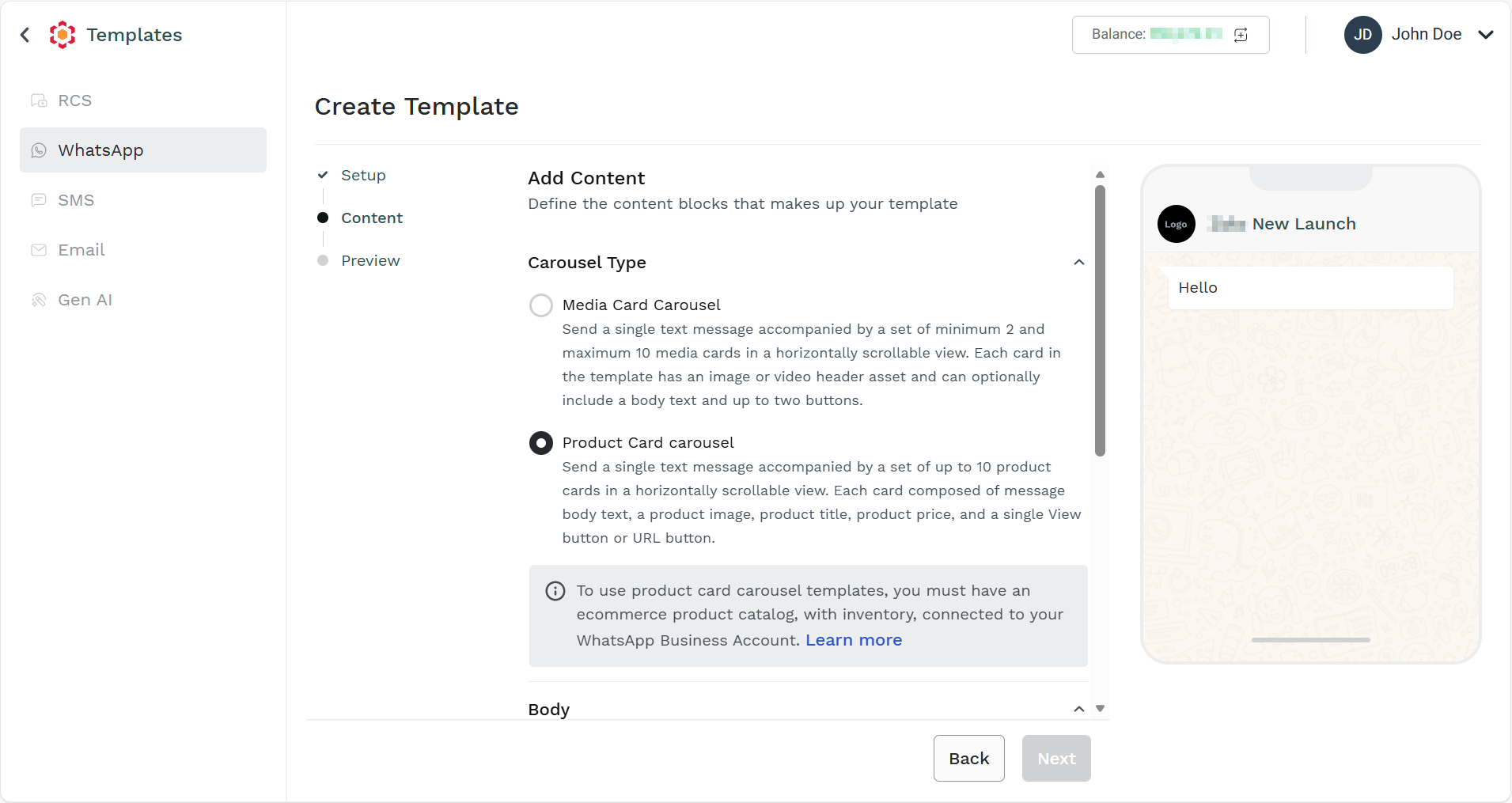
- Select the Product Card carousel option.
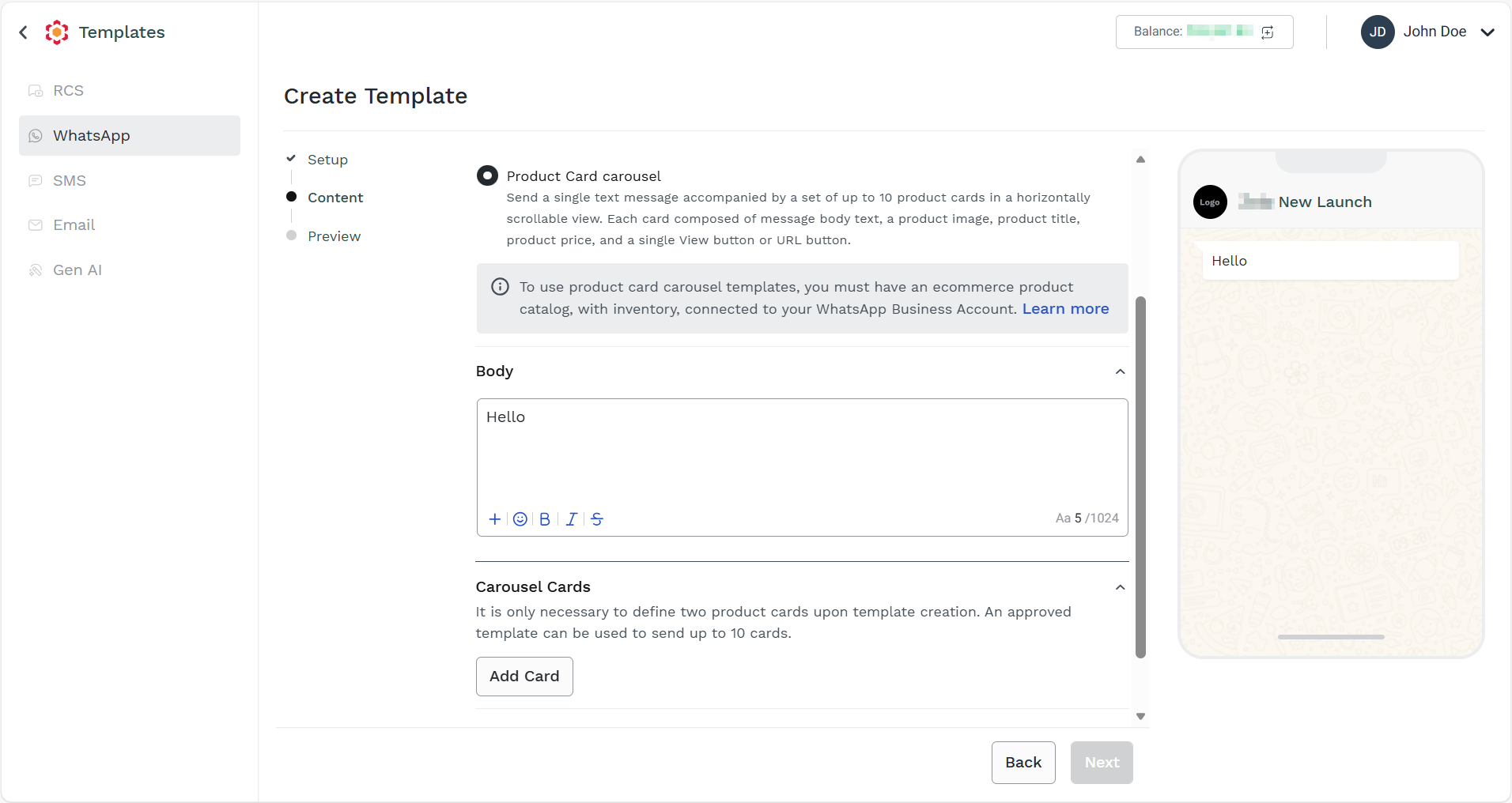
- The body component represents the core text of your message template and is a text-only template component. Templates are limited to one body component. In the Body field, enter the body text. A maximum length of 1024 characters is supported.
- Click the Add Card button.
The Configure Carousel Card pane appears in the right side of the page.
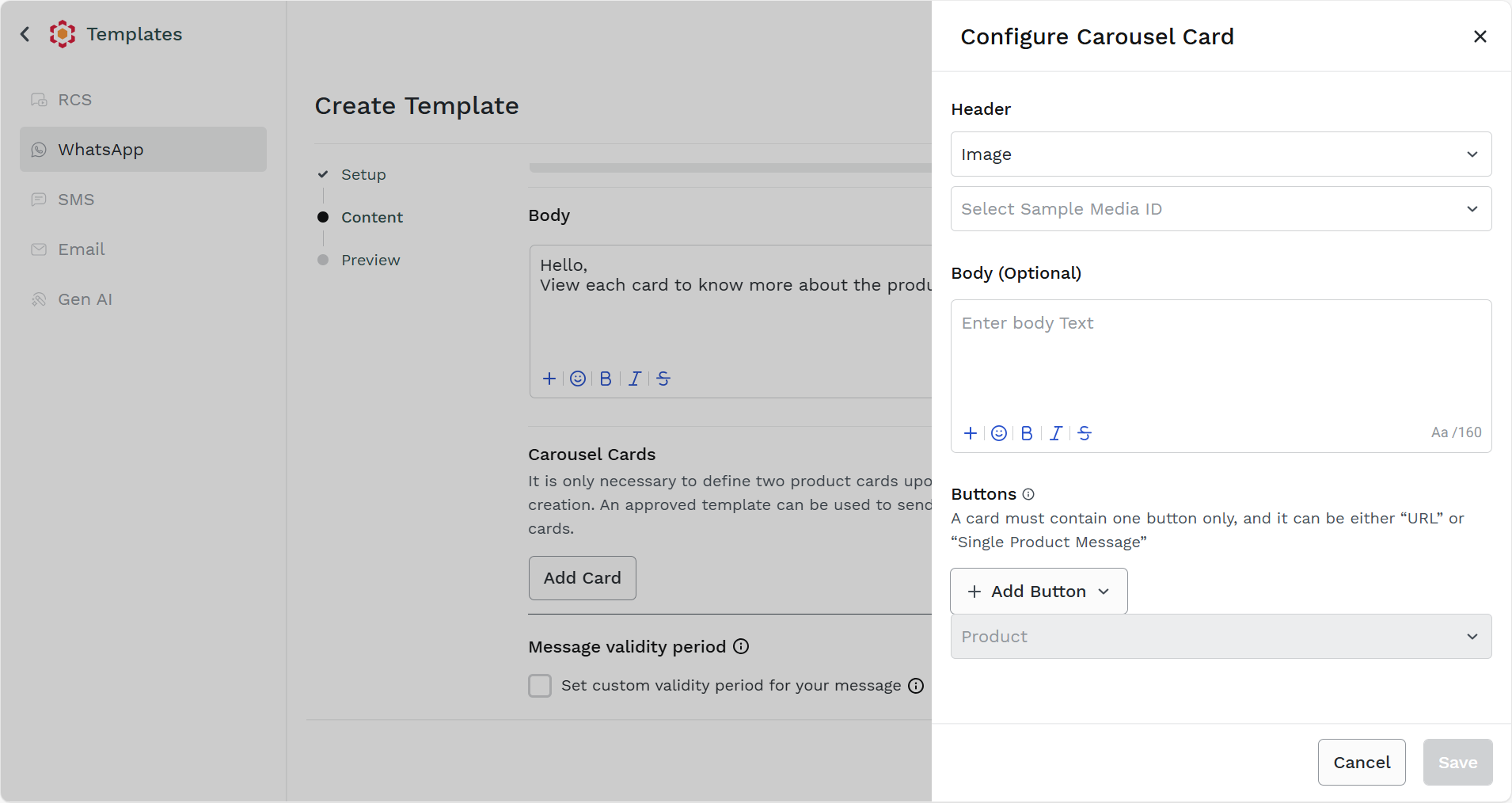
- In the Configure Carousel Card pane, perform the following steps:
-
Click the image drop-down to select the media type. The following are the available options:
- Image - To set the header as an image. To upload a resumable media file on the Kaleyra platform, see Upload Media. If you have already uploaded the media file, select the image.
Note:
The Media IDs used during template creation are sample values. You should use any active Media ID of the same media type for template creation, instead of uploading a new media file.
- Video - To set the header as a video. To upload a resumable media file on the Kaleyra platform, see Upload Media. If you have already uploaded the media file, select the video.
- Image - To set the header as an image. To upload a resumable media file on the Kaleyra platform, see Upload Media. If you have already uploaded the media file, select the image.
-
(Optional) The body component represents the core text of your message template and is a text-only template component. Templates are limited to one body component. In the Body field, enter the body text. The 160 characters length is supported for carousel body.
-
Click the Add Button drop-down to select the button type. The following are the available options:
- Quick Reply - Quick reply buttons are custom text-only buttons that immediately message you with the specified text string when tapped by the app user. A common use case is a button that allows your customer to easily opt out of any marketing messages.
- Call to Action - Call to action button has option to add link to Visit website.
Notes:
- You can delete the button using the delete icon from the right side of the Configure Carousel Card pane.
- You have the option to swipe the buttons according to your choice using the buttons available before the delete icon.
-
- Click Save. The Product Carousel Card is configured.
- The default validity period for your message if you do not set is 30 days for Marketing Templates and Utility templates and 10 minutes for Authentication Templates. For authentication templates created before October 23, 2024, default validity is 30 days. To set the validity period of the WhatsApp marketing message before it expires according to the configured timing in case the end-user's WhatsApp account is unreachable, select the Set custom validity period for your message check box. If the message is not delivered within the configured timeframe, you will not be charged, no webhook would be received, and your end-user will not view or get the message.
Notes:
- For marketing templates, a custom TTL will only be applicable if you are MM lite enabled.
- For Marketing Template, custom range is 12 hours to 30 days.
- For Utility Template custom range is 30 seconds to 12 hours.
- For Authentication Templates: the custom range is 30 seconds to 15 minutes.
- Click the Next button.
The Preview step appears.
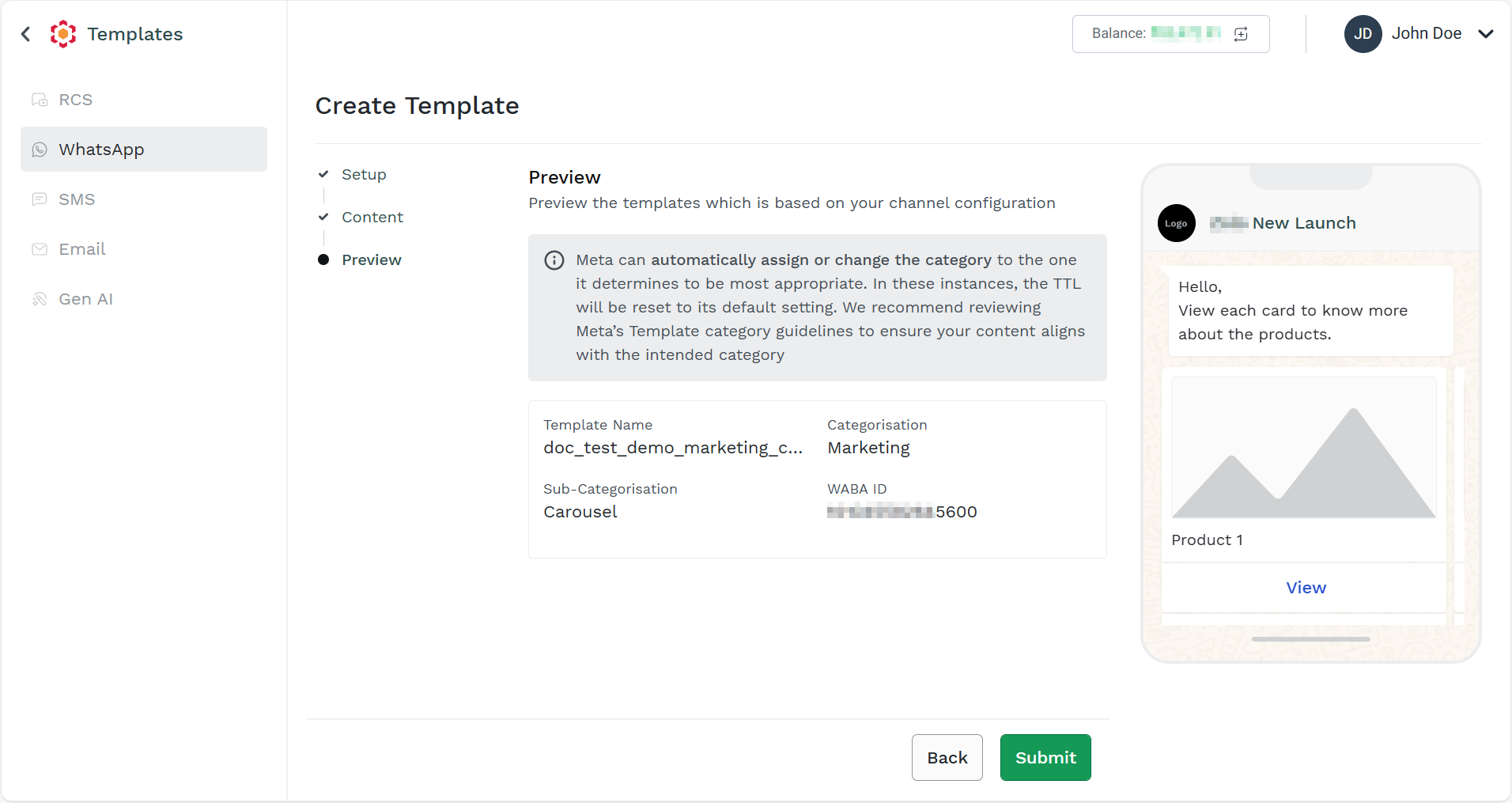
- Click the Submit button. The product card carousel template gets created successfully.
Note:
The new template will be in pending status. It gets either approved or rejected after the Meta's review.
Updated about 2 months ago