

Add a Number
The Add a Number feature allows you to register a new WhatsApp Business number under a waba on the Kaleyra platform.
Prerequisite
- To set up a WhatsApp account on Kaleyra platform, see Manual Signup
and Embedded Signup.
To add a new number to Facebook, perform the following steps:
- Sign in to your kaleyra account.
The Channels page appears.
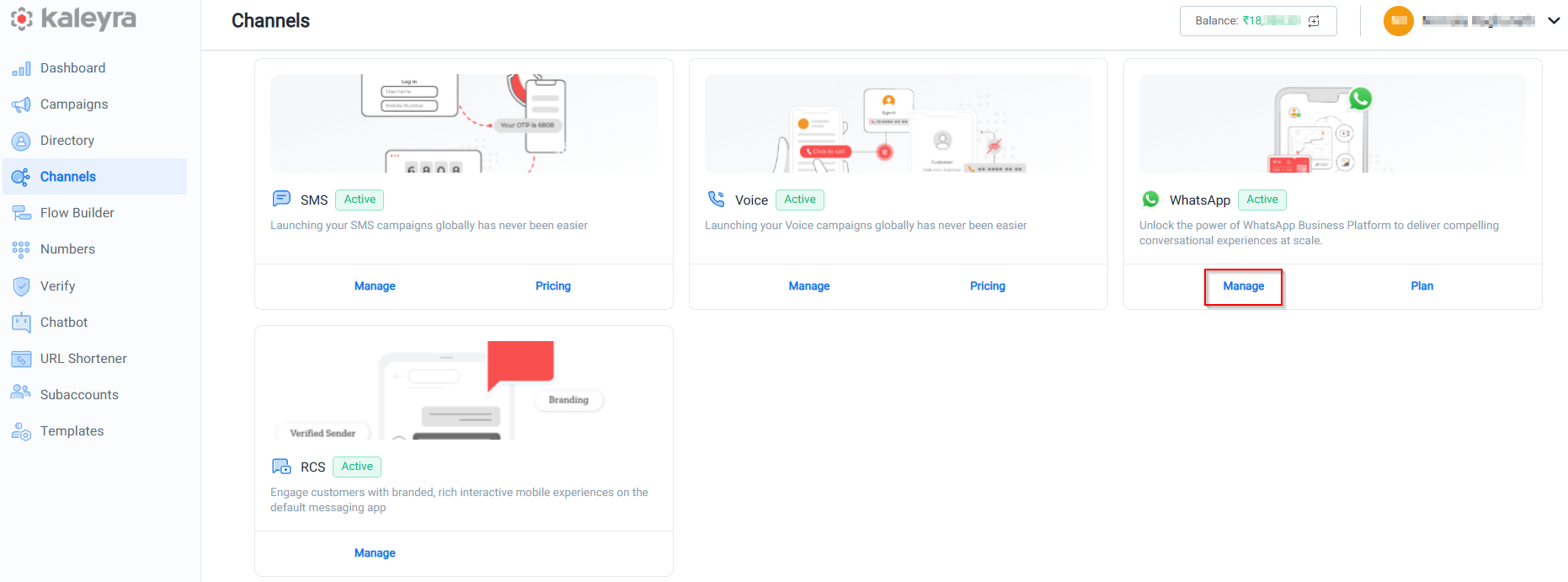
- On the WhatsApp widget, click Manage.
The Business Details page appears.
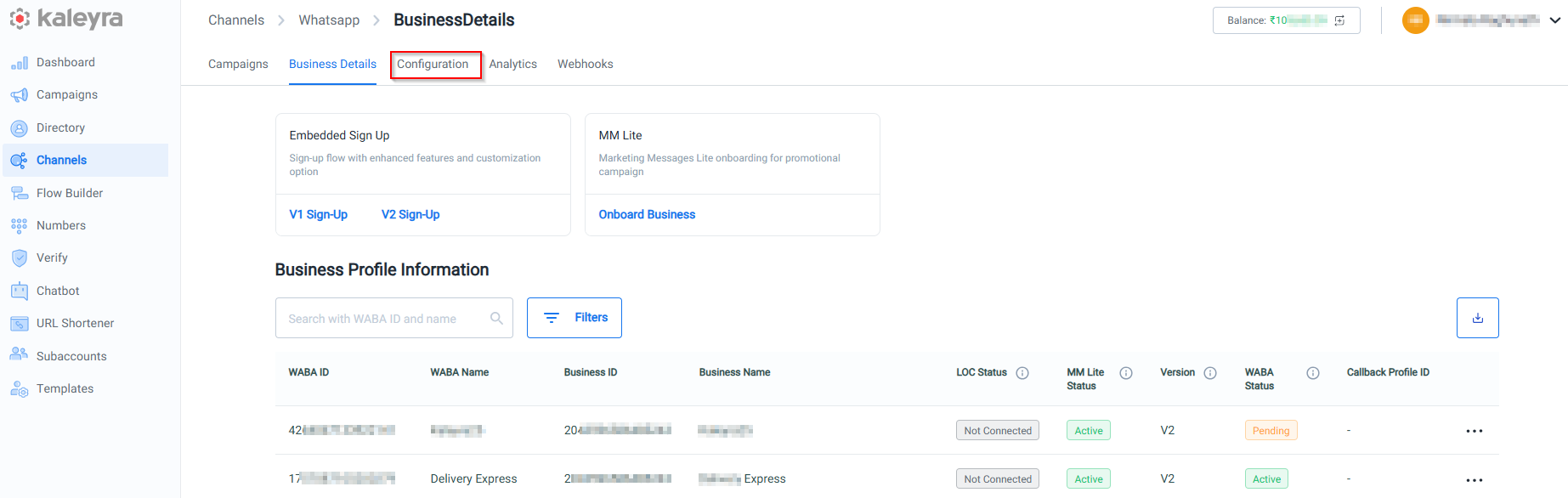
- Click Configuration. The Configuration details page appears. Ensure you select the correct WABA from the WABA drop down filter at the top.
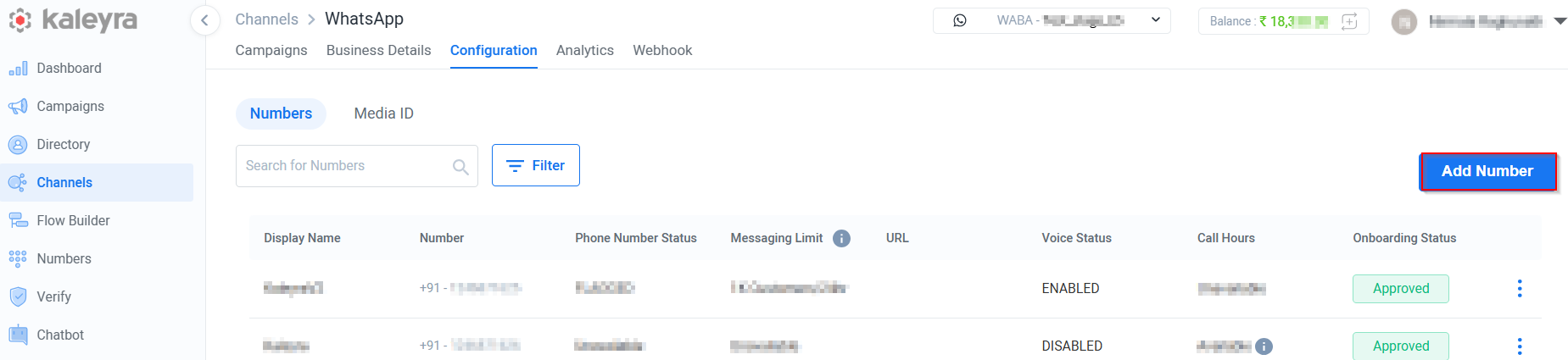
- Navigate to Numbers tab. The Numbers page has the following fields:
- Display Name - The name used to identify the WhatsApp Business number.
- Number - The WhatsApp Business phone number.
- Phone Number Status- The name that is displayed to the end user for the particular WhatsApp Business Number.
- Messaging Limit - The maximum number of business-initiated conversations allowed in a 24-hour period. For more information see Messaging Limits page.
- URL - The webhook URL where all incoming WhatsApp messages sent to that Business Number are forwarded by Kaleyra.
- Voice Status - Indicates whether WA voice calling is enabled for the number or not.
- Call Hours - The preferred time window during which the Business is available to receive Voice call. The Call Hours are set by the business.
- Onboarding Status - Indicates the onboarding progress of the phone number with Meta.
- Click Add Number. The Add Number page appears.
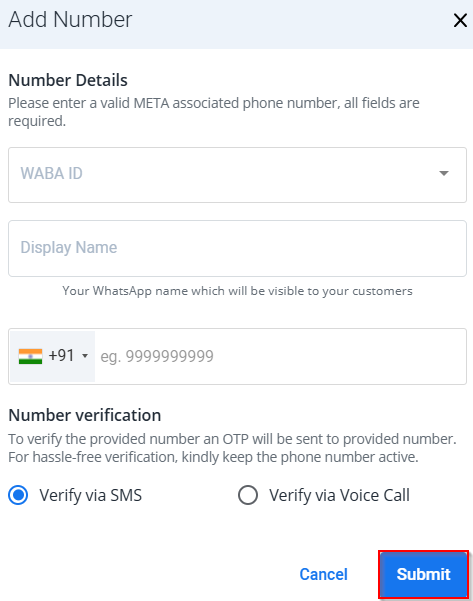
The Add Number page has the following sections:
Number Details
The Number Details section allows you to enter a valid META associated phone number. This section has the following fields:
- WABA ID - Enter the WhatsApp Business Account ID to which you want to associate the new Business Number. For more information, see Add a New WABA ID.
- Display Name - Enter the name that will be displayed to end users on WhatsApp when receiving messages from this Business Number.
Number verification
The Number verification section allows you to choose how to verify the new phone number by selecting one of the following options:
- Verfiy via SMS - An OTP is sent via SMS.
- Verify via Voice Call - An OTP is delivered through an automated voice call.
Note:
To verify the provided number an OTP will be sent to provided number. For hassle-free verification, kindly keep the phone number active.
- Click Submit to initiate the approval process for your WhatsApp Business Number.
The Kaleyra support team will verify the details and get the WhatsApp Business number approved by Facebook. You will receive an email notifying you about the status of your number. In case your number is not approved, the same email will contain the reason for rejection. You can see the list of numbers and their status on the Configurations > Numbers tab.
Editing the Details of an Existing Number
You can edit most of the details of an existing WhatsApp Business number except the phone number itself.
To edit the details of an already added number, perform the following steps:
- Perform steps 1 through 3 from the Add a New Number section.
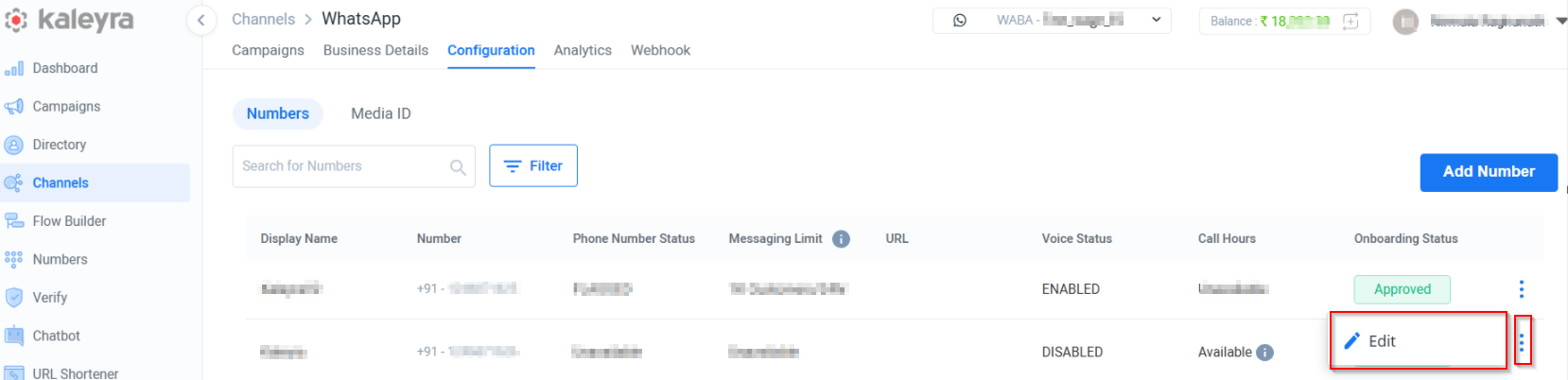
- On the Numbers page, click the three dots
 corresponding to the number you want to edit and click Edit.
Note:
Only the details of an approved number can be edited.
The Update Details page appears.
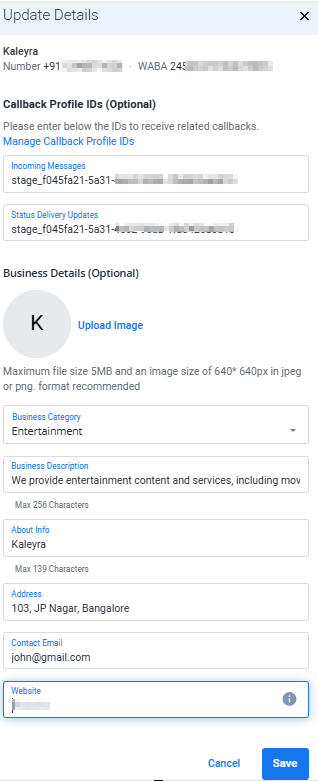
- The Update details page has the following sections:
Callback Profile IDs
You can enter the IDs to receive related callbacks. The Callback Profile IDs has the following fields:
- Manage Callback Profile IDs - Click Manage callback Profile IDs. The Callbacks Profile page appears. For more information see, Add the Callback Profile ID to the WhatsApp Number.
- Incoming Messages - Receive callbacks for all inbound messages received on the WhatsApp Business number. For more information see, Create a Callback Profile for WhatsApp Incoming Messages.
- Status Delivery Updates - Receive callbacks for message delivery status events, including sent, delivered, read, and failed.
Business Details (Optional)
The Business Details section allows you to update information about your business and has the following fields:
- Upload Image - Click Upload Image and browse to the location on your computer to upload the image of your company logo.
Note:
The maximum file size is 5MB and an image size of 640* 640px in JPEG or PNG format is recommended.
- Business Category - Select your Business Category from the drop-down list.
- Business Description - Enter a brief description of your business. The maximum size supported is 256 characters.
- About Info - Enter additional information about your business. The maximum size supported is 139 characters.
- Address – Enter the address associated with the mobile number. The maximum size supported is 256 characters.
- Contact Email – Enter the email associated with the mobile number.
- Website – Enter your business website URL.
Note:
The URL for the website must be an http or https URL.
- Click Save to update the details.
Updated about 2 months ago