

IP Restriction
Allow account logins only from IP addresses approved by your organization for both the account owner and any team members. Update the approved IP address list whenever an authorized user's IP address changes.
To whitelist the IP address, perform the following steps:
-
Sign in to your Kaleyra platform.
The Channels page appears.
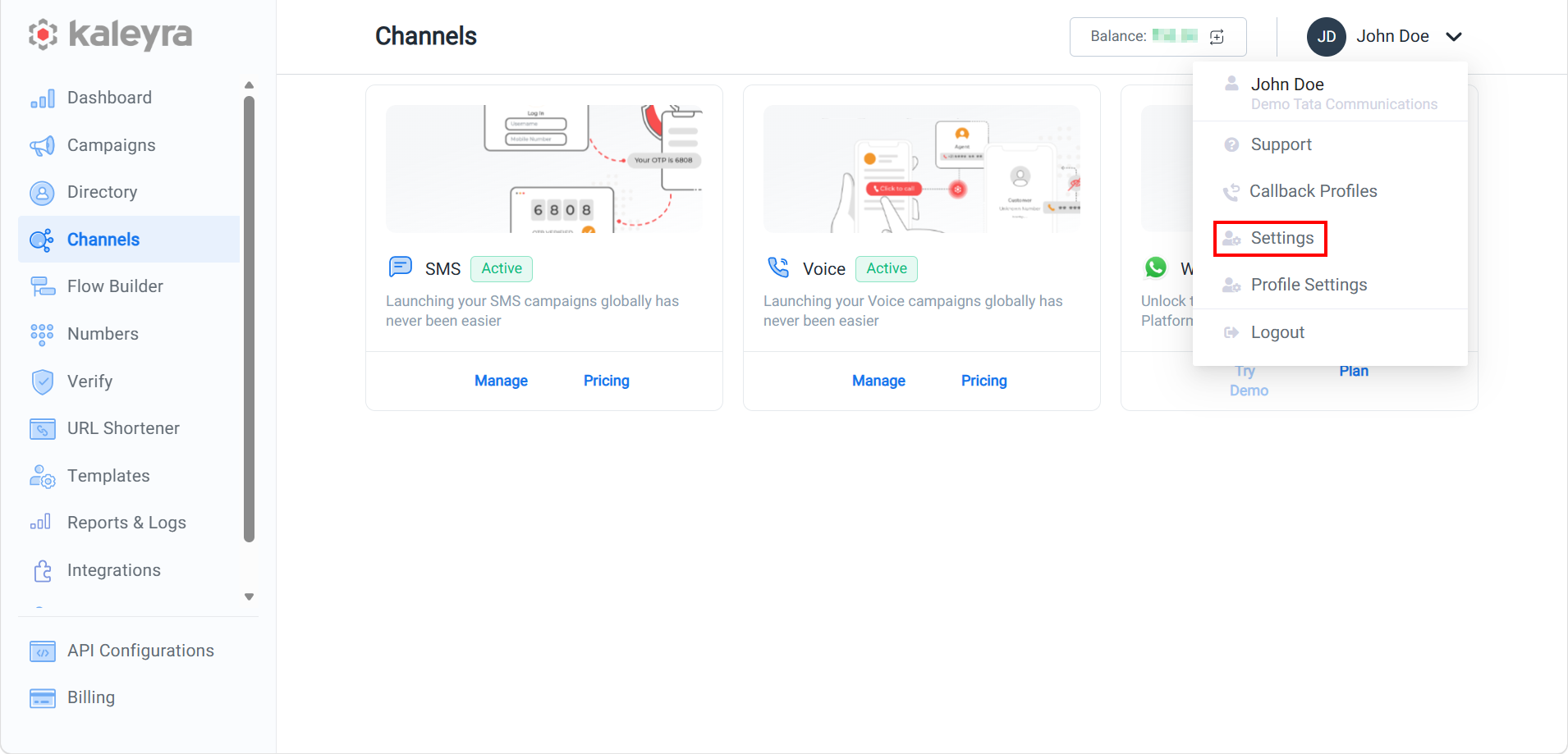
- On the profile settings drop-down list, select the Settings option.
The General Settings page appears.
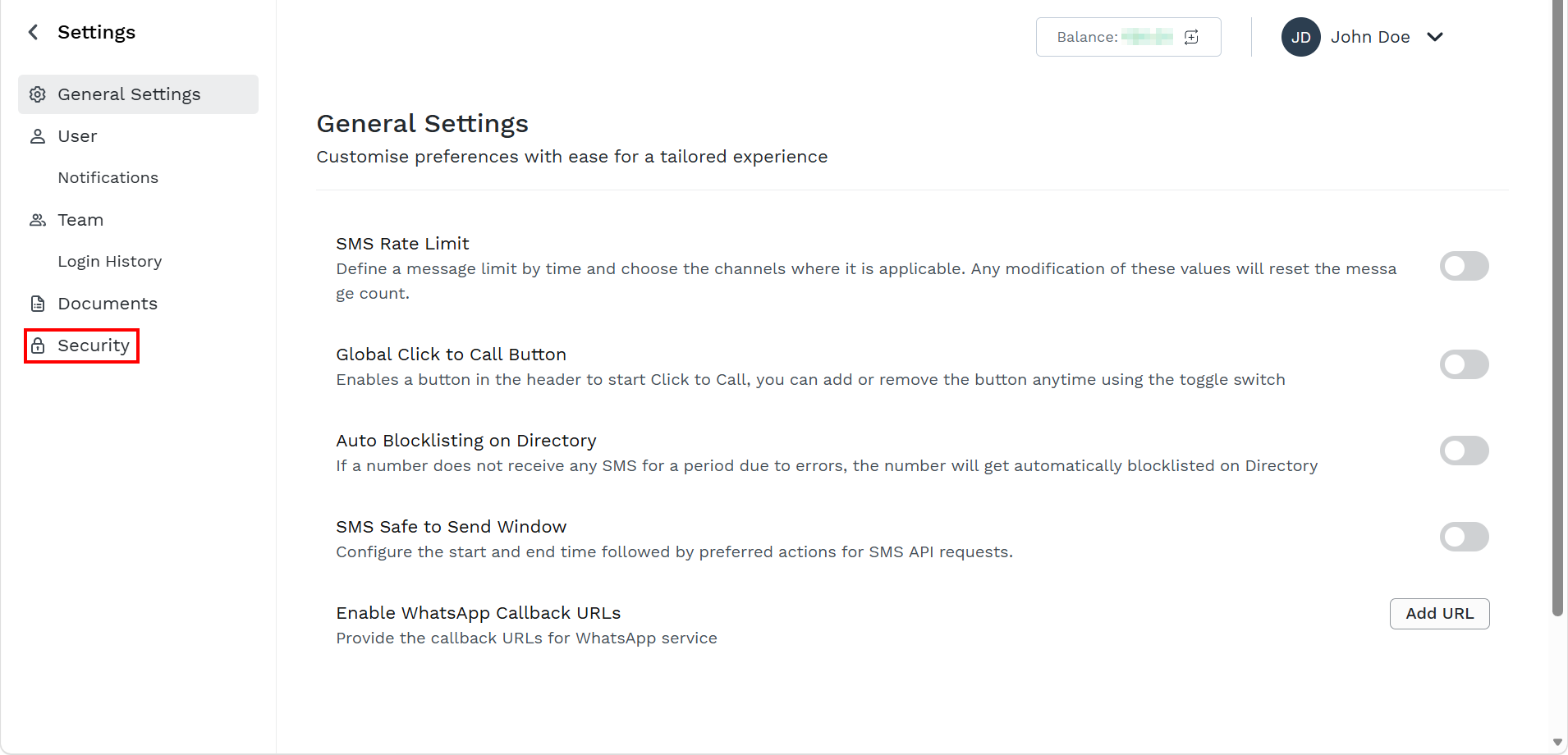
- On the left menu bar, click Security.
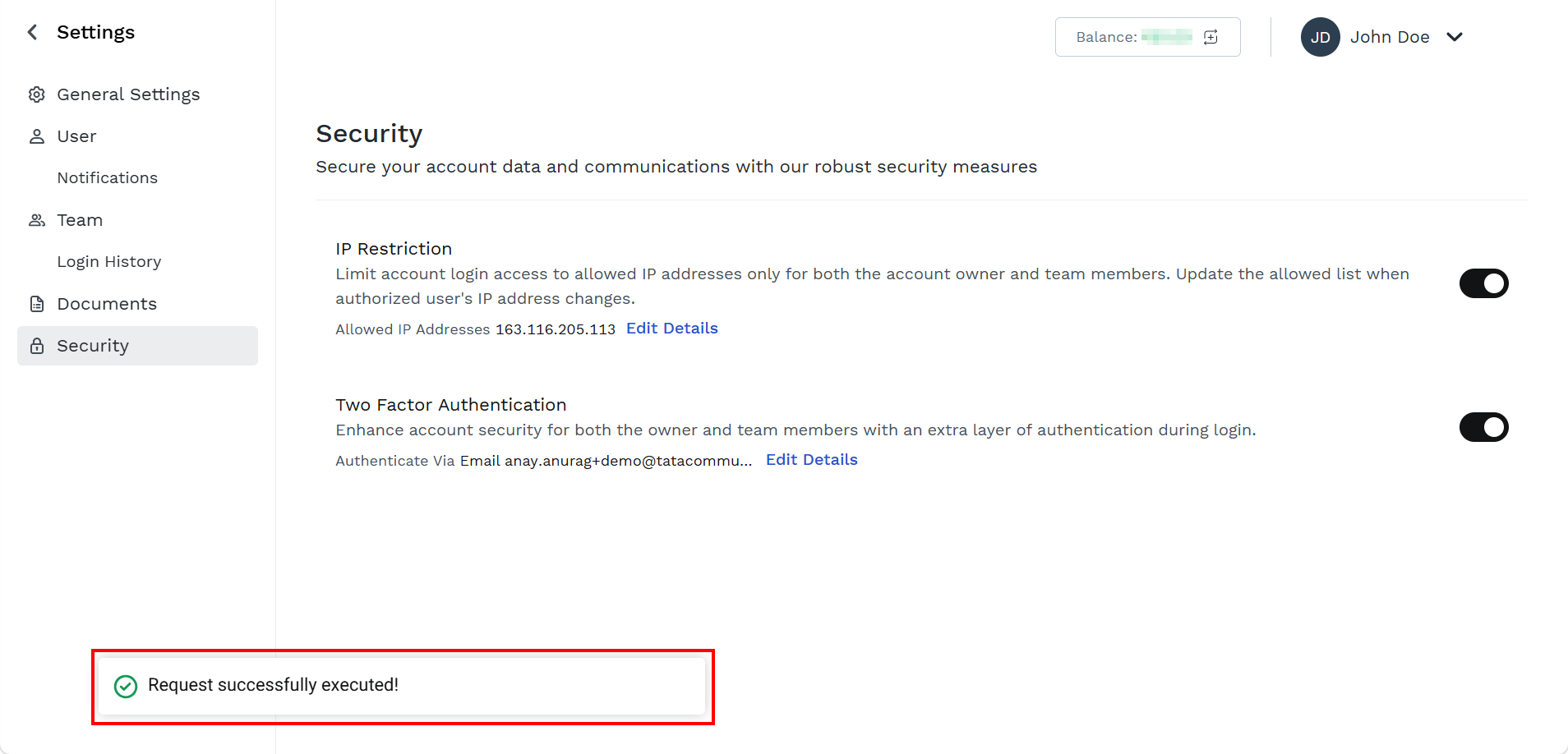
The Security page appears.
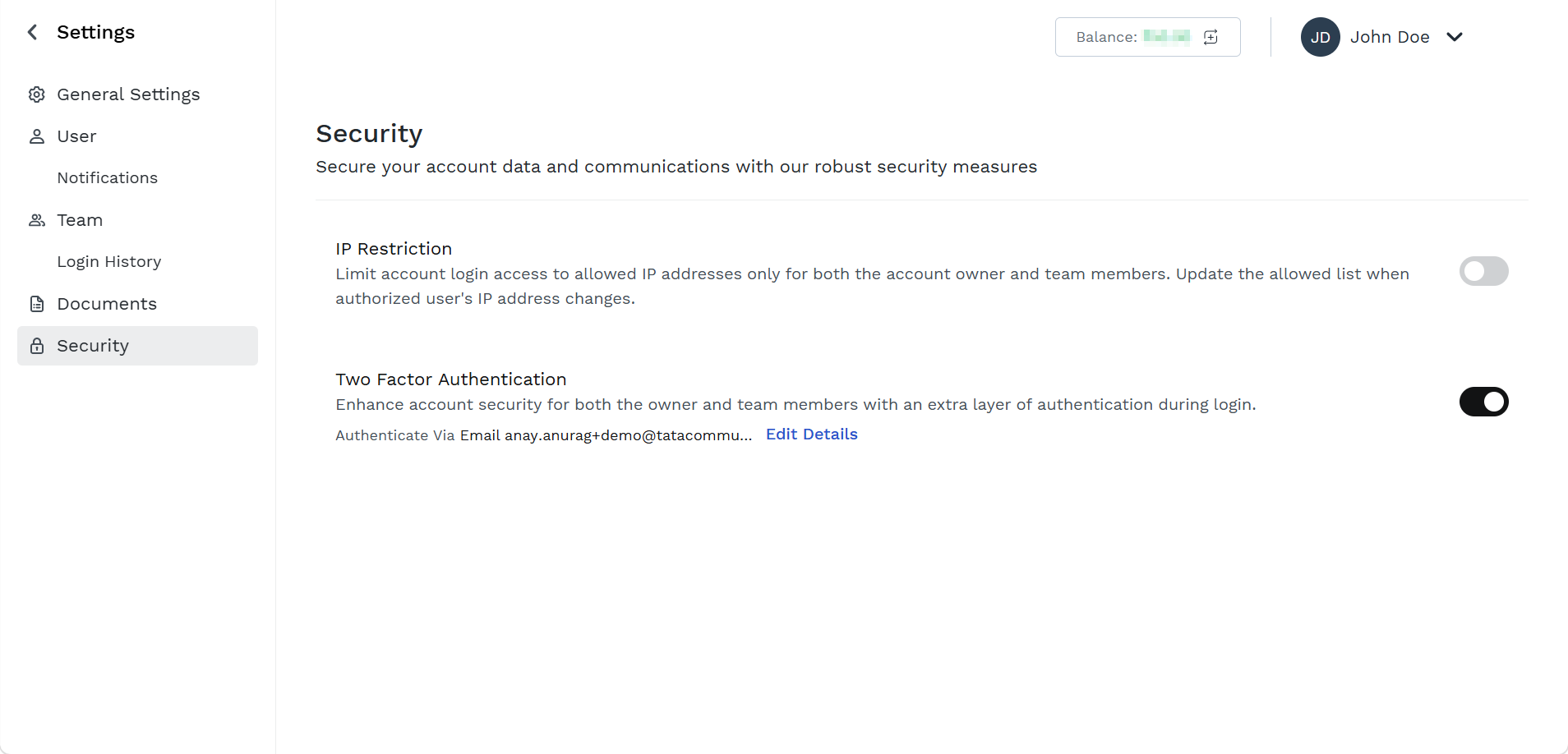
- Toggle IP Restriction to enable IP restriction.
The IP Restriction pane appears on the right side of the page with your IP address.
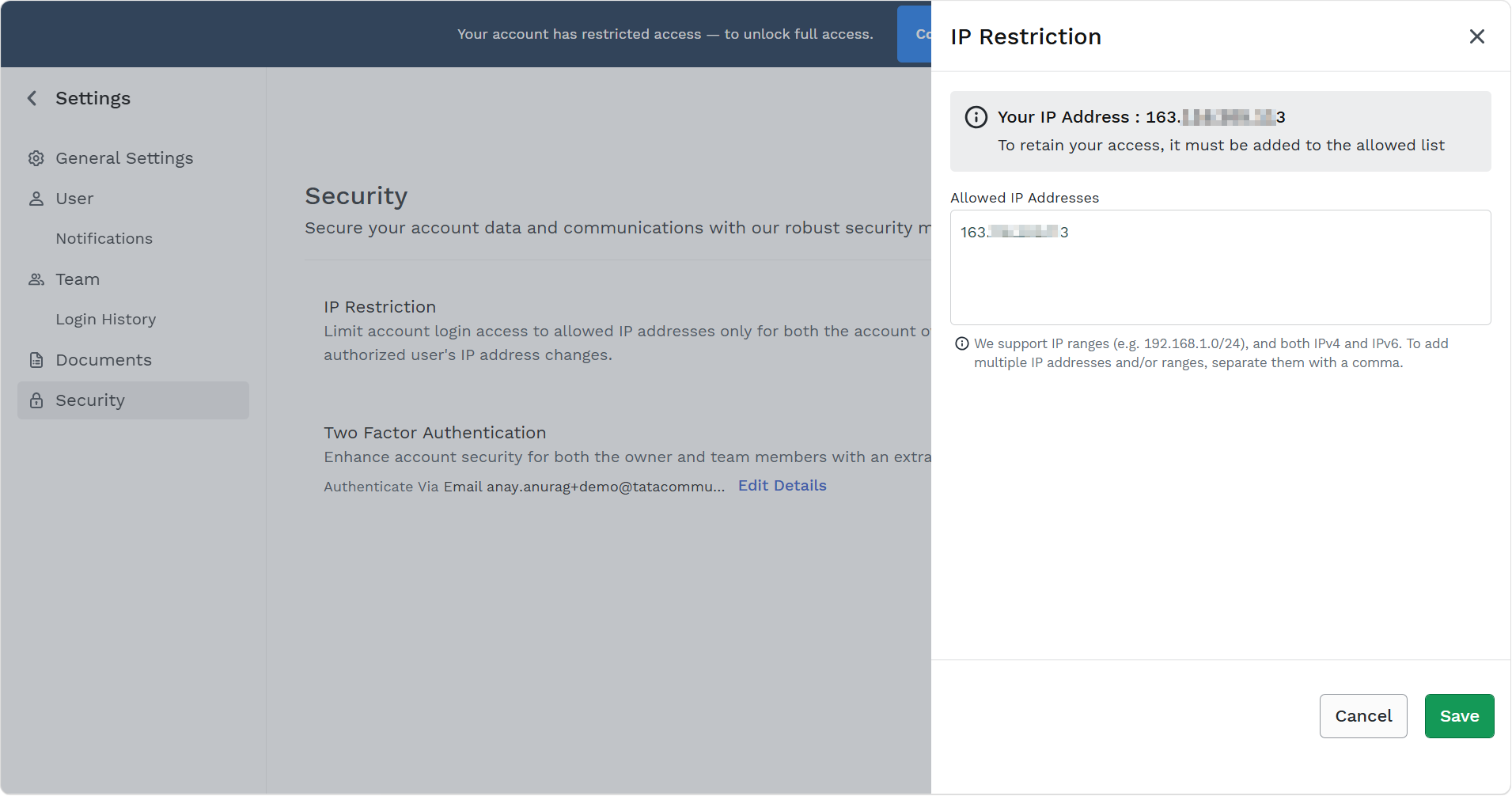
- In the Allowed IP Addresses field, enter the IP addresses or the IP Ranges you want to whitelist for you and your team members. Kaleyra platform supports both specific IP address (for example, 192.168.1.10) and IP ranges (for example, 192.168.1.0/24) for both IPv4 and IPv6. If an IP Range is set, all IP addresses within the range are authorized to login. To add multiple IP addresses and/or ranges, separate them with a comma (,).
- Click Save.
The confirmation Request successfully executed! message appears and IP Restriction gets enabled. From now on, any login attempt coming from an IP address not in the security list, will be rejected.
Updated 4 months ago
Did this page help you?