

Edit Agent Details
You can edit an agent until the agent is sent for verification.
Note:
An Agent cannot be edited after you send it to get verified and the agent launch.
You can edit agent details and perform the following:
- Edit Agent Name
- Edit Short Description or Business Tagline
- Edit Agent Use Case
- Test Device
- Add Template
To edit an agent detail, perform the following:
- Follow step 1 to step 3 of the Add a New Agent topic.
The Agents dashboard page appears.
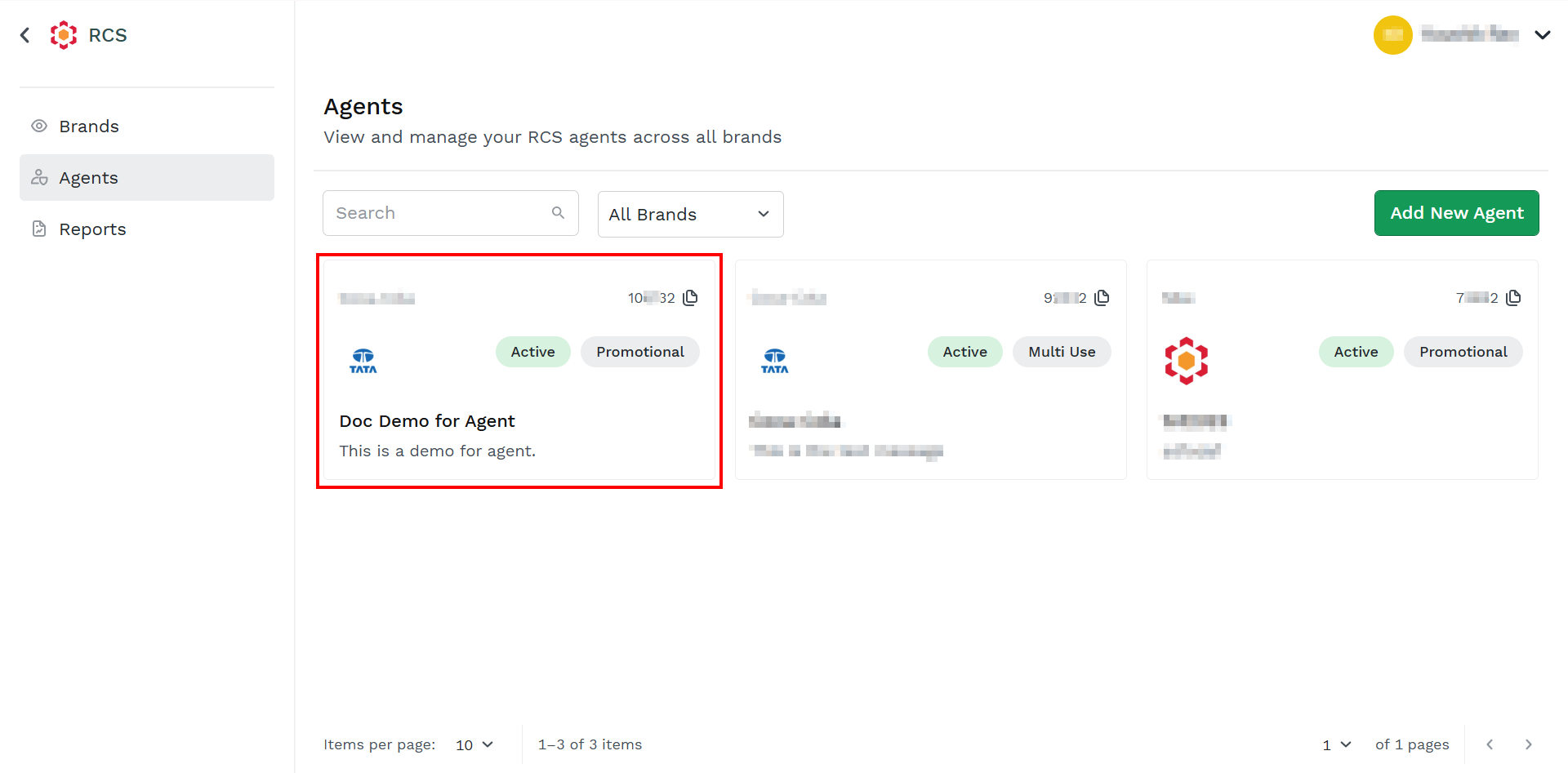
- Click the card you want to edit.
The Agent Overview page appears.
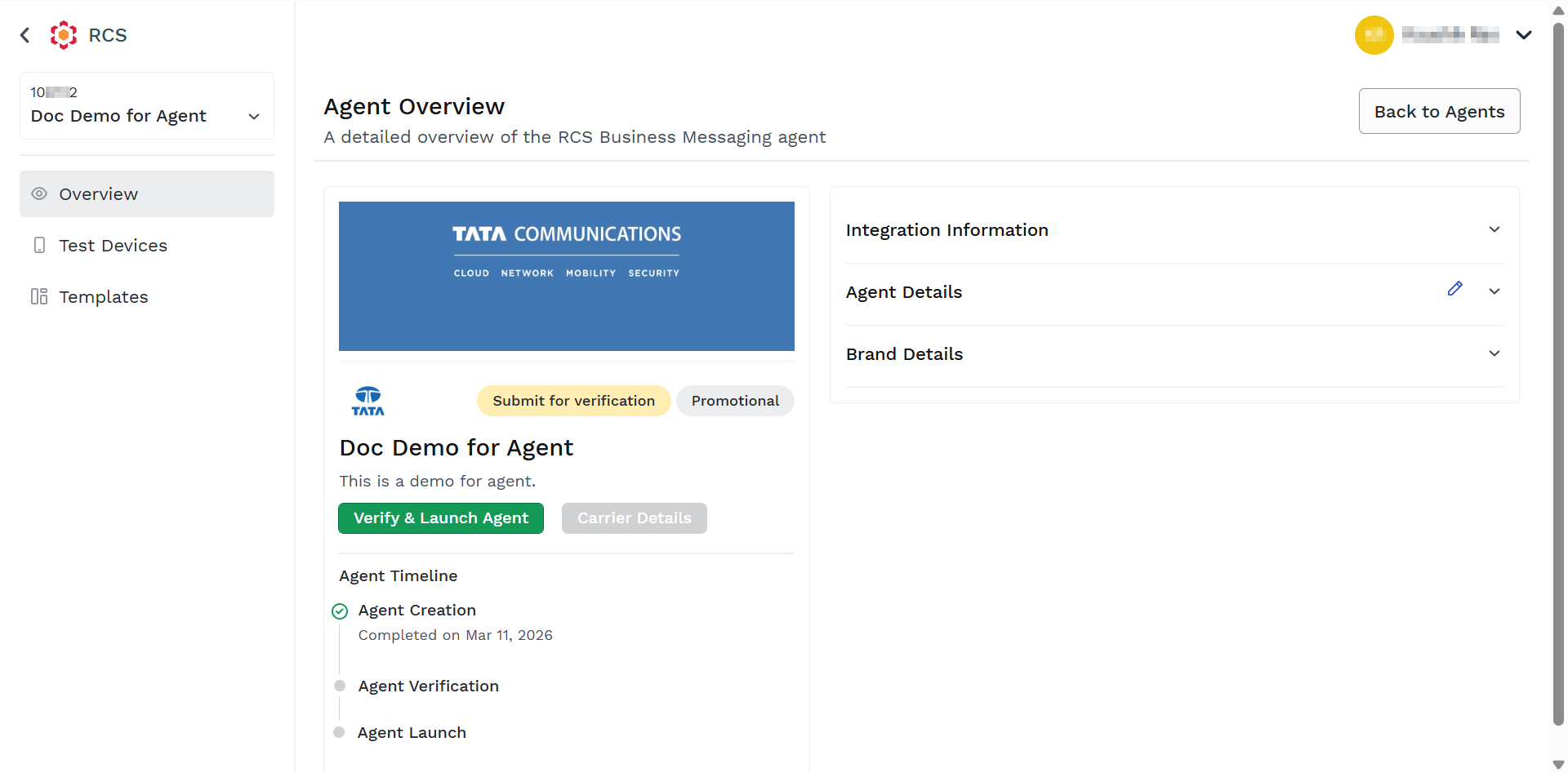
- Click the Agent Details drop-down icon to expand.
The Agent Details appears.
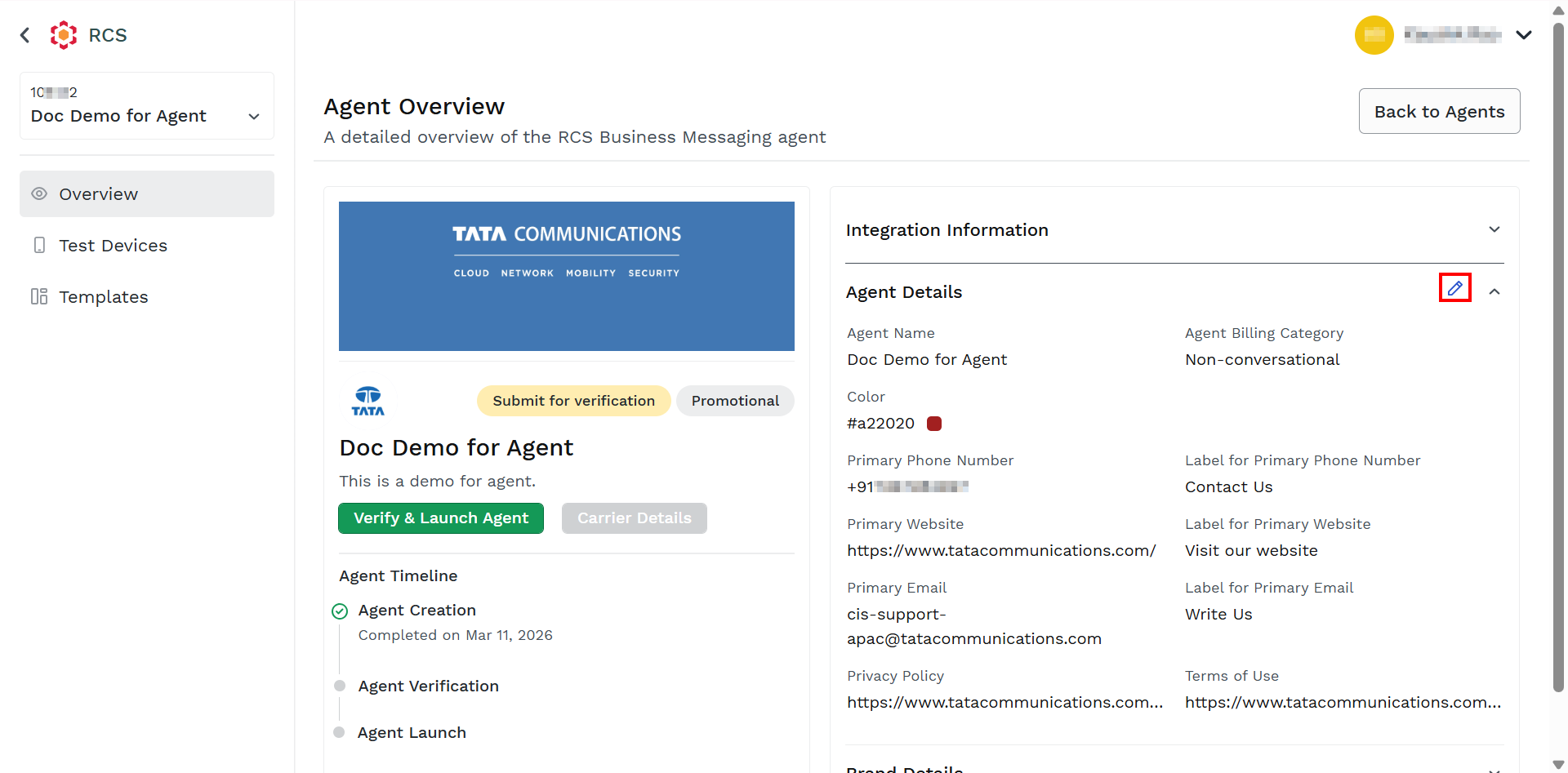
- On the right side of the Agent Details, click the pencil icon.
The Agent Profile step detail appears.
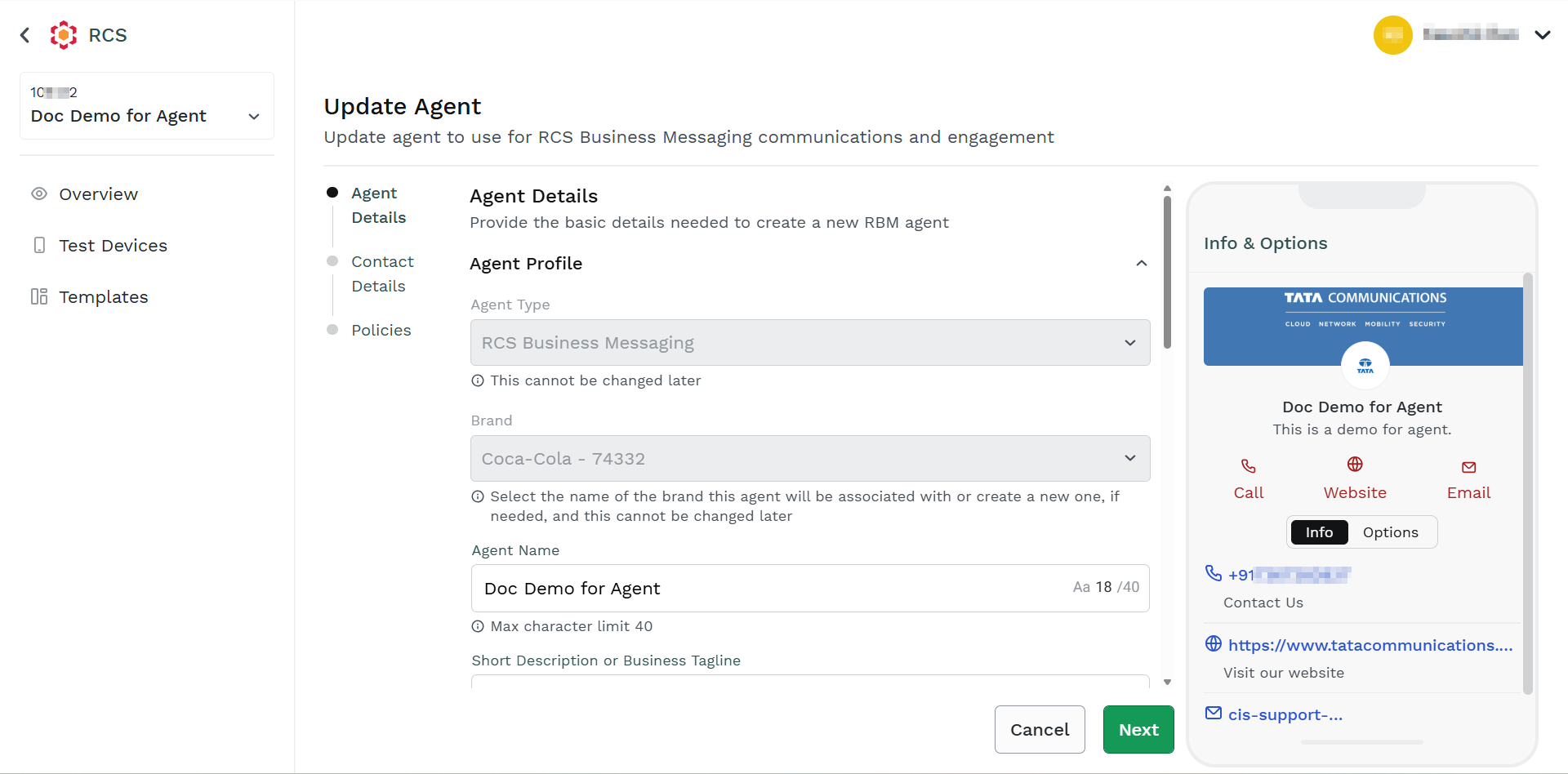
- In the Agent Profile section, edit the following:
- In the Agent Name field, edit the agent's name. The agent's name has a maximum character limit of 40.
- In the Short Description or Business Tagline field, edit the short description for agent or tagline for your business. Please do not put any space at the end of the content. If so, a validation error message will appear. The short description or business tagline has a maximum character limit of 100.
- In the Agent Use Case drop-down field, select the use case for your agent from the following options:
- Transactional - Provide information related to an ongoing service, purchase, or user‑initiated action.
- Promotional - Market or advertise a product, service, discount, or brand offer.
- OTP - Authenticate a user identity or authorize an action.
- Multi Use - Support multiple message categories within the same agent.
- Unspecified - Used when the message category is not defined, or the business has not declared a specific use case.
- In the Agent Billing Category drop-down field, select the agent billing category from the following options:
- Conversational - For active back‑and‑forth communication between your business and the end-users.
- Non-conversational - For one‑way or outbound‑initiated messaging. Non‑conversational messages are more regulated to prevent spam.
Note:
You cannot edit Brand and Agent Hosting Region while editing the Agent Profile section.
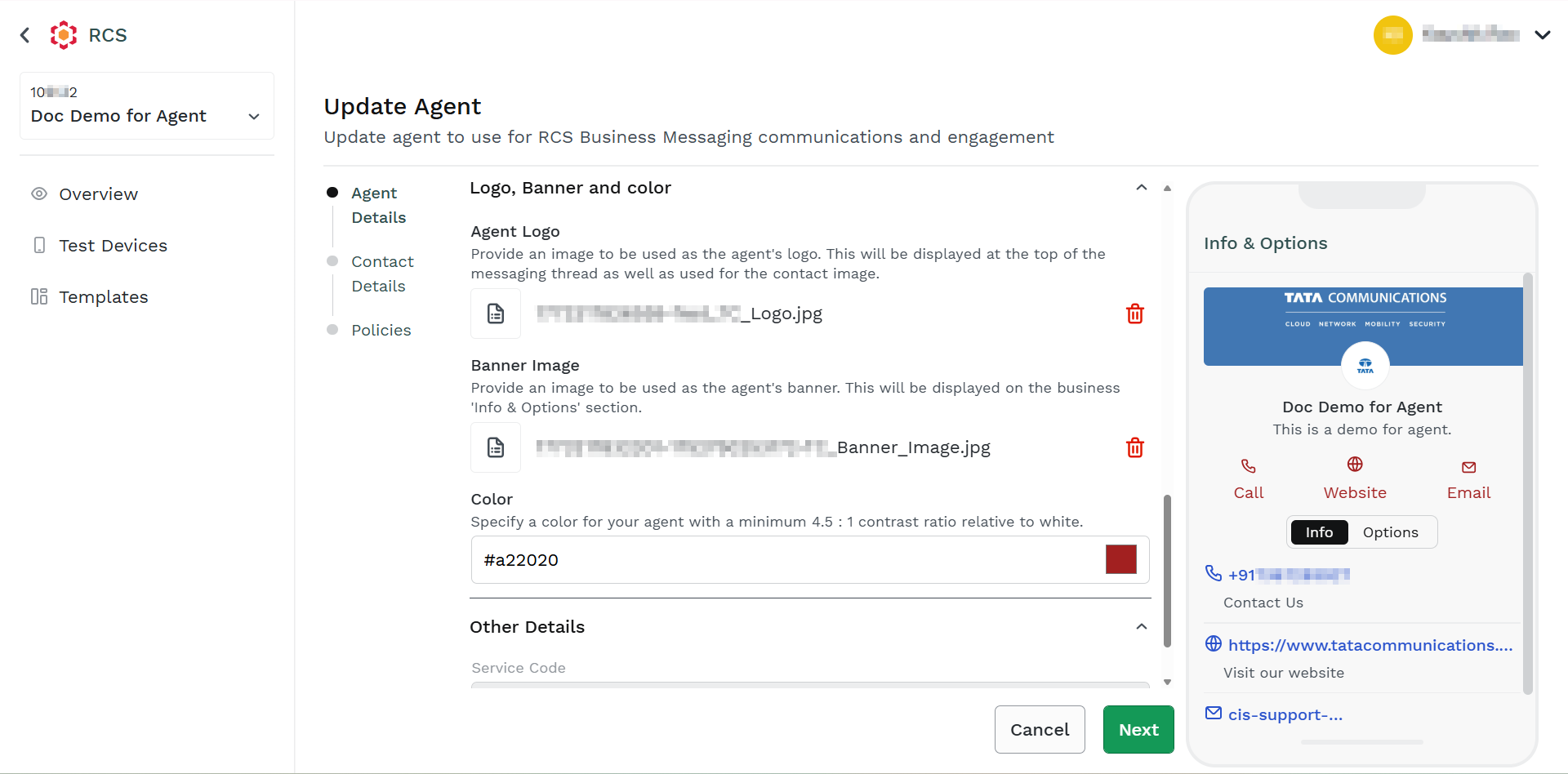
- In the Logo, Banner and color section, edit the following:
- The logo image provides an image to be used as the agent's logo. This will be displayed at the top of the messaging thread as well as used for the contact image. Height and width should be 224px, and the maximum file size should be 50 KB. Click the Agent Logo button and select the logo from the mapped folder.
- The banner image provides an image to be used as the agent's banner. This will be displayed on the business's 'Info and Options' section. Height should be 448px and Width should be 1440px, and the maximum file size should be 200 KB. Click the Upload Image button and select the banner image from the mapped folder.
- The color specifies a color for your agent with a minimum 4.5:1 contrast ratio relative to white. The same color will appear when you send the message for Call, Website, and Email. Click the color icon available on the right side of the field. Select the color or enter the RGB value.
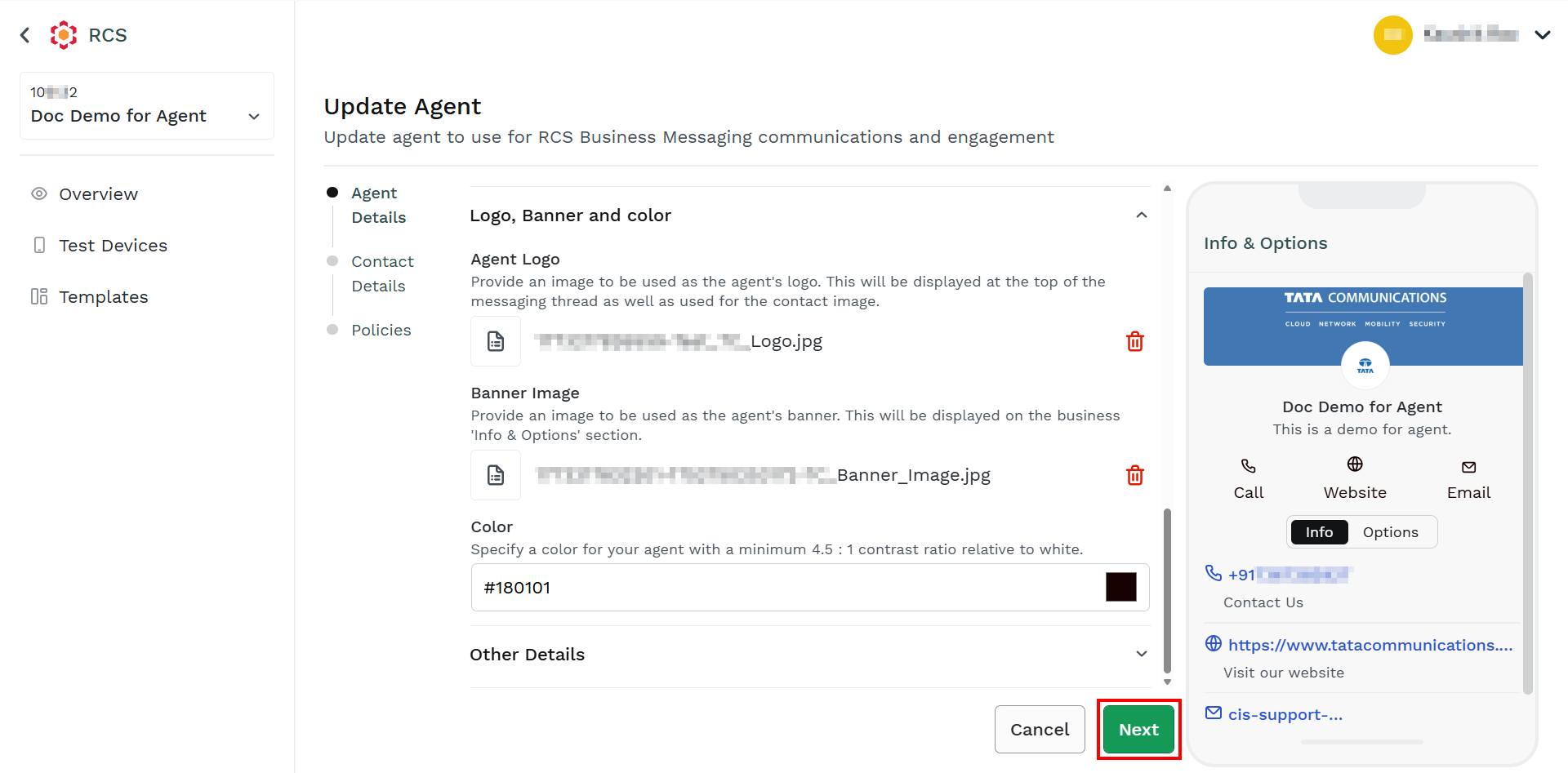
- Click Next.
The Content Details step appears.
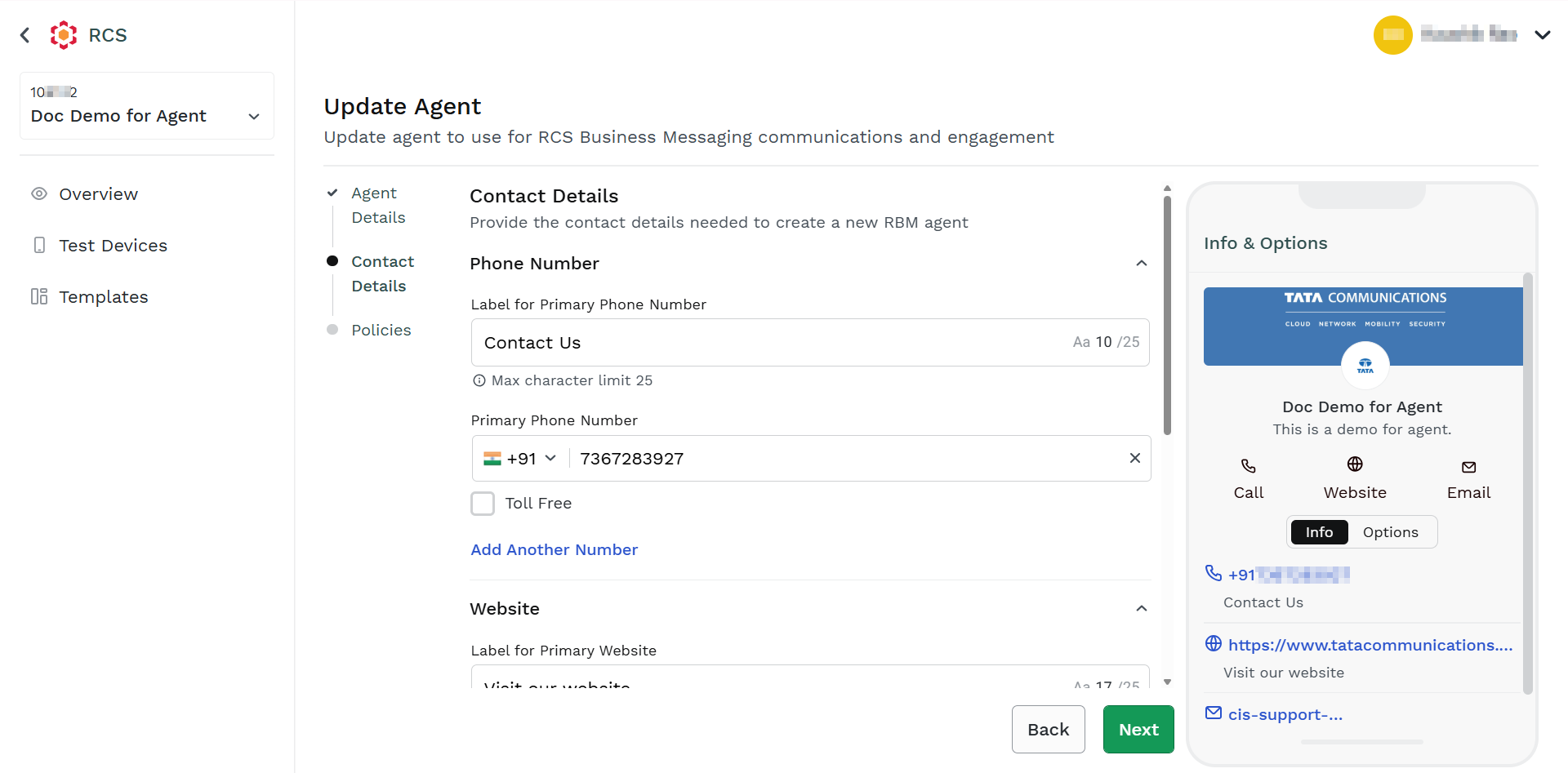
- In the Phone Number section, edit the following:
- In the Enter Label field, edit the label for the phone number. The agent's phone label has a maximum character limit of 25.
- Select the country code for the phone number for which you want to configure the agent's number. It is recommended to enter the phone number with RCS enabled services.
- In the Enter Phone Number field, edit the phone number with RCS enabled services.
- Select the Toll Free checkbox if the number is toll-free.
- Click the Add Another Number link to add another number associated with that agent. If you want to add another number, click the link and then follow step 8 (i) to Step 8 (iv).
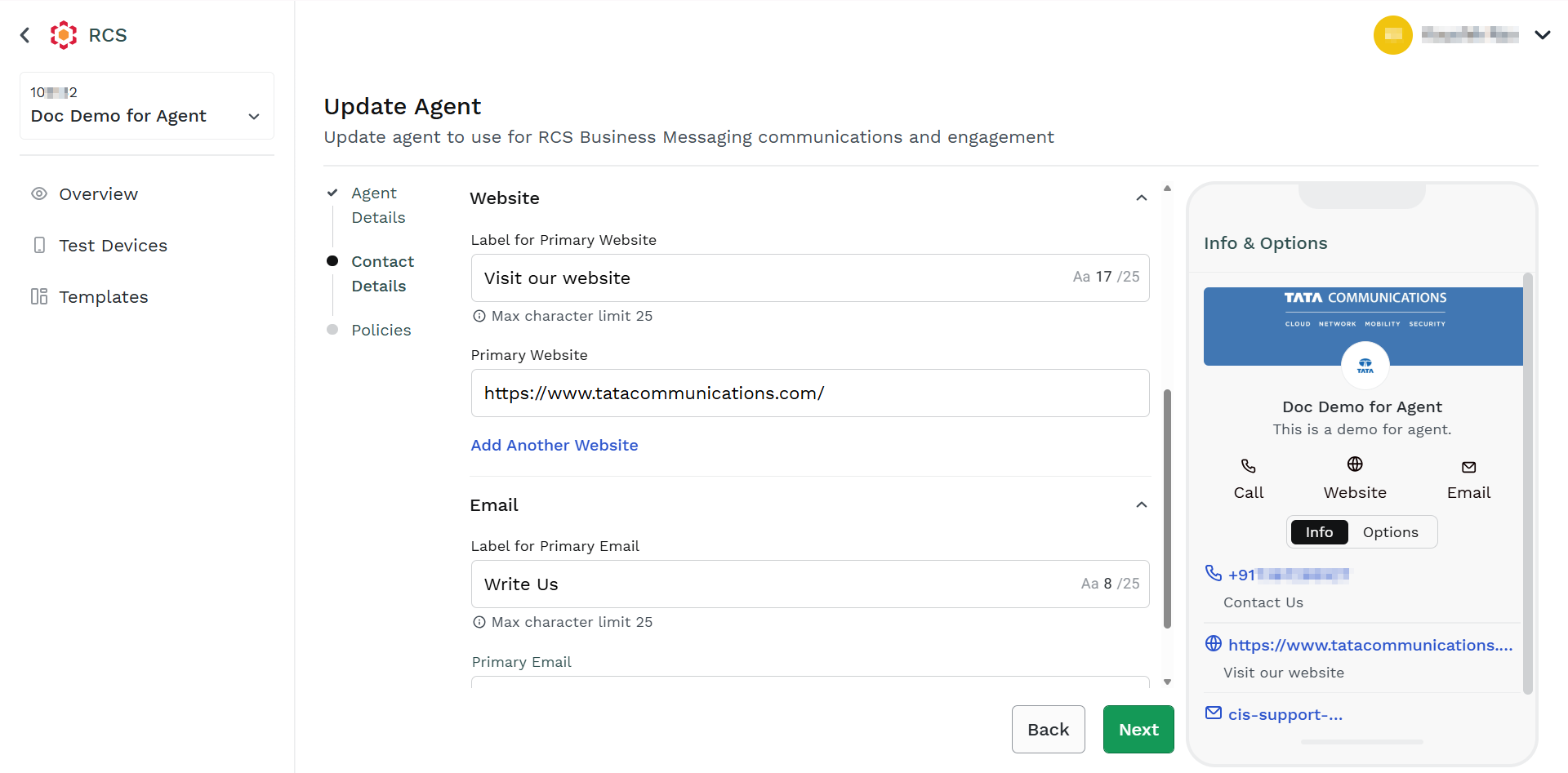
- In the Website section, provide the following:
- In the Enter Label field, edit the label for the website.
- In the Enter URL field, edit with a valid website that can be helpful for the end-users.
- Click the Add Another Website link to add another website. To add the website details, follow the step 9(i) and step 9(ii).
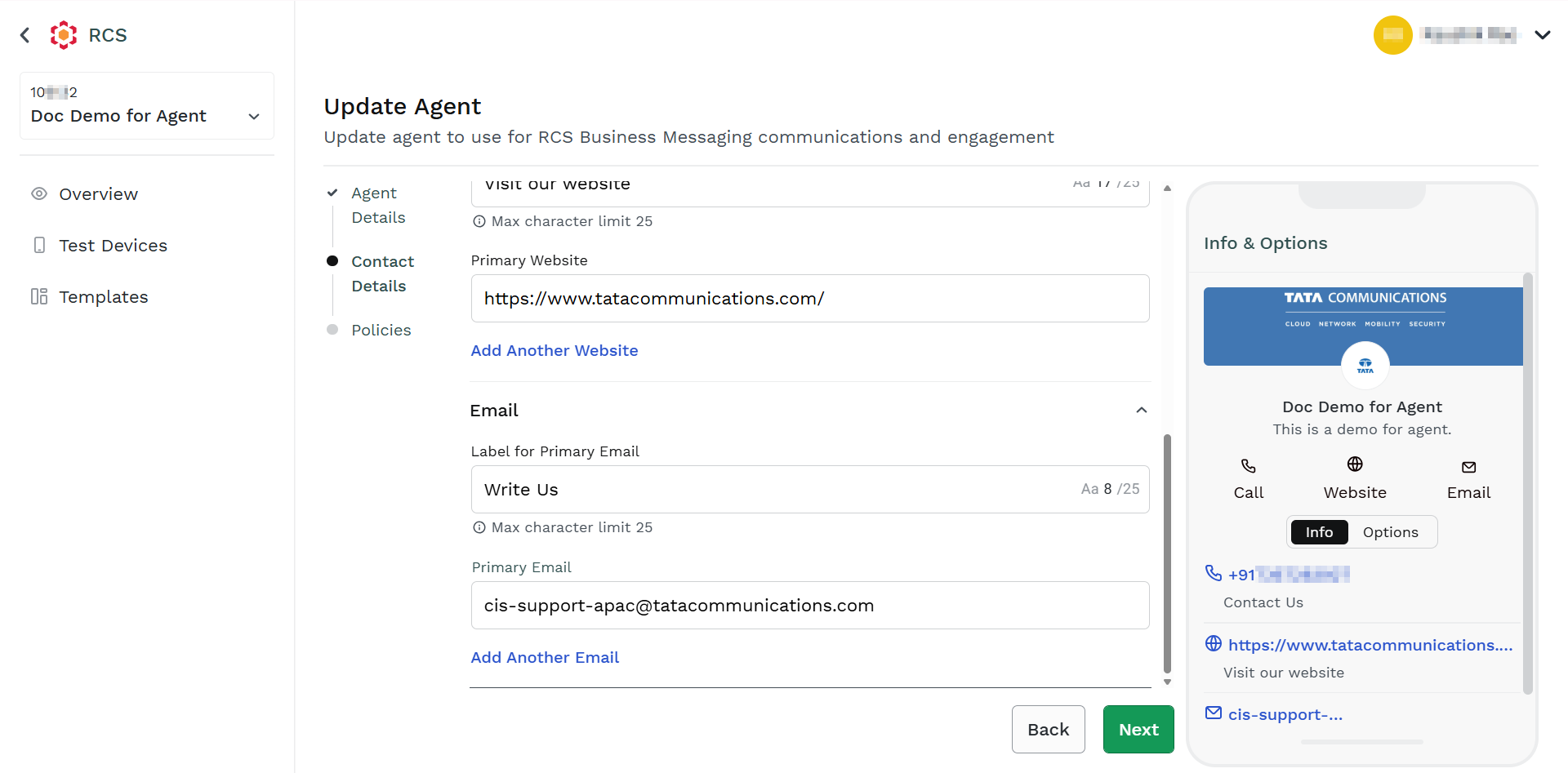
- In the Email section, perform the following:
- In the Enter Label field, edit the label for email.
- In the Enter Email field, edit with a valid email address that can be helpful for the end-users for communication and support.
- Click the Add Another Email link to add another email address. To add the email details, follow the step 10(i) and step 10(ii).
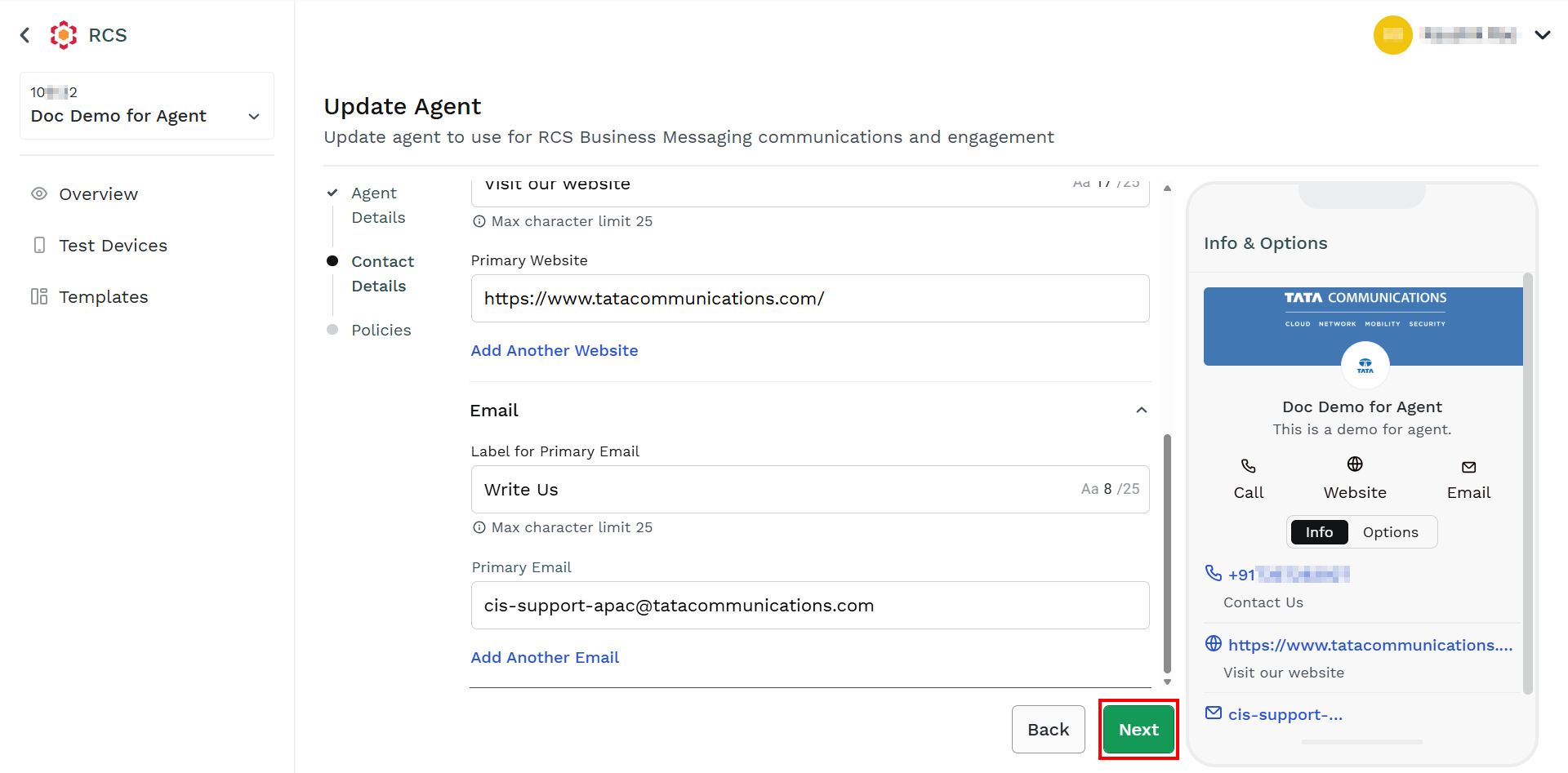
- Click Next.
The Policies step appears. You can provide the policies needed to create a new RBM agent.
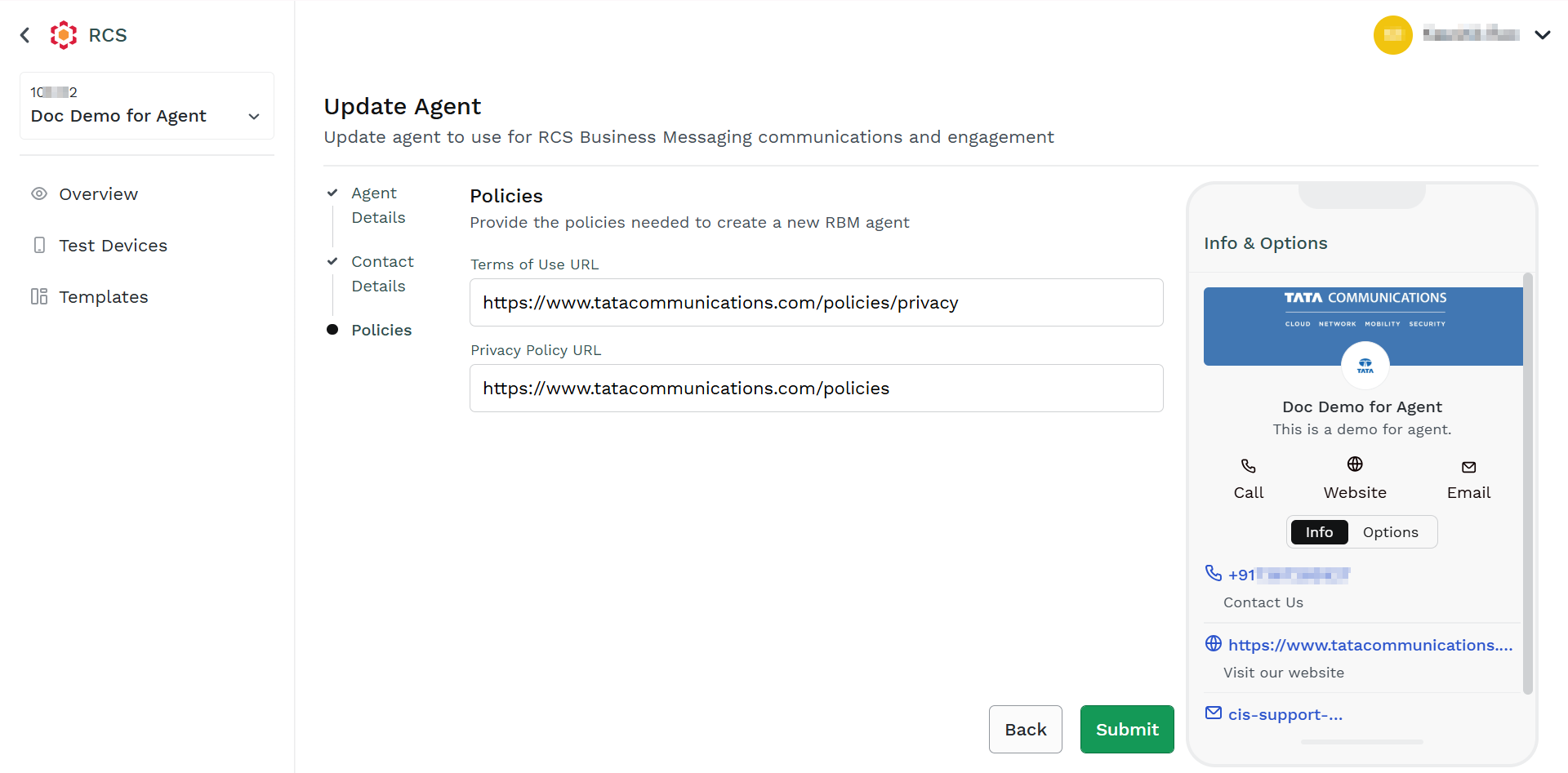
- In the Policies section, perform the following:
- In the Enter the URL of the website field for terms of use, edit the URL for your organization's terms policy.
- In the Enter the URL of the website field for privacy policy, edit the URL for your organization's privacy policy.
- Click Submit.
The Policy Confirmation pop-up appears.
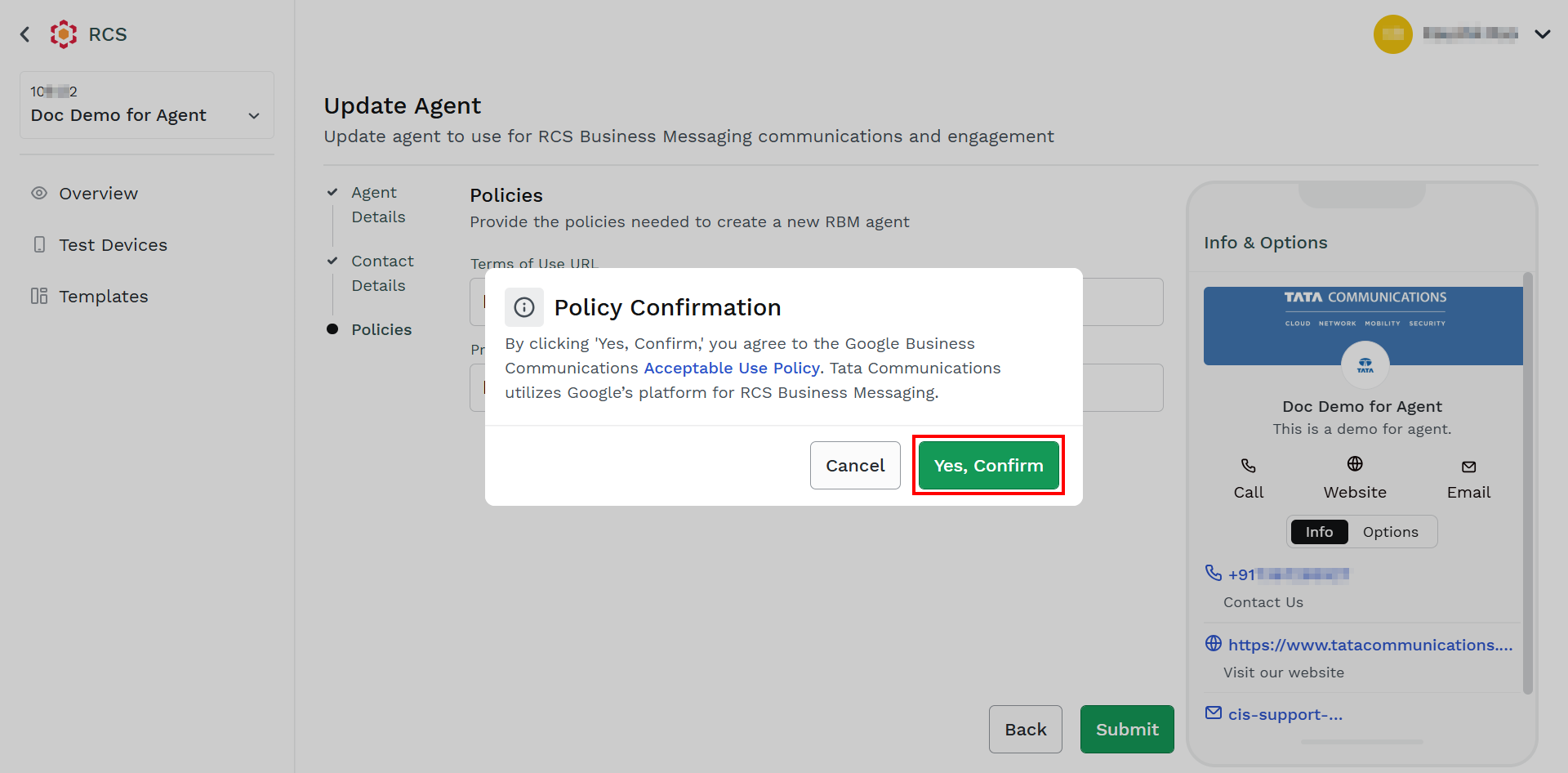
- Click Yes, Confirm.
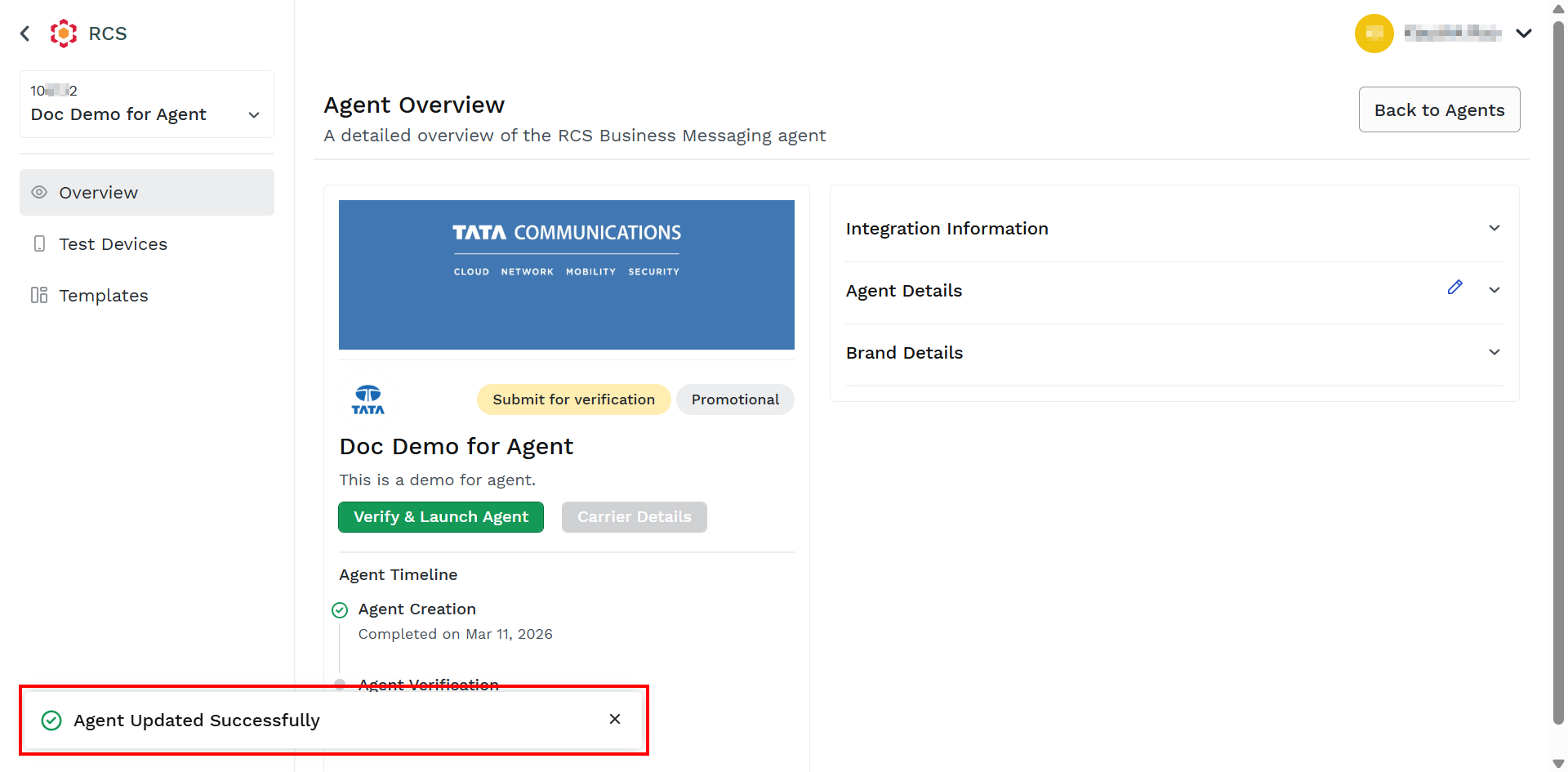
The confirmation message Agent Updated Successfully appears.
Updated about 1 month ago
Did this page help you?