

RCS MT Summary Report
The RCS Mobile Terminated (MT) Summary Report in Kaleyra is a high‑level, aggregated report that provides overall counts and summary statistics of messages, instead of listing each message individually. It is useful when you want a quick overview of your messaging or campaign (sent to the end-user) performance without detailed per‑message data.
Sample RCS MT Summary Report
The following is the sample RCS MT summary report:
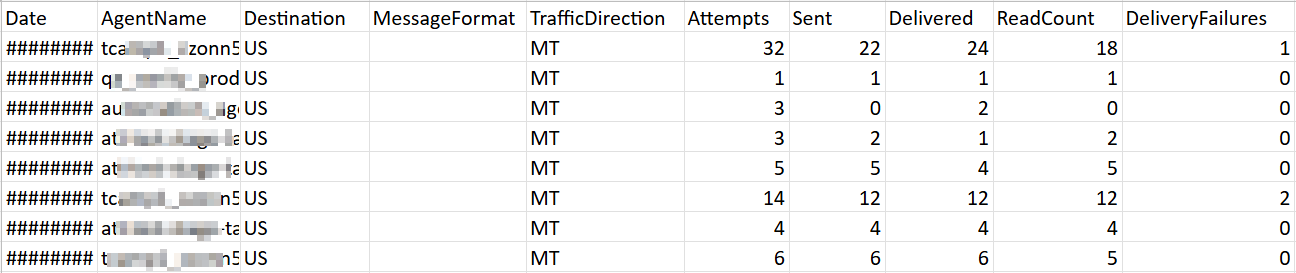
Sample RCS MT Summary Report Fields Detail
The following table describes the fields available in the RCS MT summary report:
| Column Field Name | Description | Sample Value |
|---|---|---|
Date | Displays the date to which the data refers to. | 1/22/2026 |
AgentName | The display name of the RCS business agent through which messages have been sent. | qa_saXXX_XXXX_XXXX |
Destination | The country code to which the recipient's mobile number is associated. | US |
MessageFormat | Format of the RCS message. For example, text, rich text, media files, rich cards, and carousels. | Text |
TrafficDirection | Indicates the direction of RCS Traffic. In this case it is always “MT” (Mobile Terminated, from the Brand to the final recipient). | MT |
Attempts | Count for the number of messages that have been attempted. | 1 |
Sent | Count for the number of messages sent to Carrier. | 4 |
Delivered | Count for the number of messages delivered to recipients. | 3 |
ReadCount | Count of the number of messages read by recipients. | 2 |
DeliveryFailures | Count of the number of messages that failed to be delivered to recipients (applicable to MT message only). | 1 |
Generate MT Summary Report
You can generate the RCS MT summary report from the Kaleyra platform.
To generate the RCS MT summary report, perform the following steps:
- Sign in to your Kaleyra platform.
- On the left navigation bar, click Reports & Logs.
The WhatsApp Overview page appears.
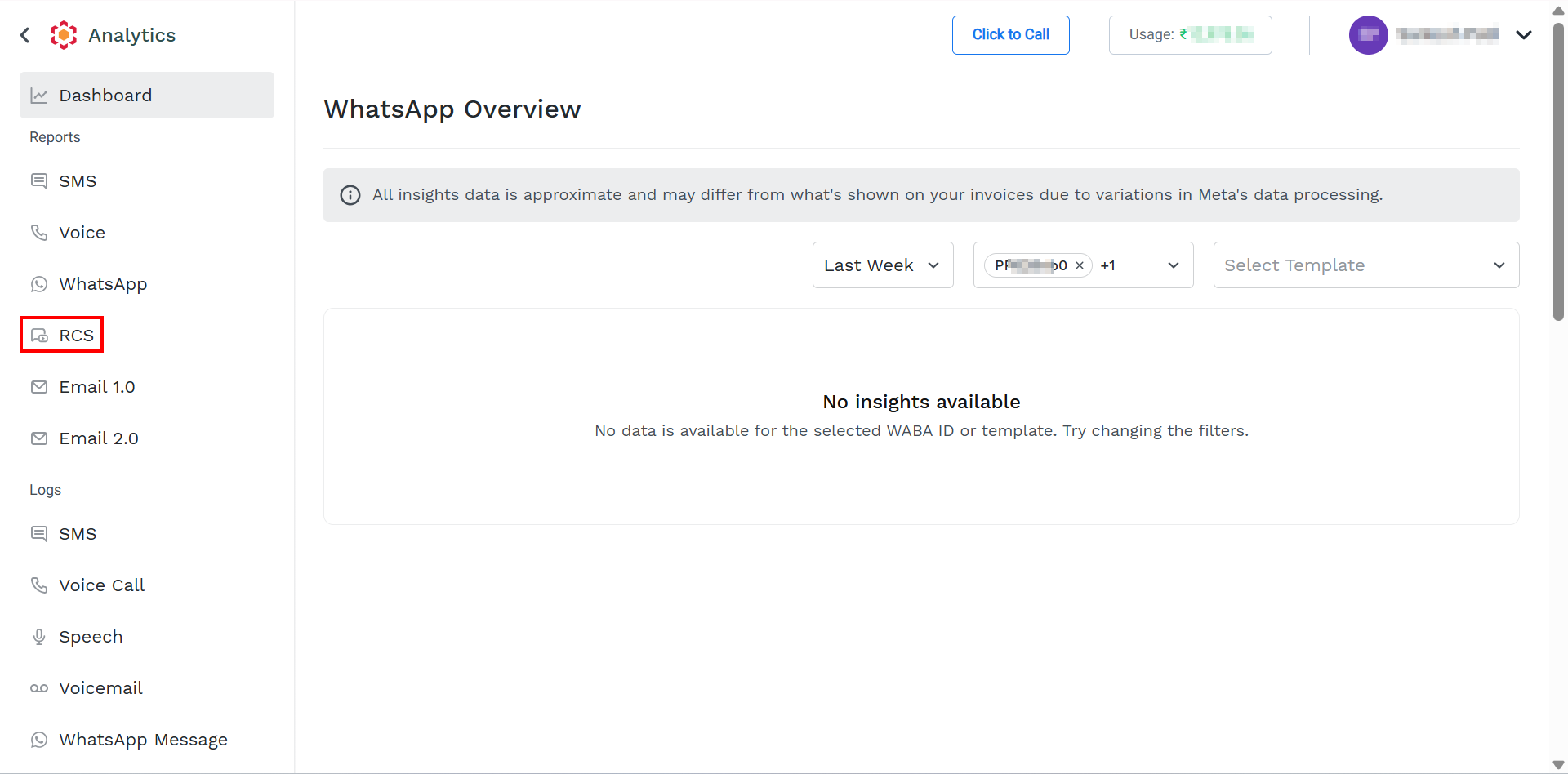
- On the left menu bar, click RCS.
The Reports page appears.
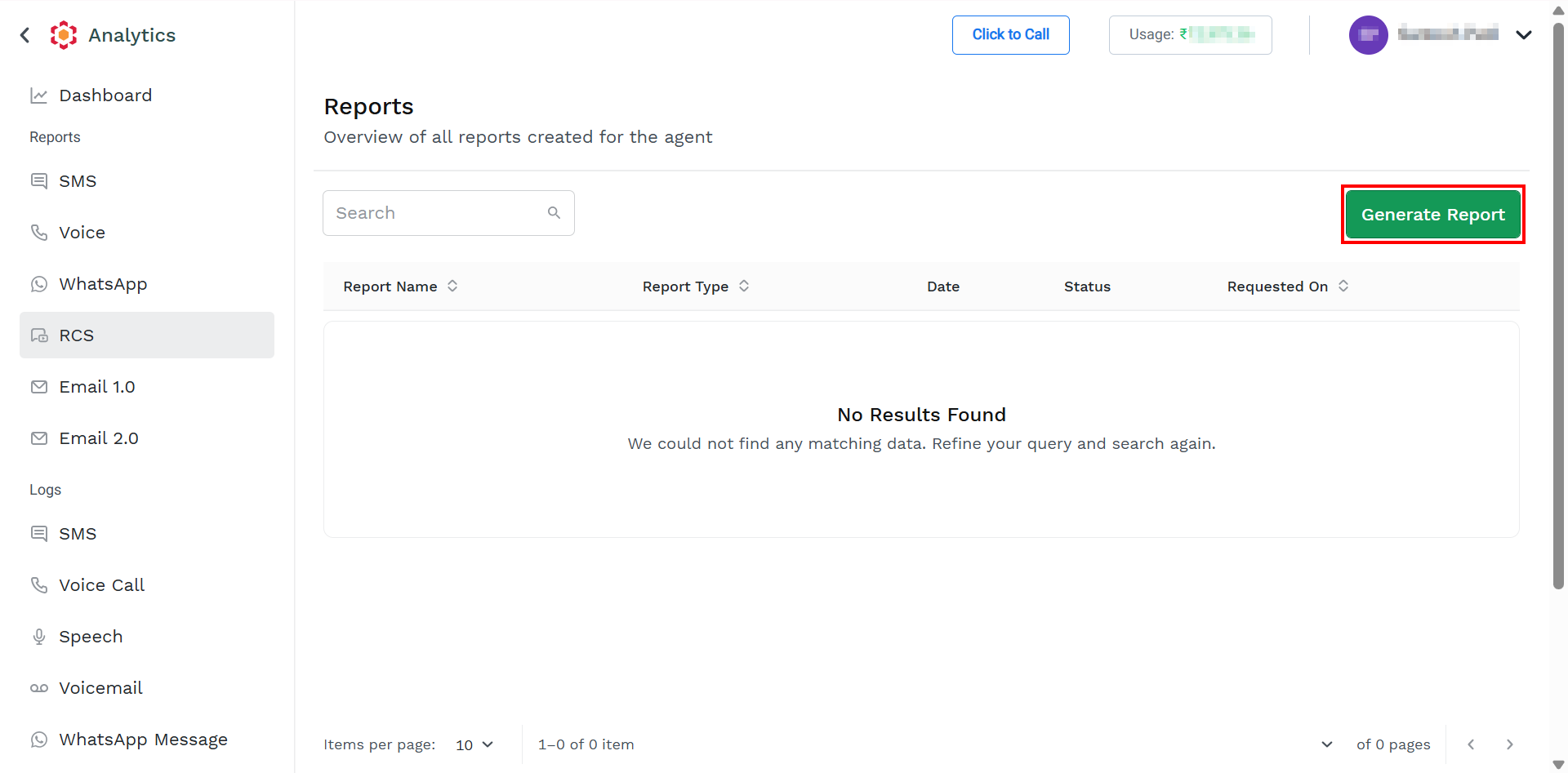
For information on column details, see View Report List.
- On the top-right of the page, click the Generate Report button.
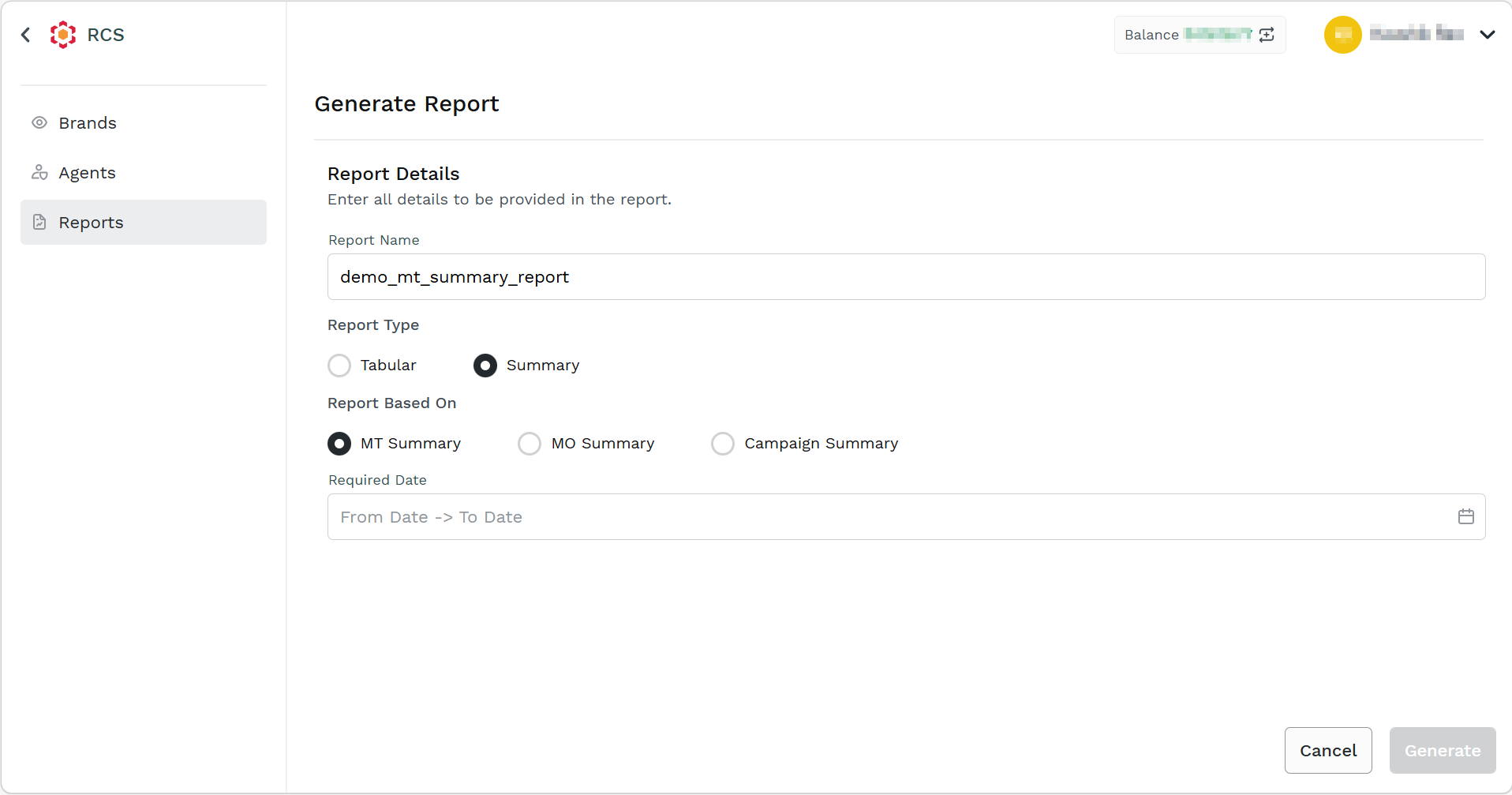
The Generate Report page appears.
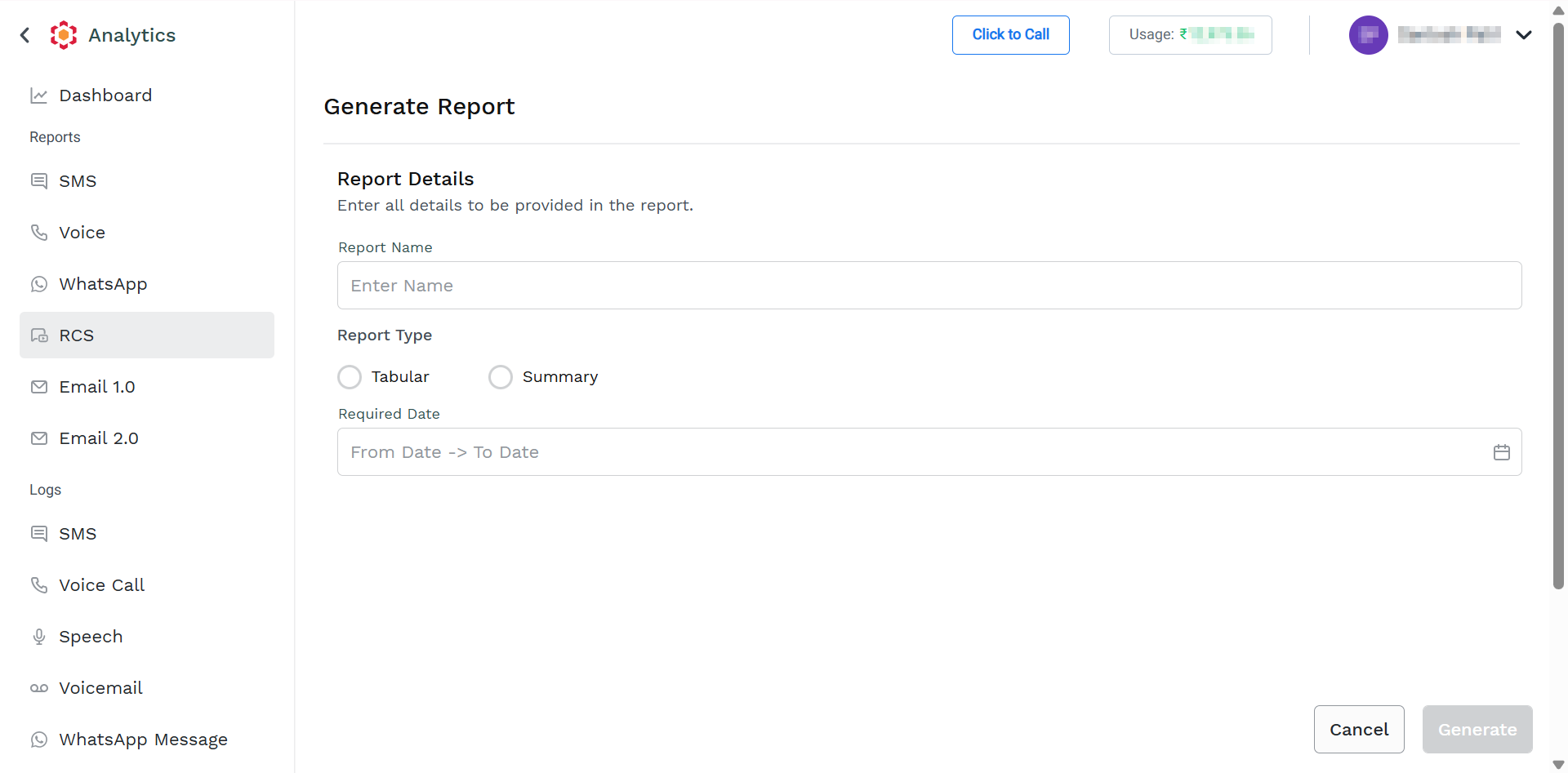
- Perform the following steps:
-
In the Report Name field, enter the name. The report name should be between 3 and 40 characters.
-
From the Report Type, select the Summary option.
-
Select the MT Summary option.
-
In the Required Date field, click the From Date -> To Date or the calendar icon on the right side of the Required Date field. Select the from and to dates from the calendar. You can select the date range from the last 6 months to the current date.
-
- Click the Generate button. The confirmation message appears and the request to generate the report is taken in charge by Kaleyra Platform.
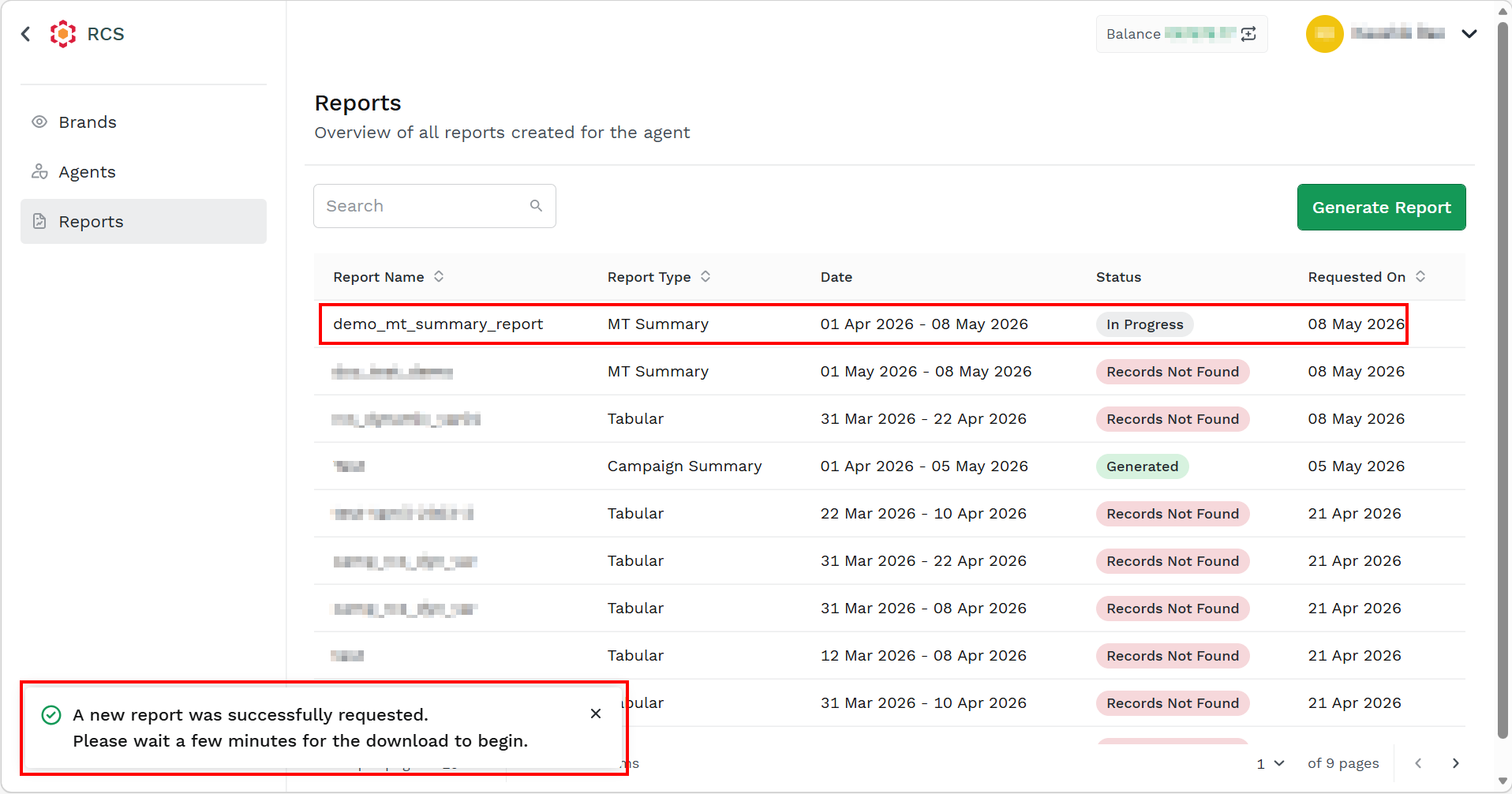
After successfully generating the report. The status of the report changes to Generated.
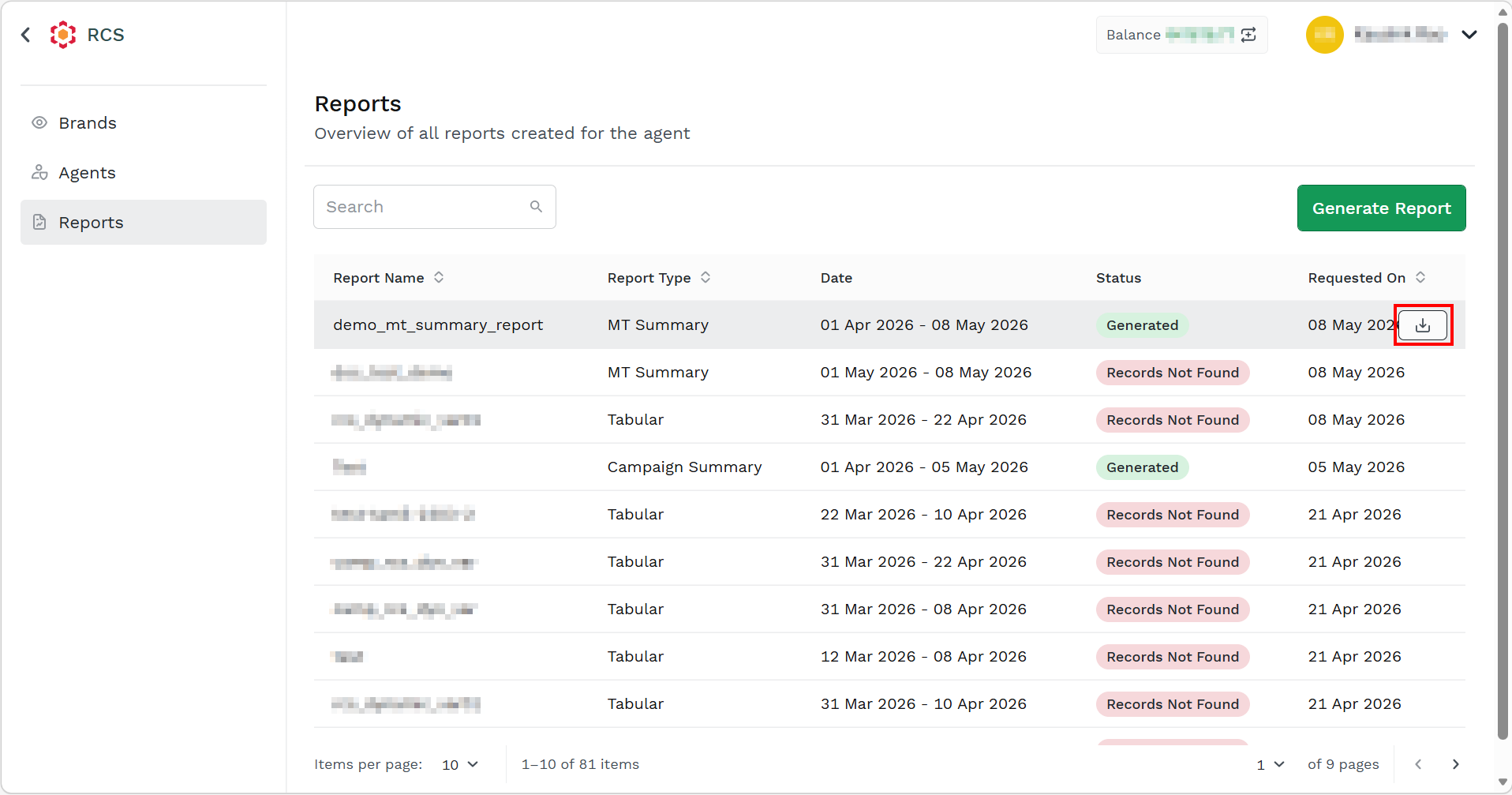
- Hover over the report with status as Generated and the Download button to download the report. The report gets downloaded in the mapped folder in .csv file.
View Report List
You can view the following details on the Reports page:
- Report Name - The name you want to provide when generating the report.
- Report Type - The RCS report type. It can be either Tabular or Summary.
- Date - Date range (from and to date) for which you have requested the report.
- Status - Current status of the report. It can be any one of the following:
- In Process - Kaleyra Platform is processing the request to generate a new report.
- Generated - Report has been generated and is available for download.
- Failed - Report generation has failed.
- Queued - Request to generate a report has been queued and will be processed in some time.
- Records Not Found - Request has been successfully processed, but no data has been found for the requested time interval or applied filters.
- Expired - The generated report has expired, and it is not available anymore for download. Report expires after 90 days from the date of generation.
- Requested on - Date when you have requested to generate the report.
Note:
You can sort the Report Name and Report Type alphabetically, and the Requested On date from older to newer order or vice versa. Click the respective heading to sort the report data.
Updated about 1 month ago