

RCS MO Summary Report
The RCS Mobile Originated (MO) Summary Report in Kaleyra is a high‑level, aggregated report that provides overall counts and summary statistics of messages, instead of listing each message individually. It is useful when you want a quick overview of the messages received from the end-user without detailed per‑message data.
Sample RCS MO Summary Report
The following is the sample RCS MO summary report:

Sample RCS MO Summary Report Fields Detail
The following table describes the fields available in the RCS MO summary report:
| Column Field Name | Description | Sample Value |
|---|---|---|
Date | Displays the date to which the data refers to. | 1/22/2026 |
AgentName | The display name of the RCS business agent to which messages have been sent. | qa_saXXX_XXXX_XXXX |
Destination | The country code to which the end user's mobile number originating the message is associated. | US |
TrafficDirection | Indicates the direction of RCS messages. In this case is always “MO” (Mobile Originated, from the end-user to the Brand). | MO |
Reply | Count of the number of MO messages generated from Text Replies and Suggested Replies. | 3 |
URL Clicks | Count of URL clicks recorded for the agent in the day. | 9 |
Dialer | Count of Dialer Action recorded for the agent in the day. | 6 |
Share Location | Count of Share Location action recorded for the agent in the day. | 0 |
View Location | Count of View Location action recorded for the agent in the day. | 10 |
Calendar Event | Count of Calendar event recorded for the agent in the day. | 0 |
Total Replies | Total count of all replies counted for the agent in the day. | 28 |
Generate MO Summary Report
You can generate the RCS MO summary report from the Kaleyra platform.
To generate the RCS MO summary report, perform the following steps:
- Sign in to your Kaleyra platform.
- On the left navigation bar, click Reports & Logs.
The WhatsApp Overview page appears.
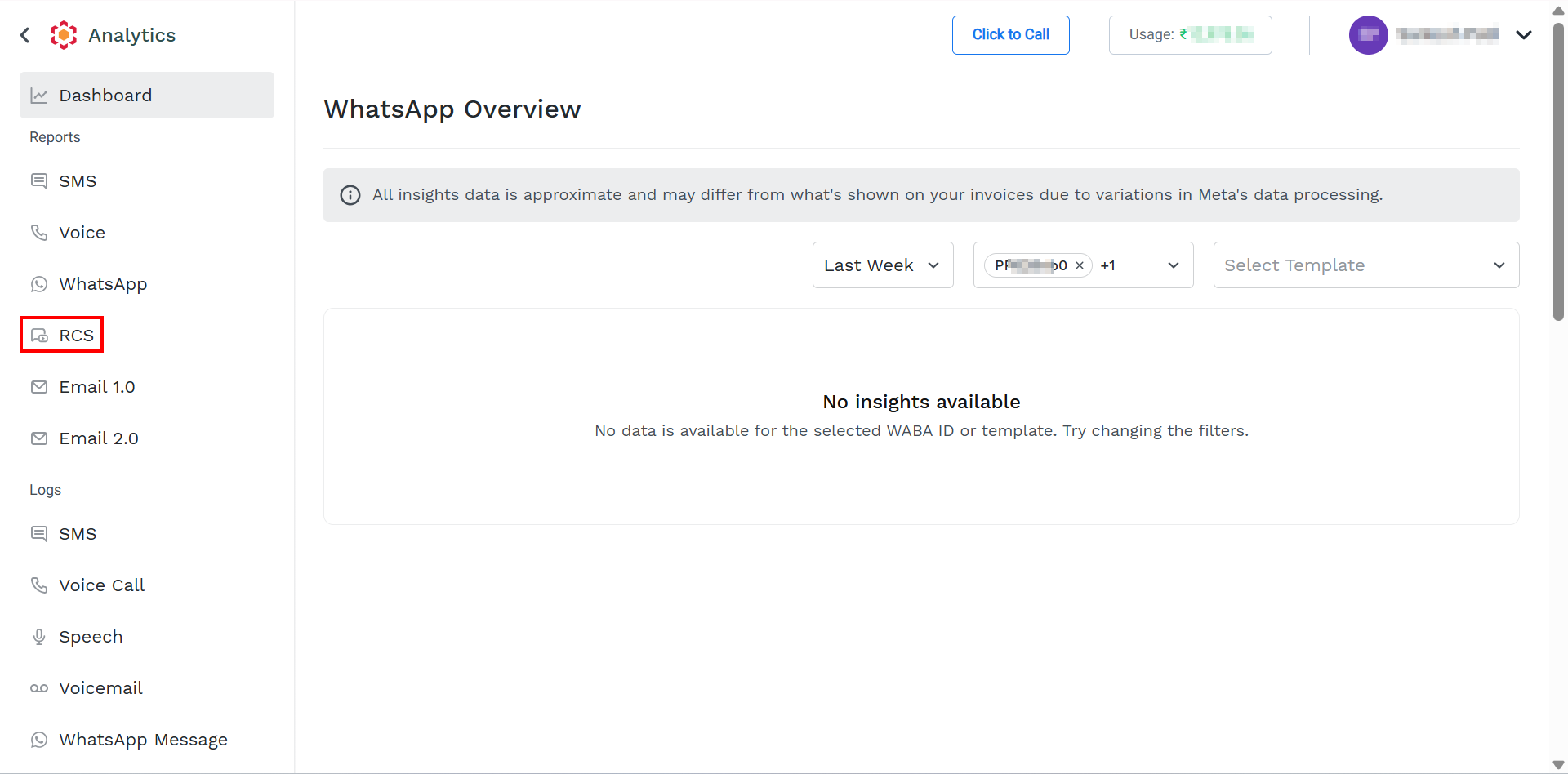
- On the left menu bar, click RCS.
The Reports page appears.
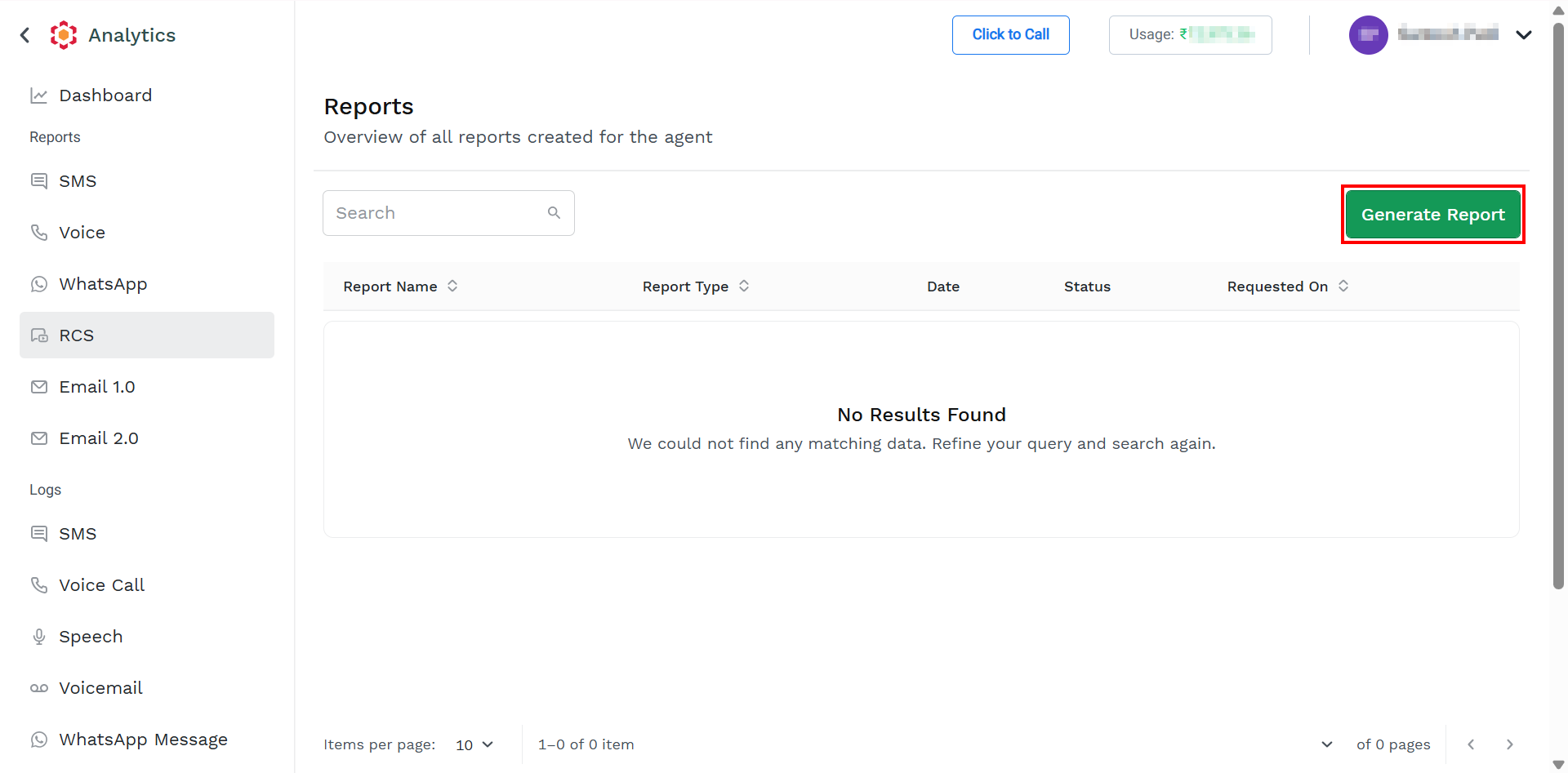
For information on column details, see View Report List.
- On the top-right of the page, click the Generate Report button.
The Generate Report page appears.
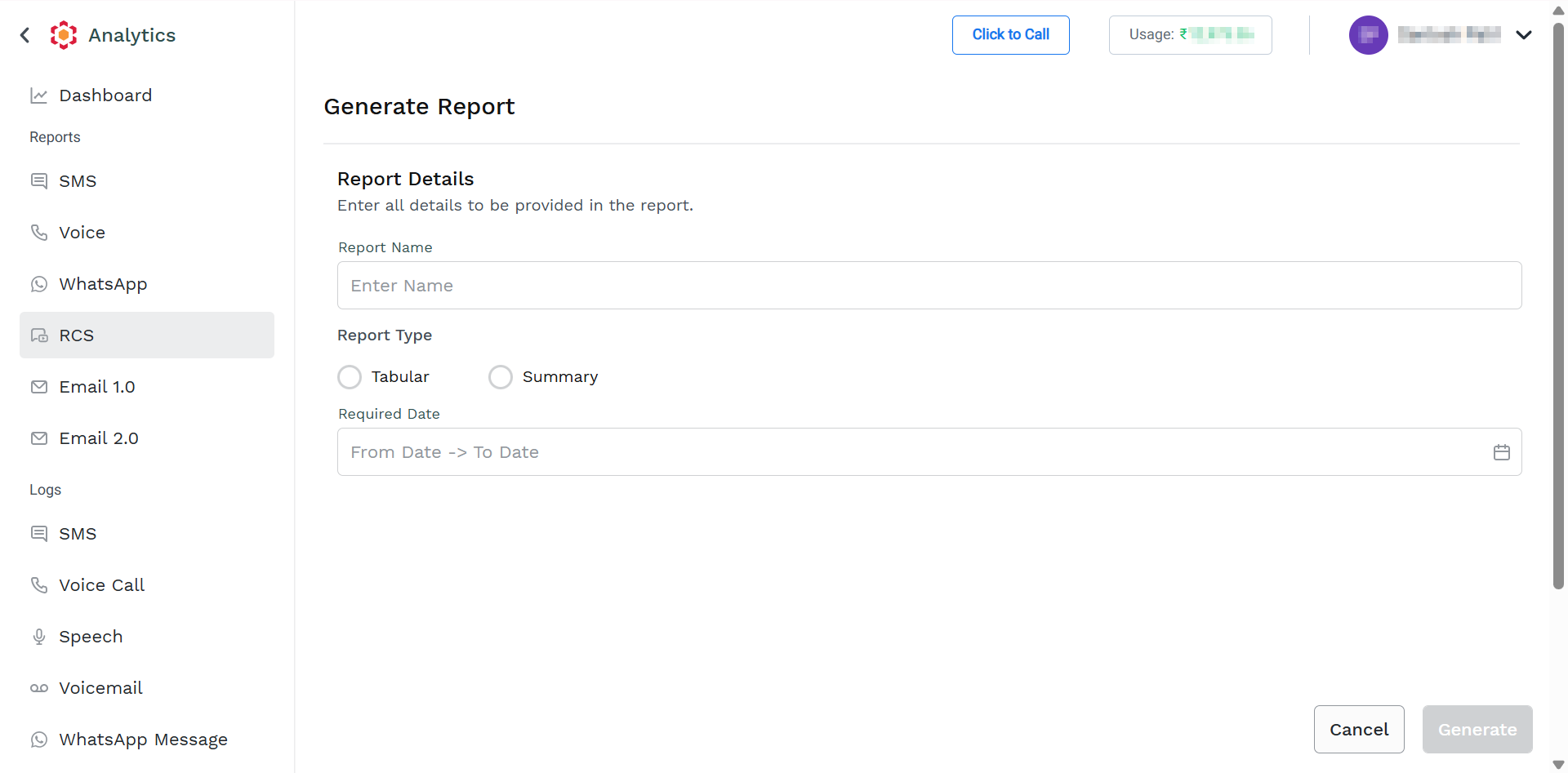
- Perform the following steps:
-
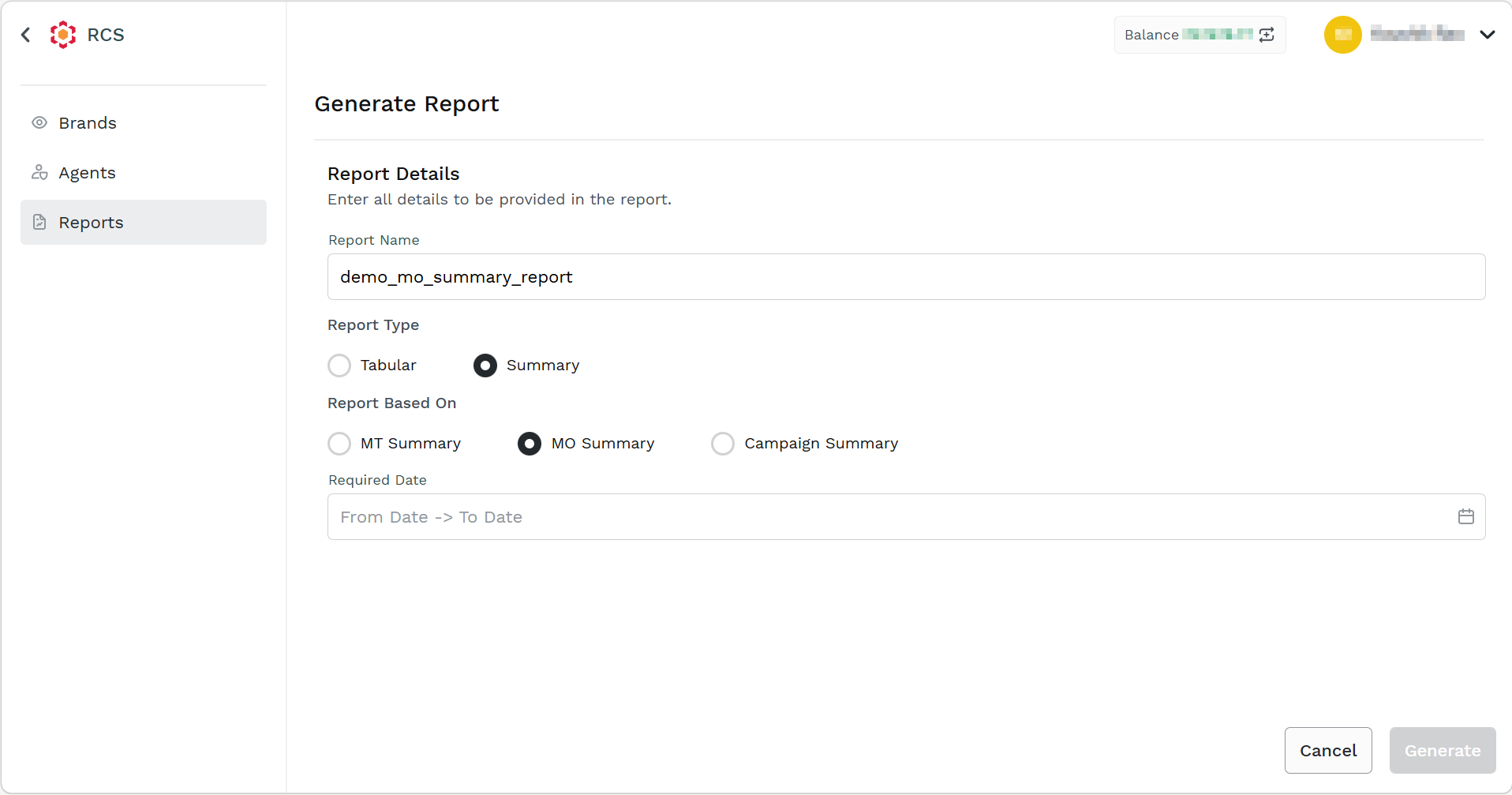
In the Report Name field, enter the name. The report name should be between 3 and 40 characters.
-
From the Report Type, select the Summary option.
-
Select the MO Summary option.
-
In the Required Date field, click the From Date -> To Date or the calendar icon on the right side of the Required Date field. Select the from and to dates from the calendar. You can select the date range from the last 6 months to the current date.
-
- Click the Generate button. The confirmation message appears and the request to generate the report is taken in charge by Kaleyra Platform.
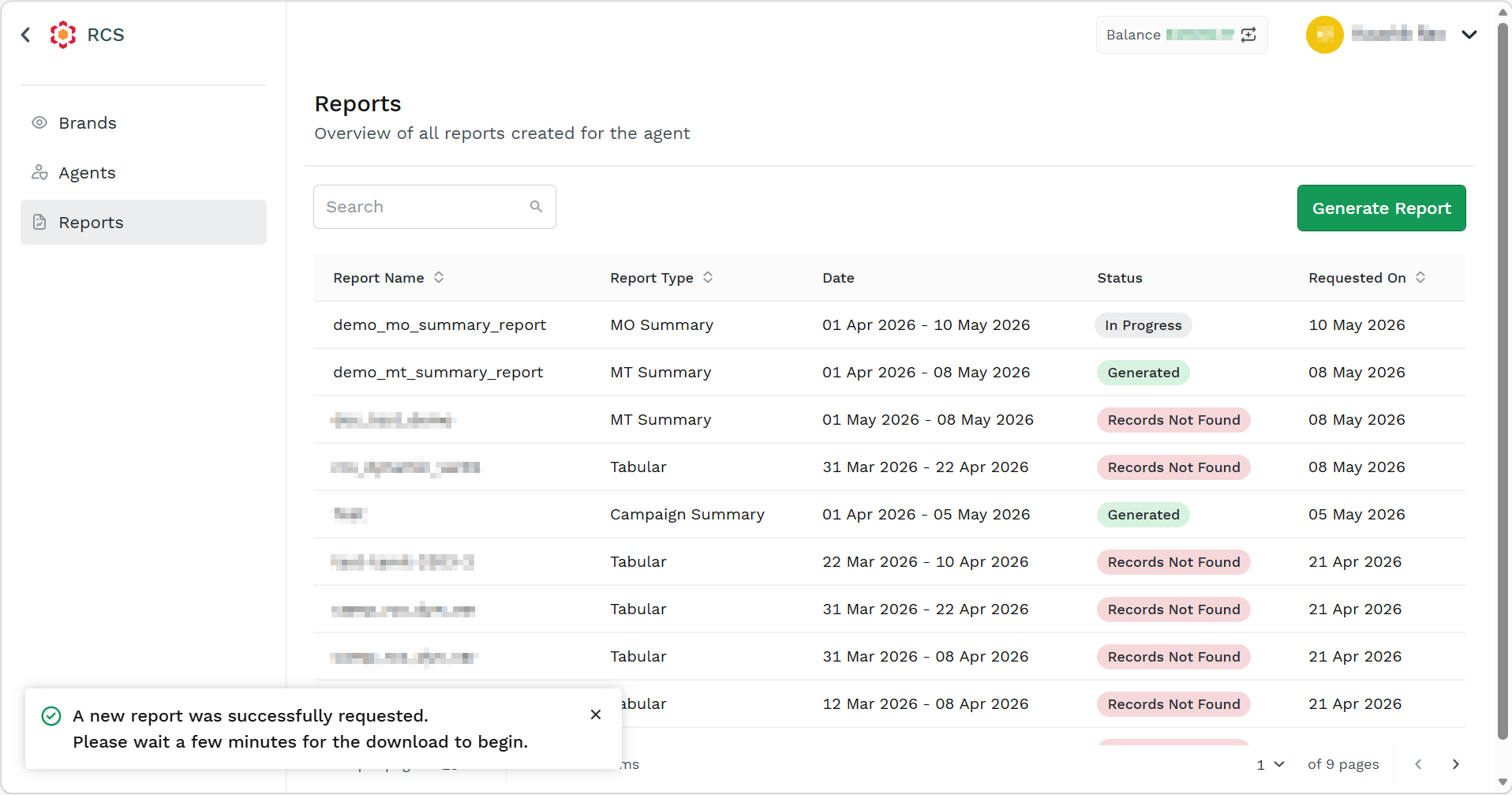
After successfully generating the report. The status of the report changes to Generated.
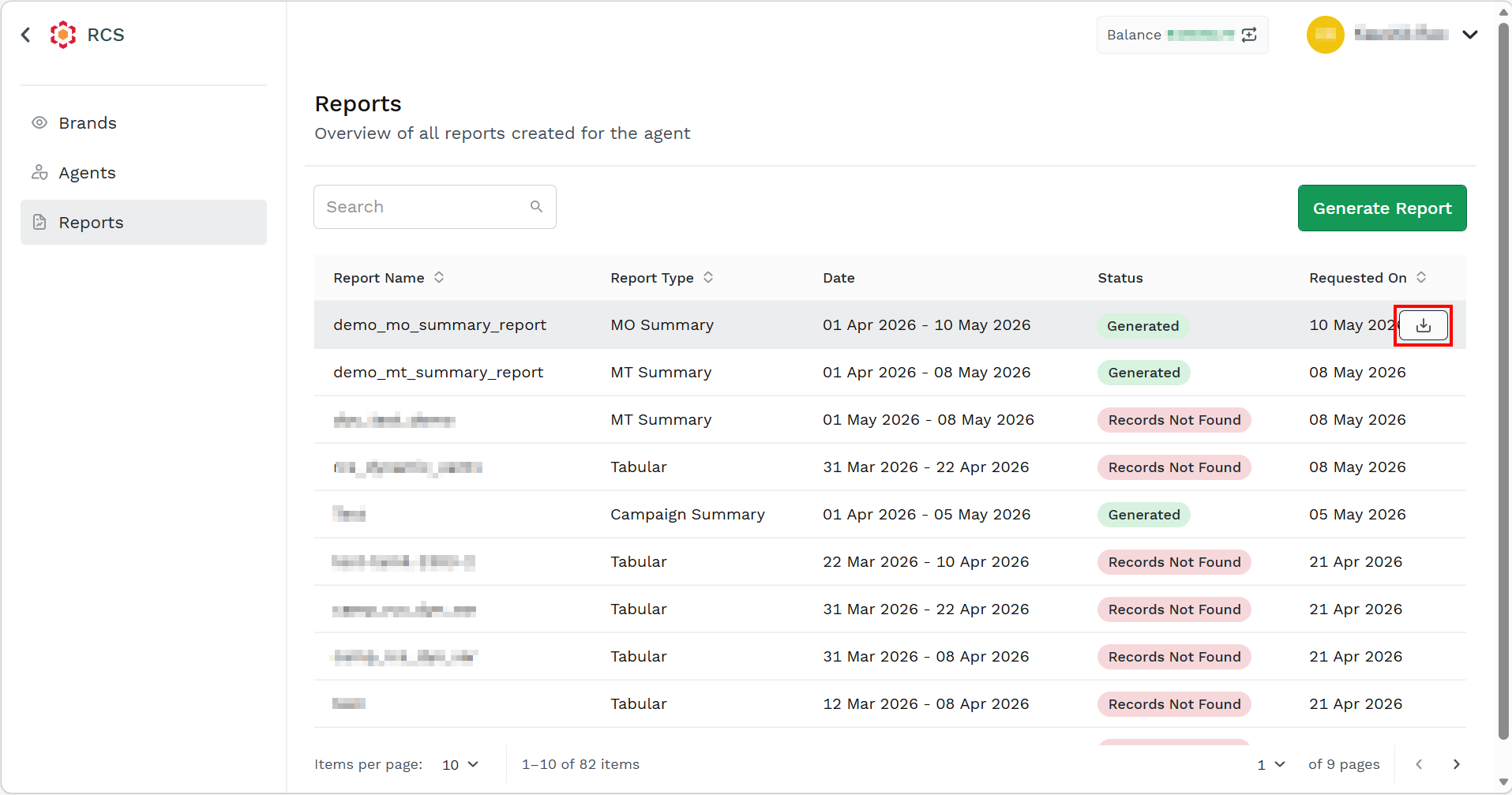
- Hover over the report with status as Generated and click the Download button to download the report. The report gets downloaded in the mapped folder in .csv file.
Updated about 1 month ago