

Callback Failed Report
The Callback Failed Report allows you to identify callback profiles that have experienced callback delivery failures on consecutive days. It provides details such as the callback profile ID, endpoint URL, number of consecutive days of failure, company ID, and HTTP error codes, helping you quickly identify and troubleshoot persistent callback delivery issues.
Notes:
- If you need to retrigger the failed callbacks, please contact your Kaleyra support team.
- This automated report is only sent when all callbacks toward a given endpoint fail at least for 1 (one) day. For a more comprehensive view of all your callback you can use Callback Report.
Sample Callback Failed Report
The following is the sample Callback Failed Report:
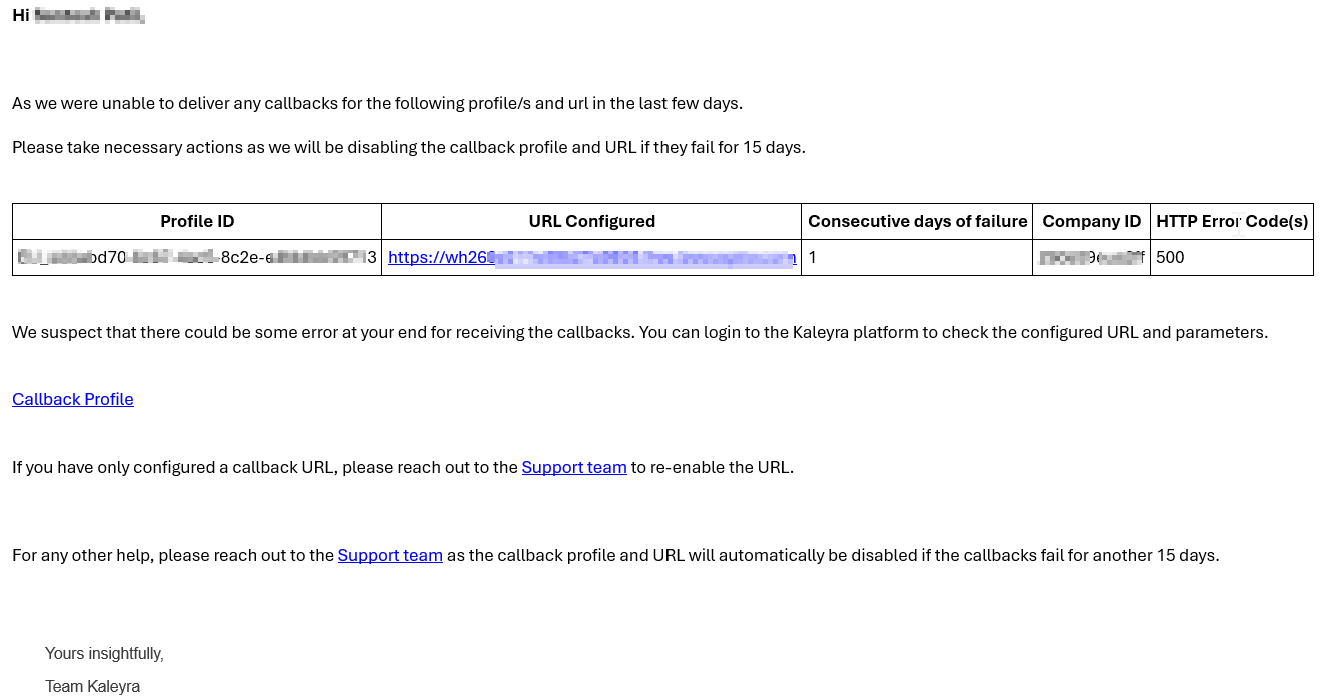
The Callback Failed Report contains the following details:
| Column Field Name | Description |
|---|---|
| Profile ID | The unique identifier of the callback profile. |
| URL Configured | The callback endpoint URL associated with the profile. |
| Company ID | The unique identifier of the company associated with the callback profile. |
| Consecutive days of failure | The number of consecutive days during which callback delivery failures occurred. |
| HTTP Error Code(s) | The HTTP status code(s) returned by the callback endpoint during delivery failures. |
Enable and Configure Callback Failed Report
To enable and configure the callback failed report, perform the following steps:
-
Log in to your Kaleyra Platform.
-
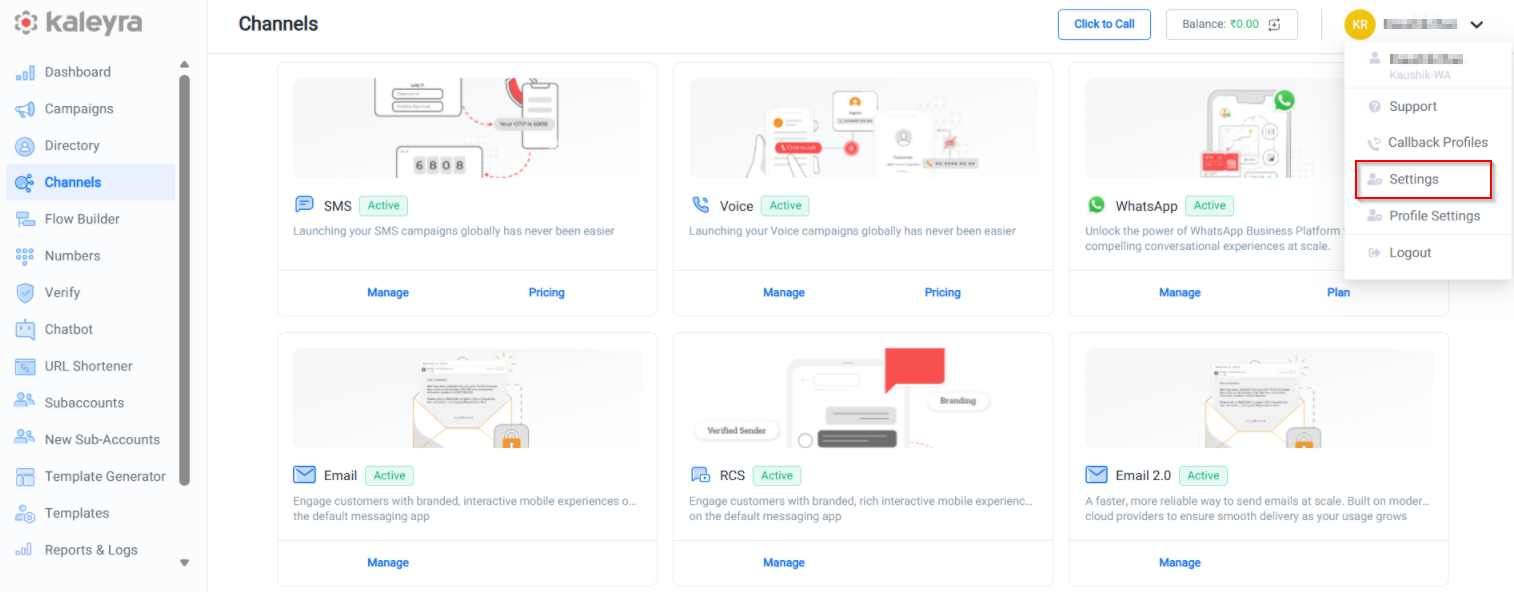
On the top-right of the page, click the User Profile drop-down and then click Settings.
-
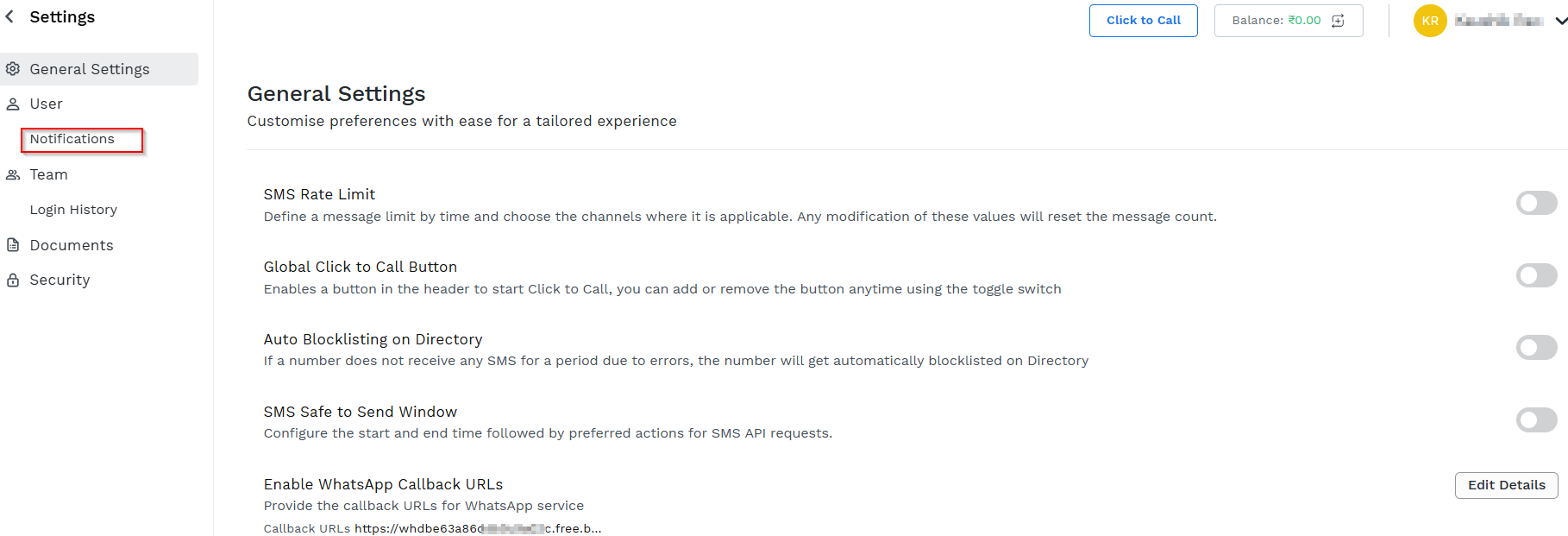
Click Notifications in the left pane.
The Notifications tab appears.
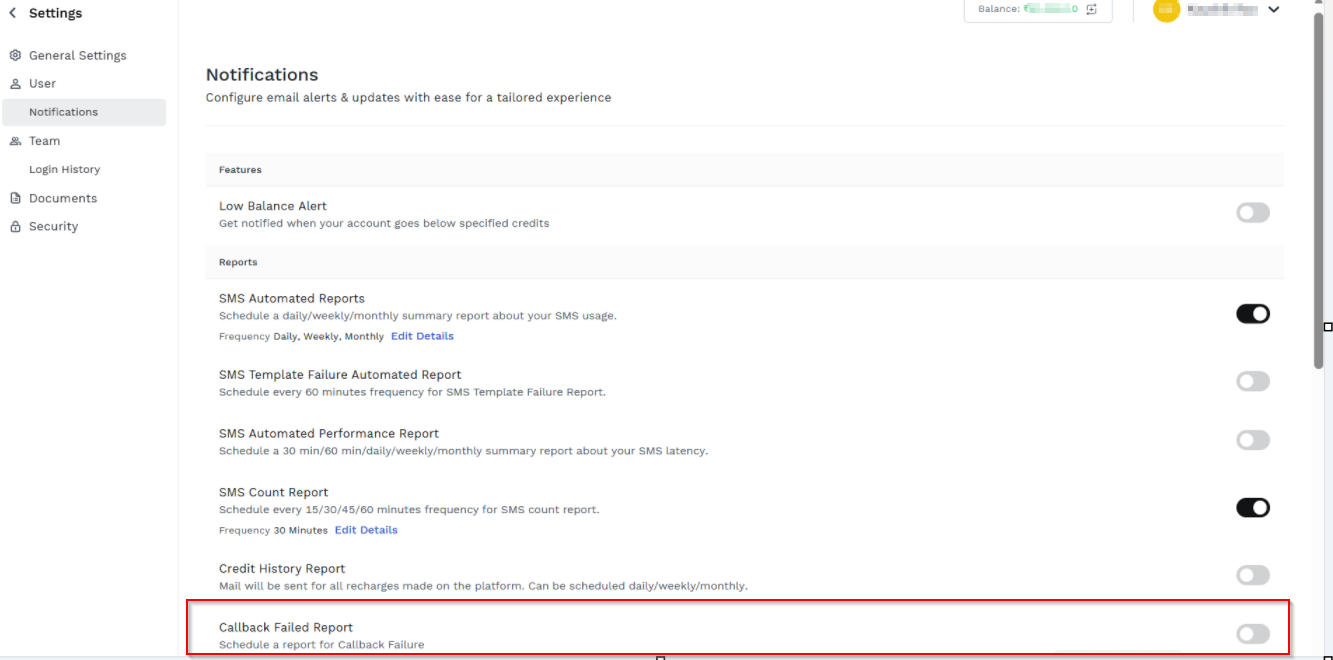
- Toggle Callback Failed Report.
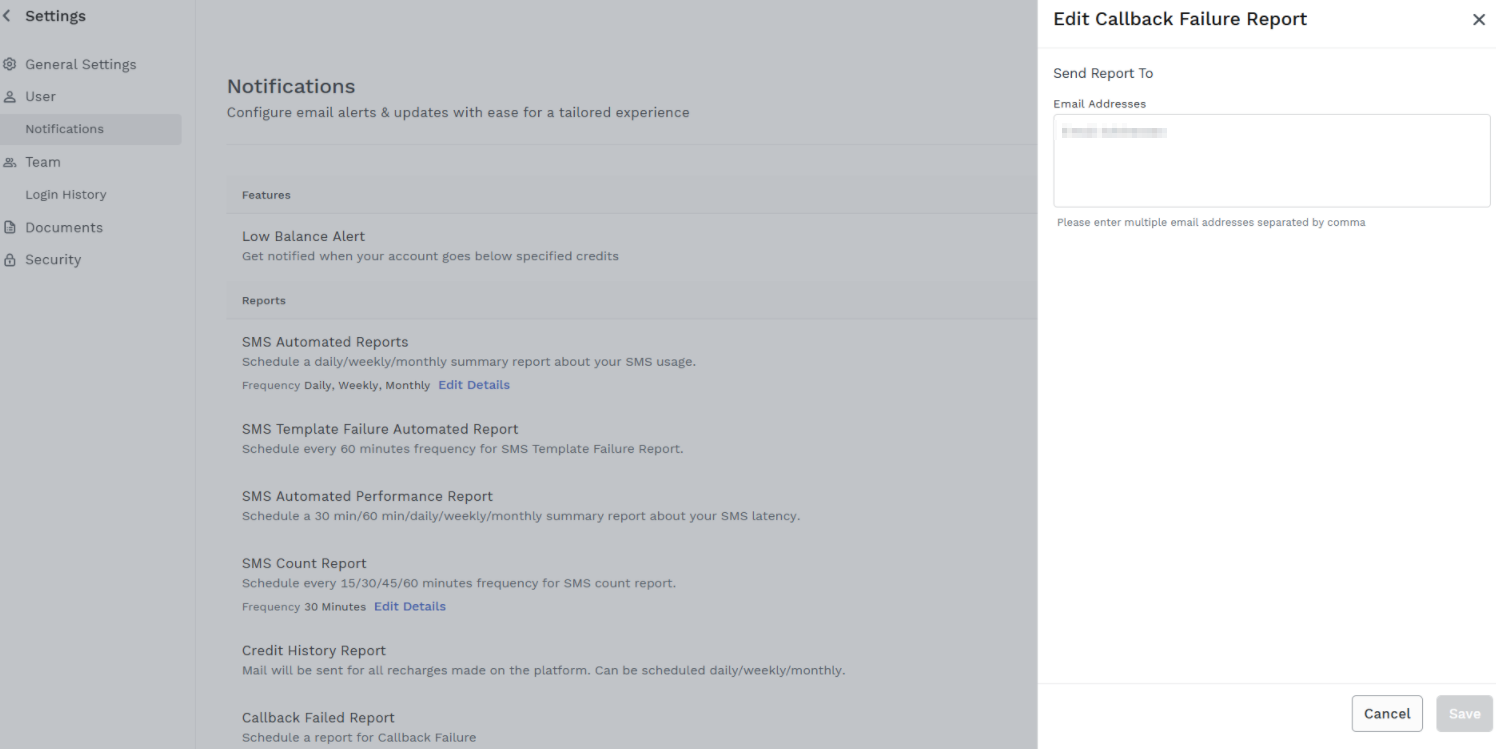
The Edit Callback Failure Report pop-up appears.
-
In the Send Report To field, enter one or more email addresses of the recipients to receive the Callback Failed Report.
Notes:- By default, the account owner’s email address is present.
- At least one email address is required to save the configuration.
- You can add multiple email addresses separated by a comma. For example - [email protected],[email protected].
-
Click Save.
A confirmation message "Failure report alerts created successfully" appears.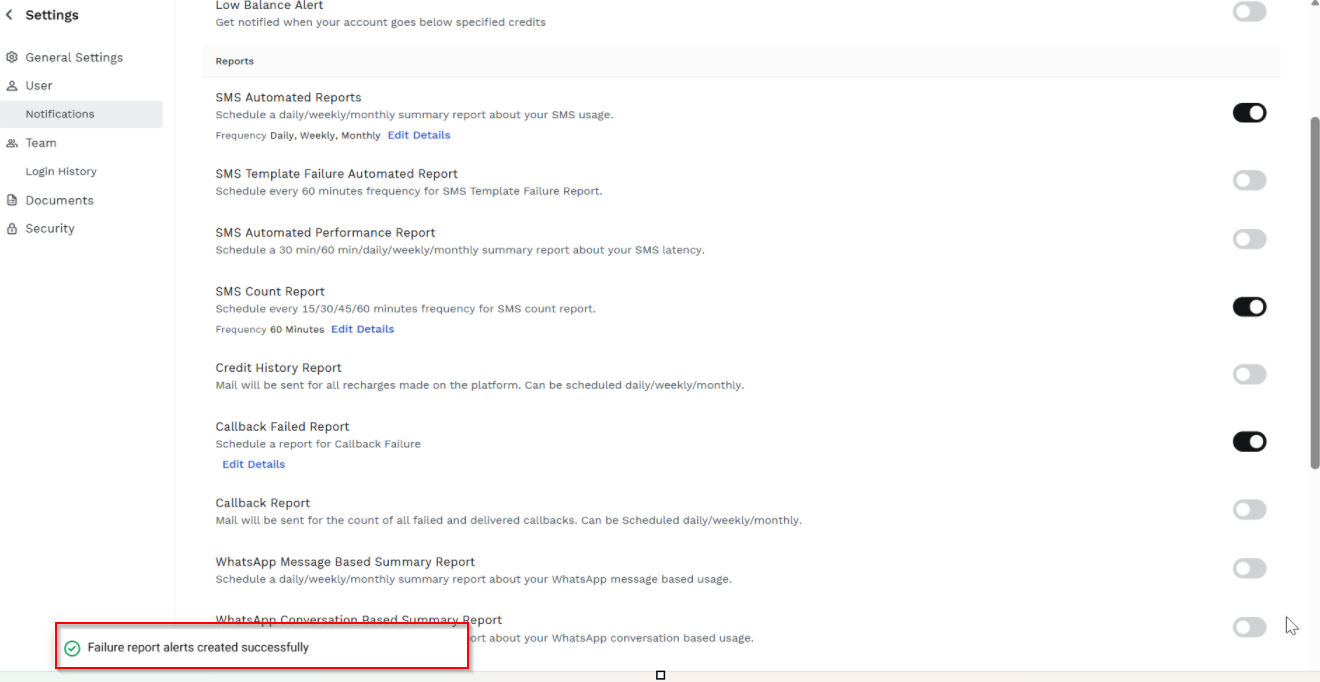
Updated about 22 hours ago