

Add a new WABA ID
You can add a new WhatsApp Business Account (WABA) to your Kaleyra account to enable WhatsApp messaging services for your business. The Kaleyra’s platform lets you add and manage multiple WhatsApp Business Accounts (WABAs) all in one place, so you can handle messaging separately for different brands using a single dashboard.
Note:
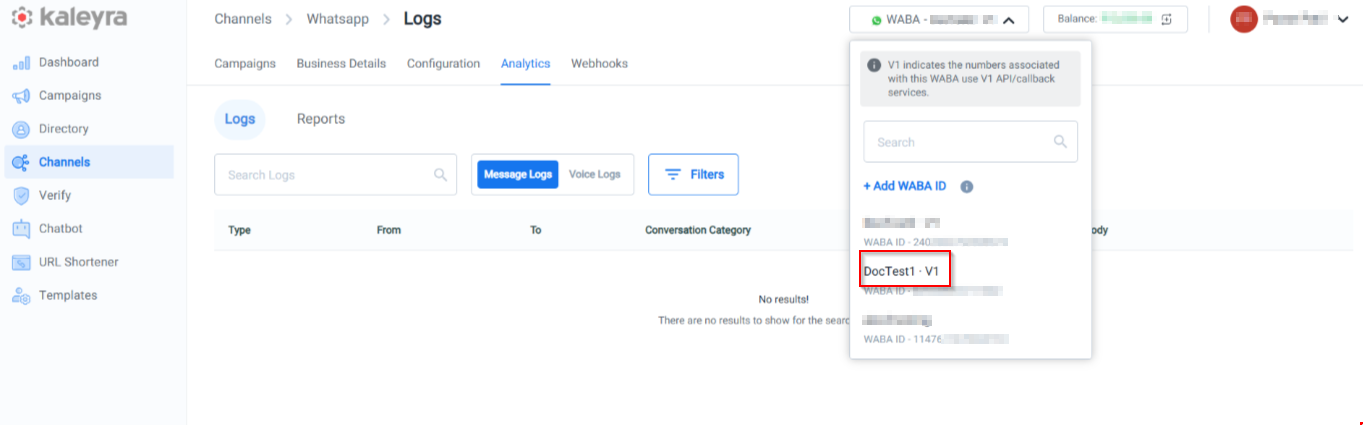
If you have more than one WABA ID in your Kaleyra platform account, you can select which WABA ID to use from the Kaleyra platform User Interface among the available ones.
This process includes connecting your Facebook Business Manager, verifying your business details, and onboarding the WABA through Kaleyra’s Embedded Signup flow for account creation.
The following conditions apply when using multiple WABA IDs:
- While adding a new WABA ID to your account, you cannot add a WABA ID that already exists in your account.
- A given WABA ID cannot be added to different Kaleyra accounts within a given region.
- The same WABA ID cannot be added to Kaleyra accounts in different regions. For example, between the Europe or North America or India or the Rest of the World region.
- You can have a different WABA ID with the same name.
Prerequisites:Before you can create a WABA ID, you need to:
- Create a kaleyra.io Account.
- Complete the Know Your Customer (KYC) Procedure.
- Create an account name and a Business Manager ID using the Facebook Business Manager.
- Have an active mobile Number that does not have an associated WhatsApp account.
To add a new WABA ID from the kaleyra.io account, perform the following steps:
-
Sign in to your Kaleyra Platform.
The Channels page appears.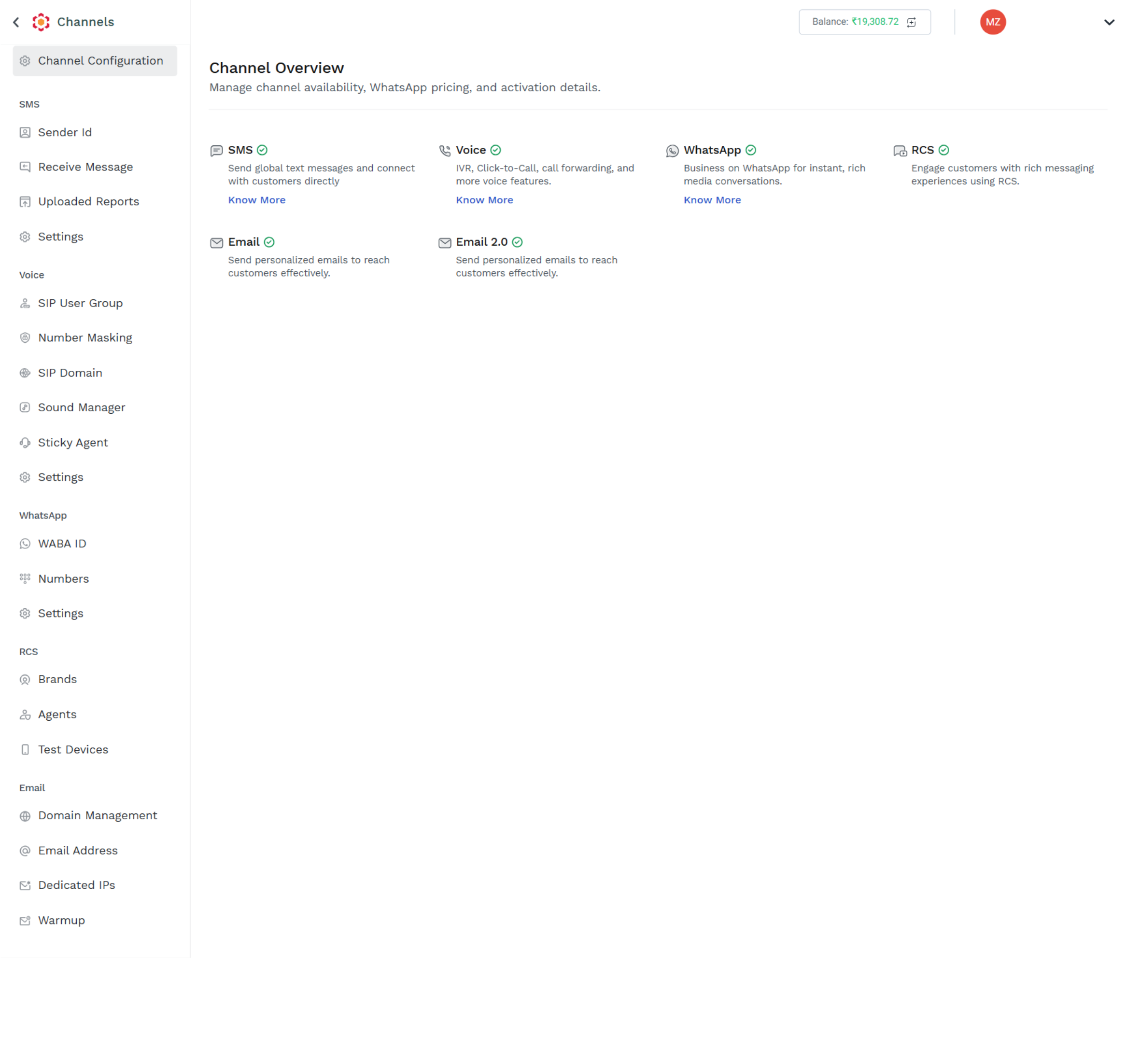
- On the left navigation bar from the WhatsApp section, click WABA ID.
The WABA ID page appears.
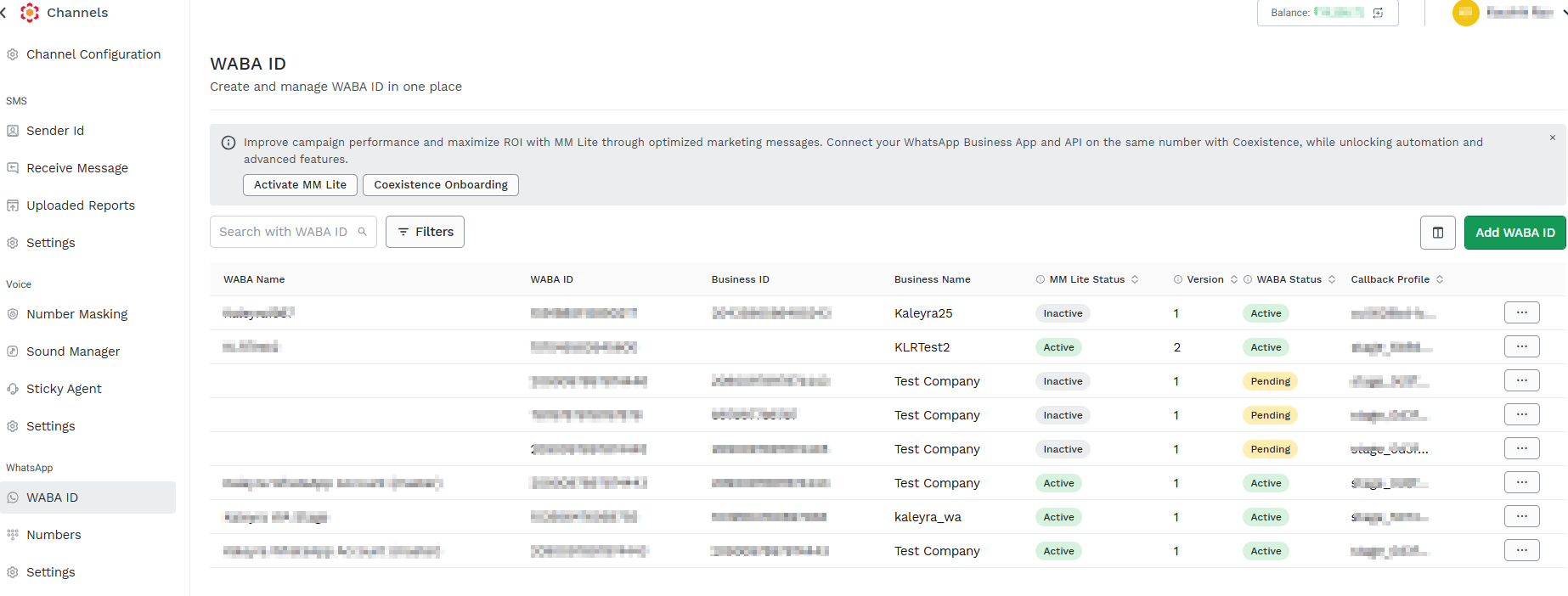
- Click Add WABA ID. The V2 Embedded Signup pop-up appears.
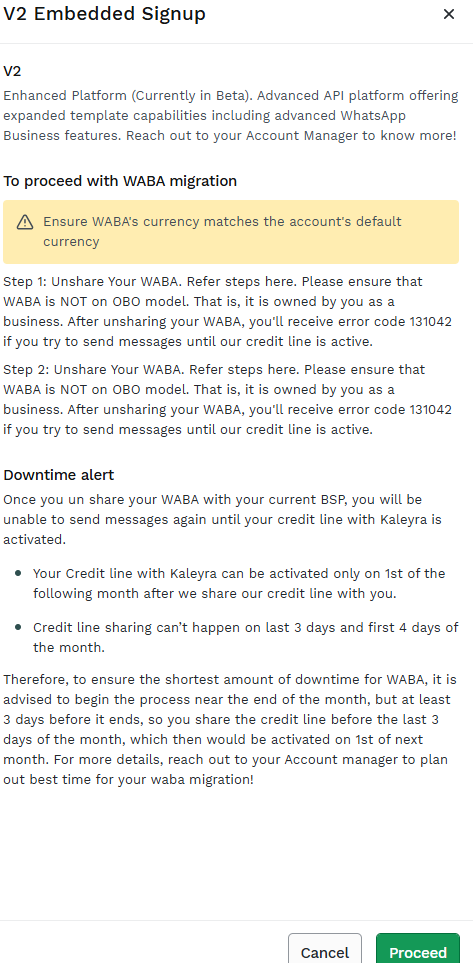
- Click Proceed. The Facebook login widget page appears where you will be redirected to the Embedded Sign-Up page, where you can complete the onboarding process for the end users' WABA IDs.
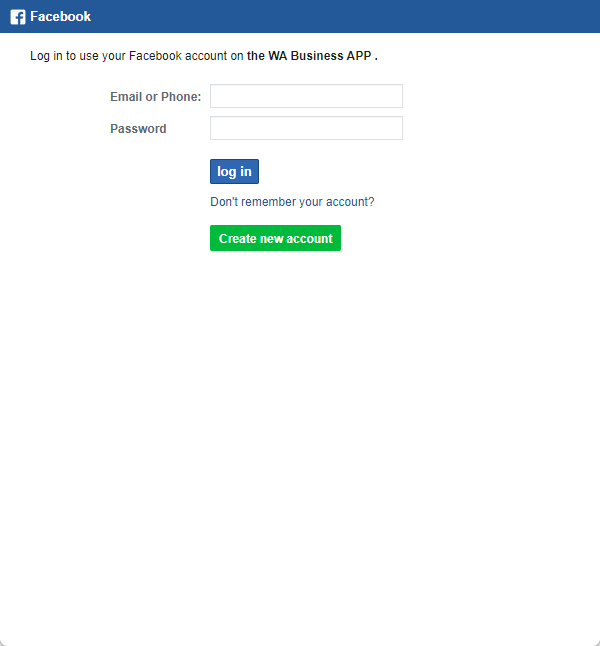
- Enter the Email address or Phone number associated with your Facebook business account. In the Password field, enter your password.
- Click Log In.
The Connect your account to Kaleyra page appears.
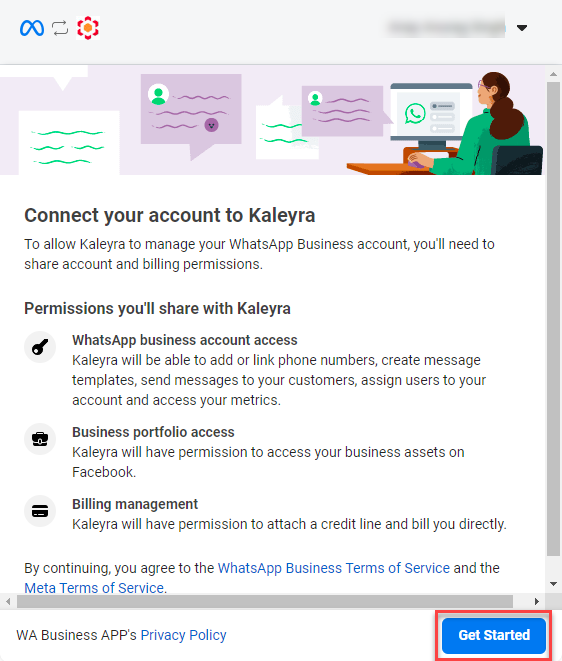
- Read the terms of service and click Get Started.
The Fill in your business information page appears.
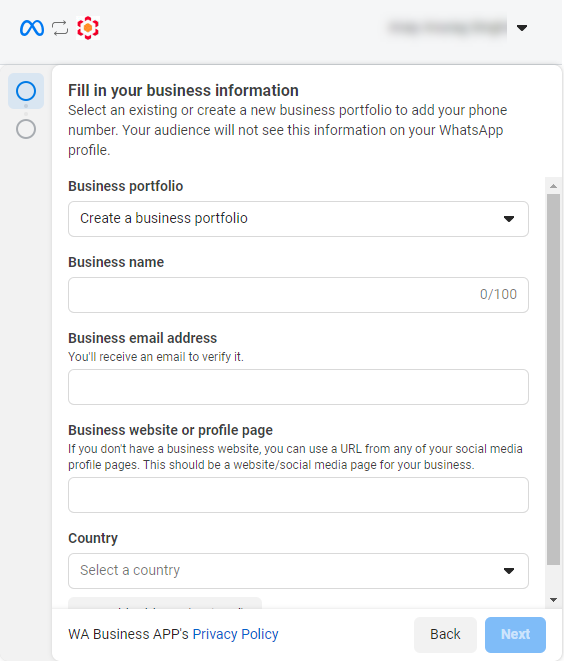
Complete WhatsApp Business Account Creation
After selecting your onboarding method and connecting your Facebook Business Manager, complete the WhatsApp Business Account (WABA) creation process.
- On the Fill in your business Informationpage, enter the following details:
- In the Business Portfolio drop-down, the Create a business portfolio option is selected.
- In the Business name field, enter the business name you want to provide for the new WABA. You cannot use an already existing name for your new WABA, whatever the name is already in use in the same Kaleyra account, in other Kaleyra accounts, or even in accounts in different region environments.
- In the Business email address field, enter your business email address. An email will be sent to the email address entered by Meta for verification.
- In the Business website or profile page field, enter your business website or profile link.
- Click the Select a country drop-down, and a list of countries appears. Select your country.
- (Optional) Click Add address; the fields to enter the address appear. Then, enter your business address details.
- Click Next.
The Create or select your WhatsApp Business account page appears.
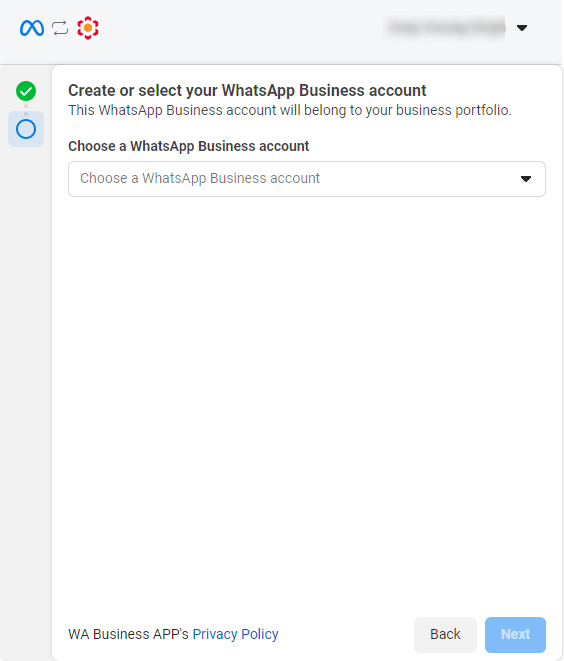
- Click the Choose a WhatsApp Business account drop-down.
The Choose a WhatsApp Business account option appears.
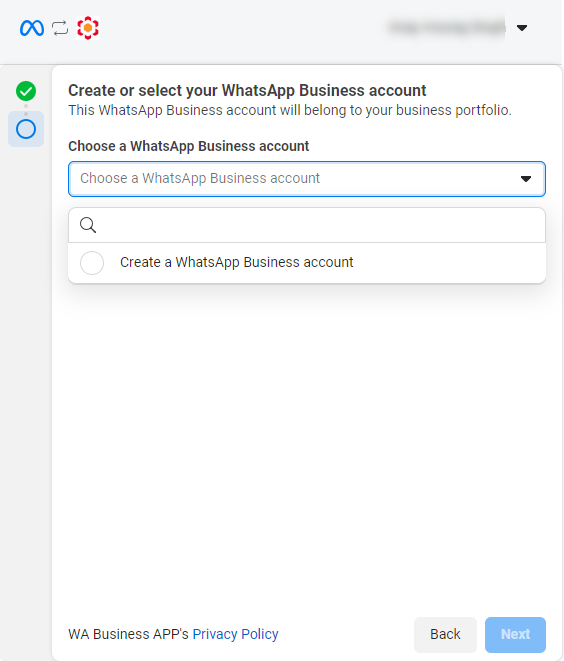
- Select Create a WhatsApp Business account and then click Next.
The configured WhatsApp business account name and Time zone appear.
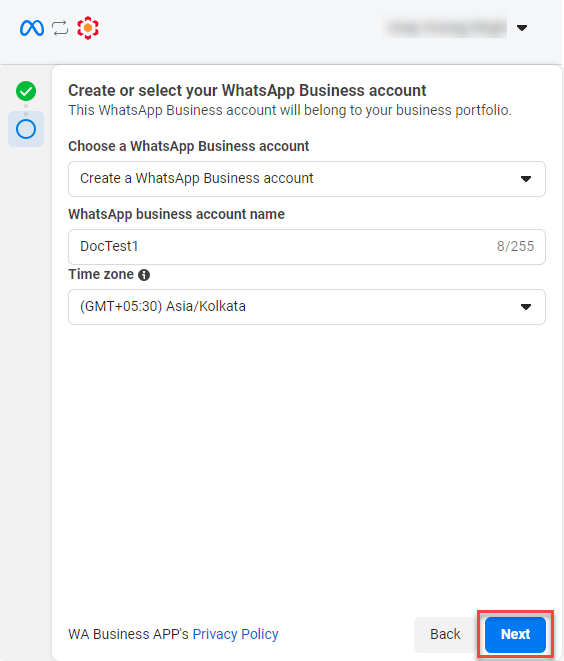
- Click Next.
The Review what WA Business APP is requesting permission to do page appears.
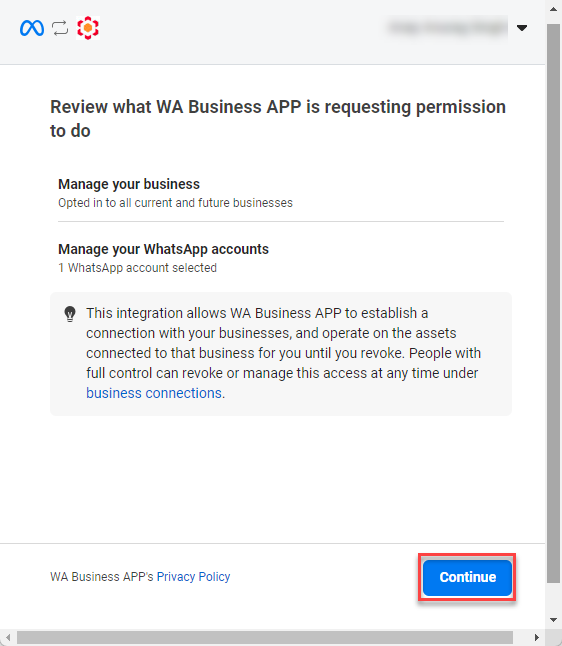
- Click Continue.
The You're now ready to chat with people on WhatsApp page appears.
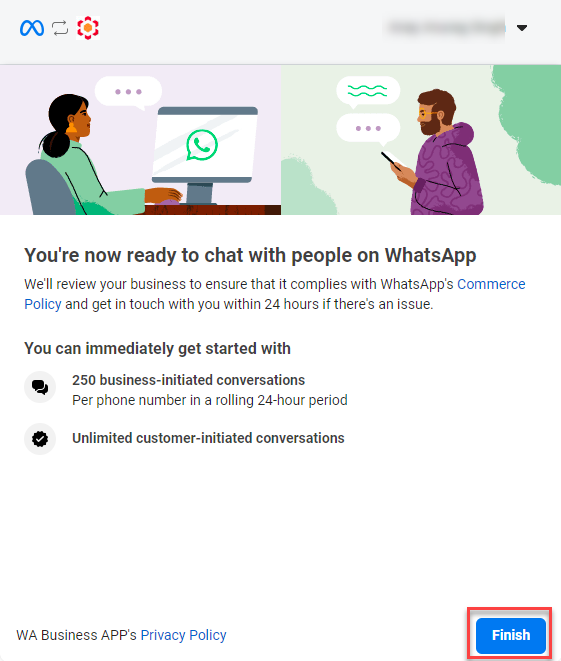
- Click Finish.
A confirmation message Embedded Signup Successfully appears.
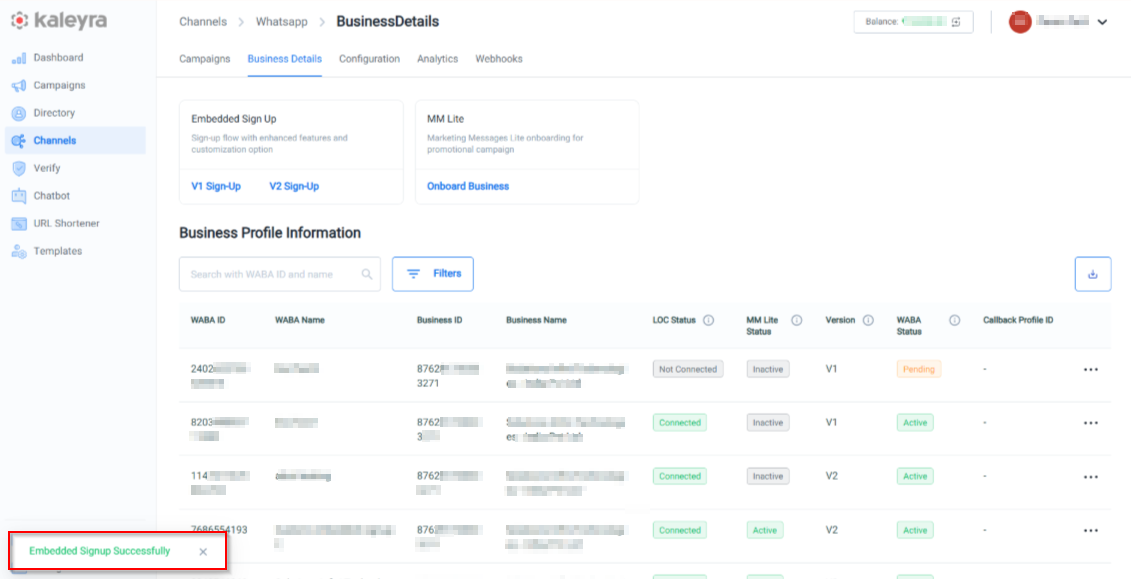
- The WABA ID is added to your WABA ID list.
Business Profile Information
The Business Profile Informationfeature in Kaleyra's platform allows you to perform the configuration and management of your WhatsApp Business Profile. This profile serves as your business's identity on WhatsApp, providing end users with essential details about your company which includes WABA ID, WABA Name, Business ID, Business Name, LOC Status, MM Lite Status, Version, WABA Status, and Callback Profile ID.
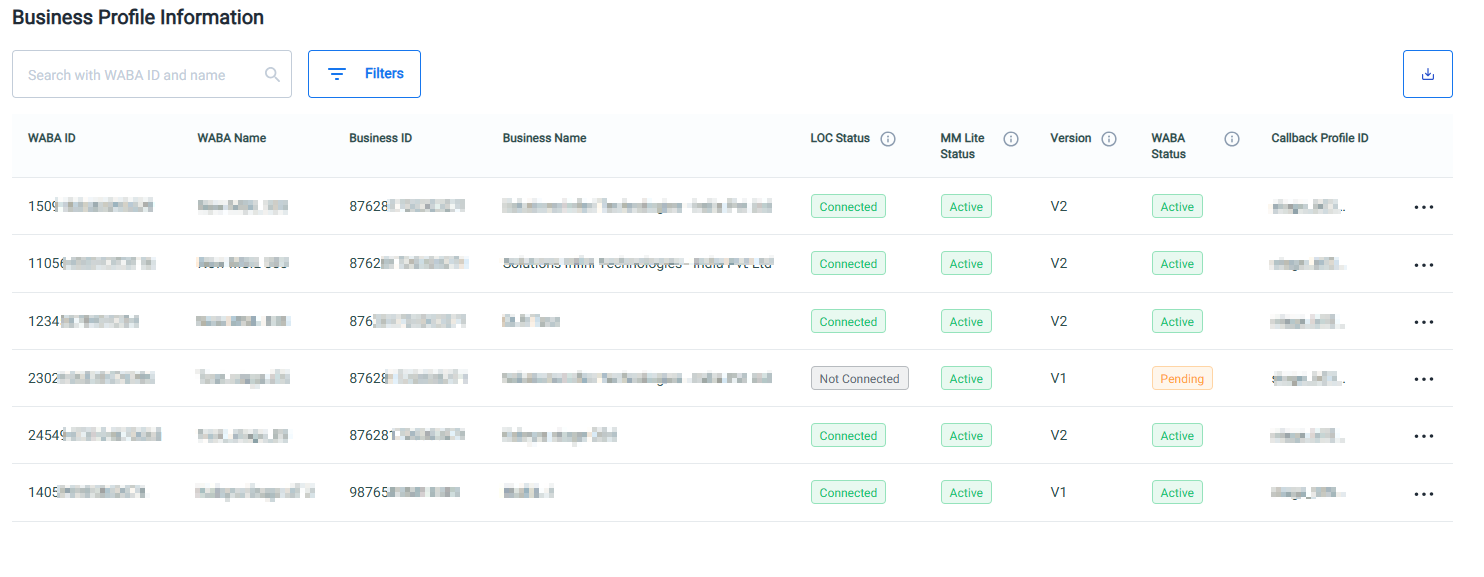
The Business Profile Information has the following fields:
- WABA ID - Unique identifier for your WhatsApp Business Account. This ID is essential for linking your account with Kaleyra’s messaging services.
- WABA Name - The registered name of your WhatsApp Business Account.
- Business ID - A unique identifier assigned to your business entity in Kaleyra’s platform.
- Business Name - The official name of your business as registered with Kaleyra.
- Line of Credit Status (LOC) Status - Indicates the current status of your Line of Credit approval and its utilization.
- Marketing Message Lite Status (MM Lite Status) - WABA status of your WhatsApp Business Account for Marketing Message Lite API. It shows if your account is Active or Inactive for marketing message capabilities.
- Version - Indicates the Kaleyra API version your WABA is currently linked to, ensuring compatibility and access to the latest features.
- WABA Status - Shows the current operational state of your WhatsApp Business Account. Supported statuses include Active or Pending, indicating whether your account is ready to send messages or awaiting approval.
- Callback Profile ID - Unique identifier assigned to each callback profile you create. For more information, see Callback Profile page.
Search, Filters, Download, View Steps, and view the Configuration for the Business Profile Information
You can search, filters, download, View Steps, and view the Configuration of the Business Profile Information.
The topic contains the following sections:
Search
You can search the business profile information using the WABA ID and WABA Name.
To search the business profile information using WABA ID and Name, perform the following steps:
- Perform the steps from 1 through 2 of the Add a New WABA ID page.
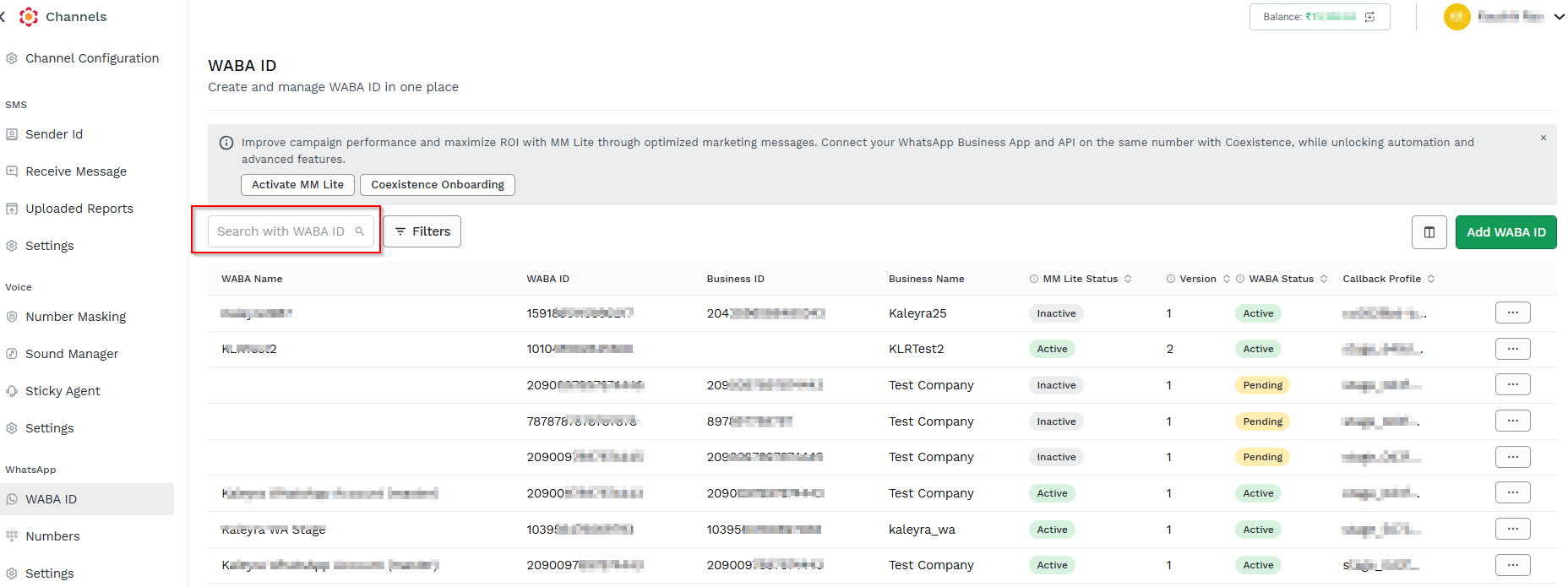
- In the Search field, enter the keyword or specific WABA ID or WABA Name you want to search. For example, enter a WABA ID to find a specific WhatsApp Business Account.
The search result appears.
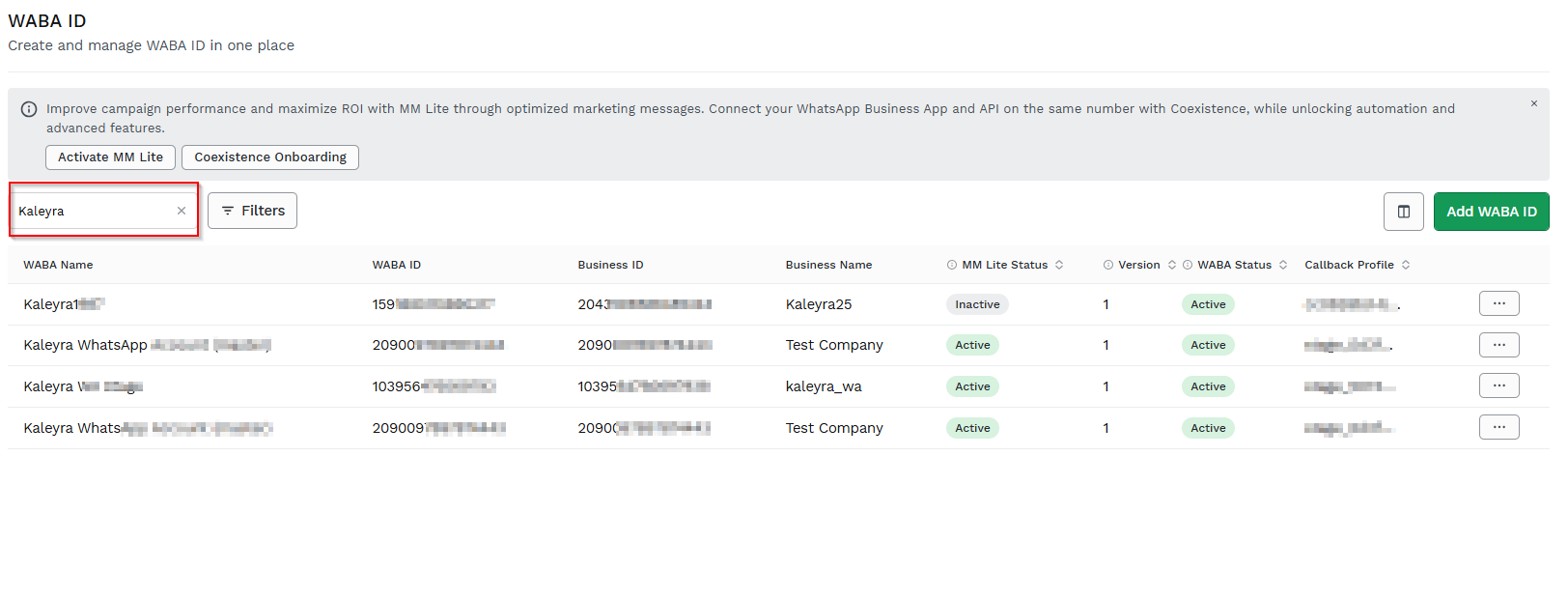
Filters
The Filters option allows you to filter the business details based on the LOC Status, MM Lite Status, Version, and WABA Status.
To filter the business profile information, perform the following steps:
- Perform the steps from 1 through 2 of the Add a New WABA ID page.
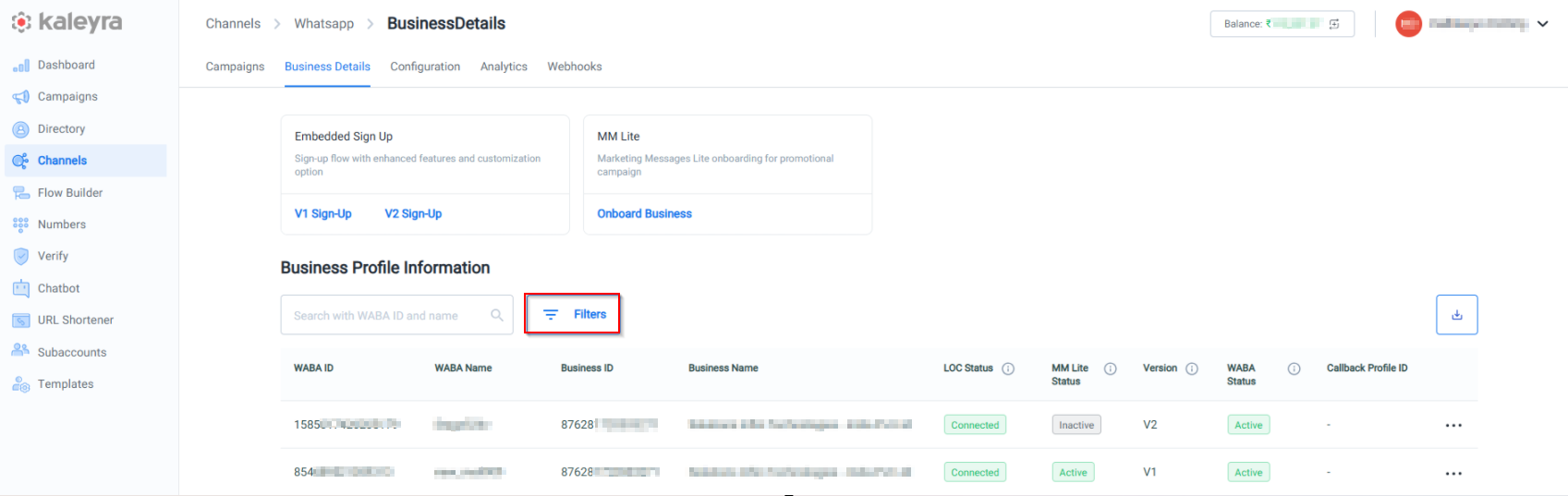
- Click Filters. The Filters pop-up appears.
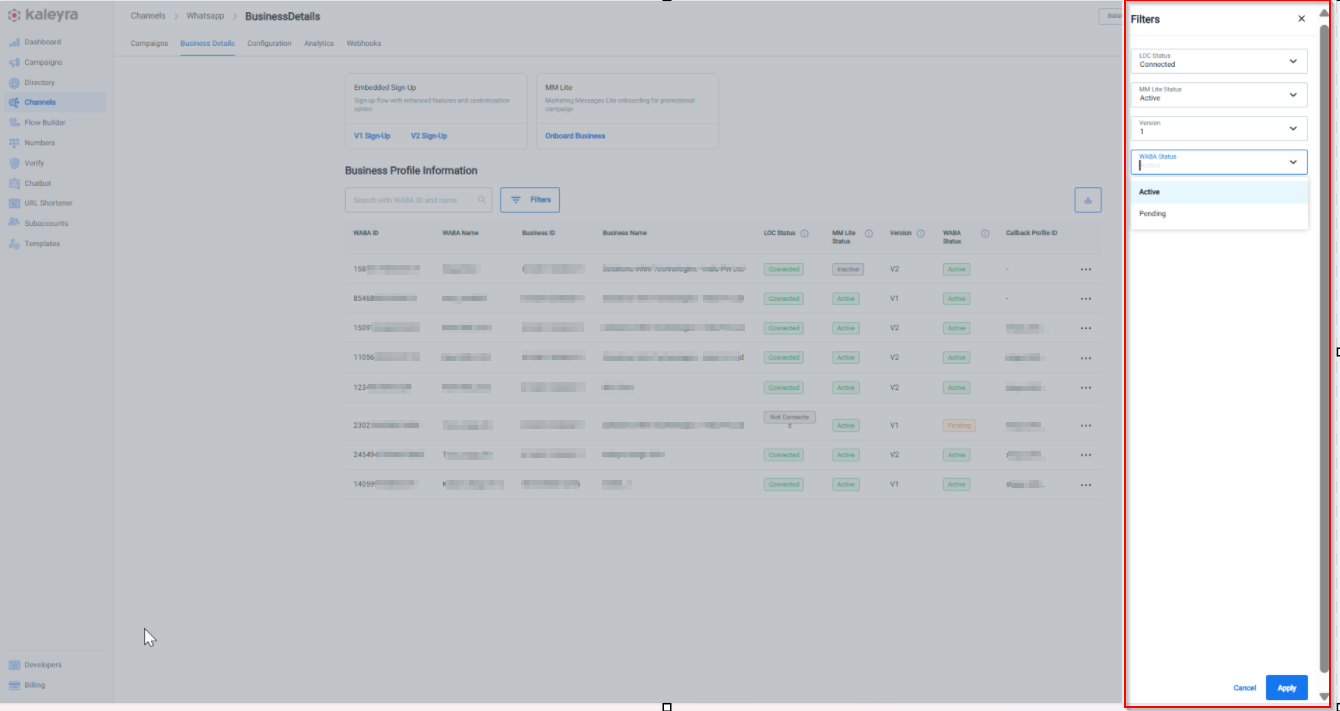
The Filters section has the following fields:
- LOC Status - Select the LOC Status from the drop-down list. The supported options are Connected and Not Connected.
- Connected - Specifies the line of credit is attached to WABA.
- Not Connected - Specifies the line of credit is not attached to WABA.
- MM Lite Status - Select the MM Lite Status from the drop-down list. The supported options are Active and Inactive.
- Active - Specifies the Marketing Messages Lite (MM Lite) is enabled for the specific WABA.
- Inactive - Specifies the Marketing Messages Lite (MM Lite) is disabled for the specific WABA.
- Version - Select the Version from the drop-down list. The supported options are one and two.
- One - Specifies that the WABA belongs to version one.
- Two - Specifies that the WABA belongs to version two.
- WABA Status - Select the WABA Status from the drop-down list. The supported options are Active and Pending.
- Active - WABA is ready to use.
- Pending - WABA onboarding is in progress.
- Click Apply. The selected filters list appears.
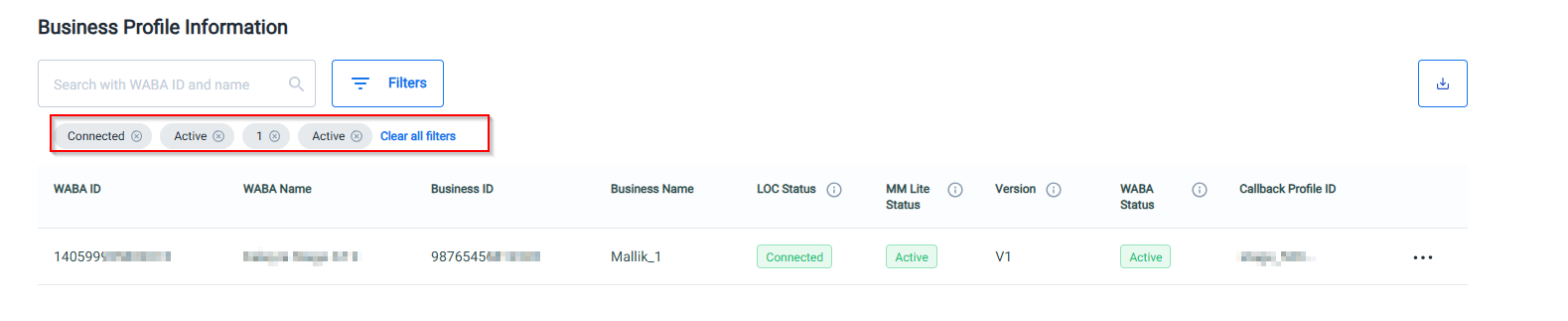
- Click Clear all filters to clear all the selected filters.
Download
The Download feature allows you to download an Excel (.xlsx) report containing the business details associated with the WhatsApp Business Account (WABA). This report includes WABA ID, WABA Name, Business ID, Business Name, LOC Status, MM Lite Status, Version, WABA Status, and Callback Profile ID information.
Note:
The report becomes available only after completing the initial steps of adding a WABA ID.
To download the Business Profile Information report, perform the following steps:
- Perform the steps from 1 through 2 of the Add a New WABA ID page.
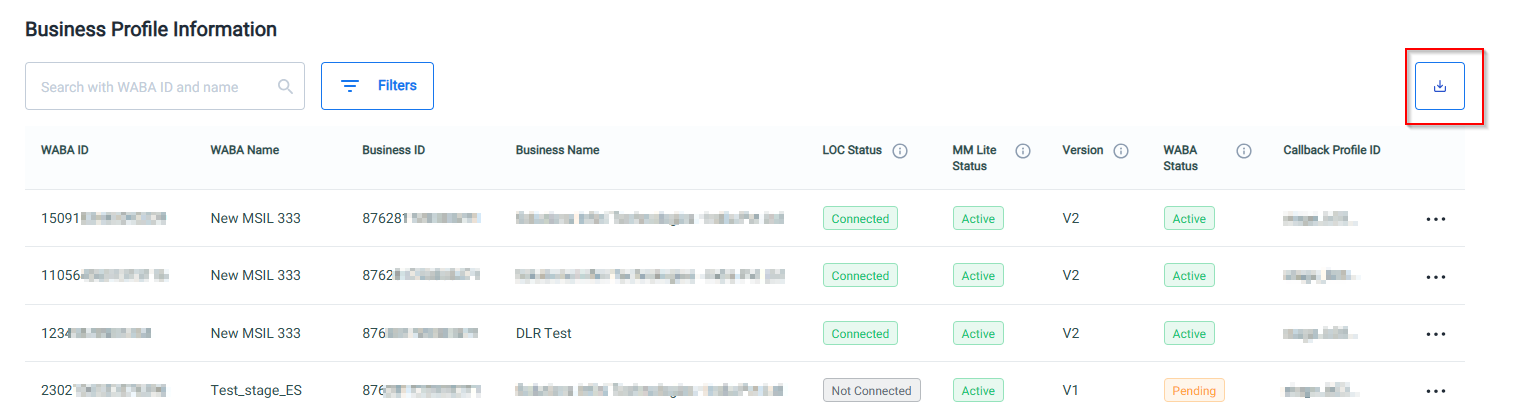
- Click Download icon. The Business Profile Information will be downloaded as an Excel (.xlsx) file containing your business details.

View Steps
The View Steps feature allows you to see the detailed progress and required actions related to updating their Business Profile information during the Embedded Signup process. Displays the sequential steps involved in completing the Business Profile setup. Provides end users with guidance and instructions for each step to ensure the profile information is accurately submitted. Helps end users to track their progress without leaving the signup page.
To view the steps for business profile information, perform the following steps:
- Perform the steps from 1 through 2 of the Add a New WABA ID page.
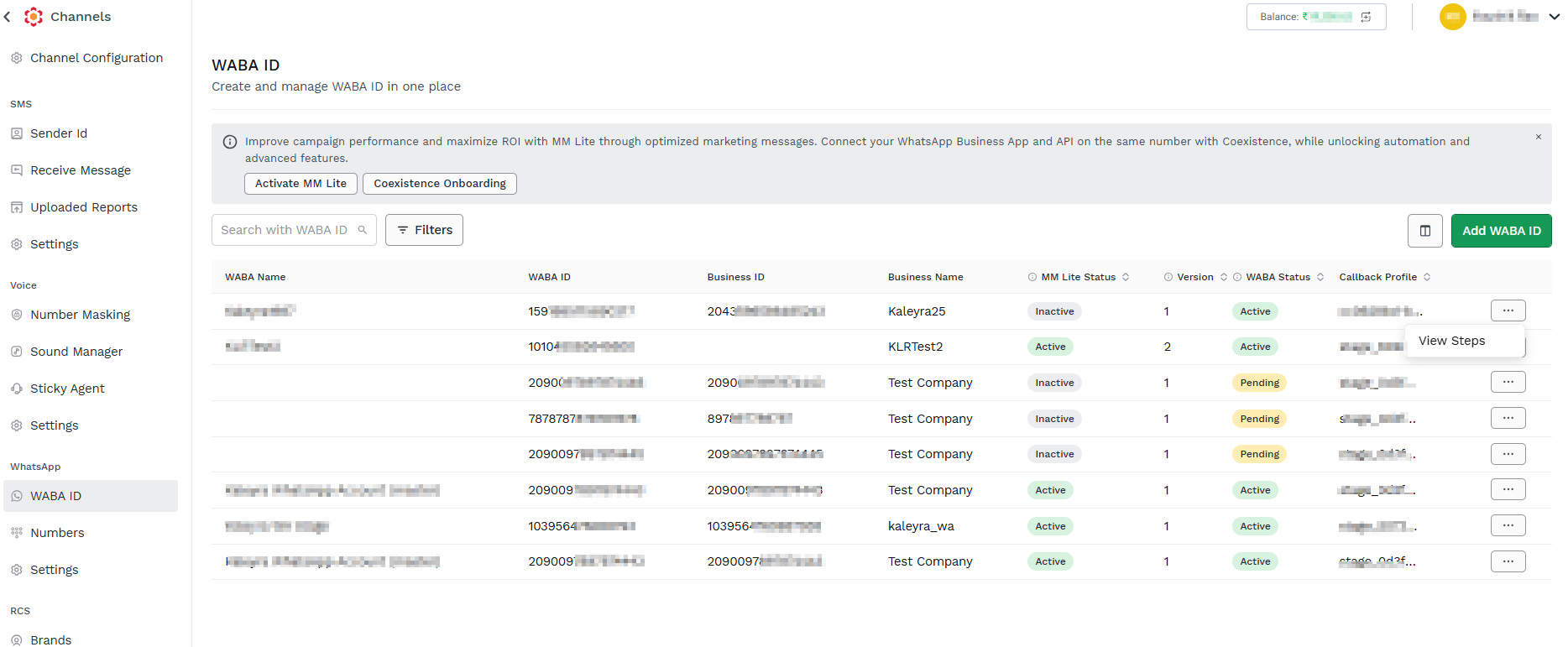
- Select the Business Details row for which you want to view the steps, click the ellipses (three dots) and then click View Steps.
The View Profile Information pop-up page appears.
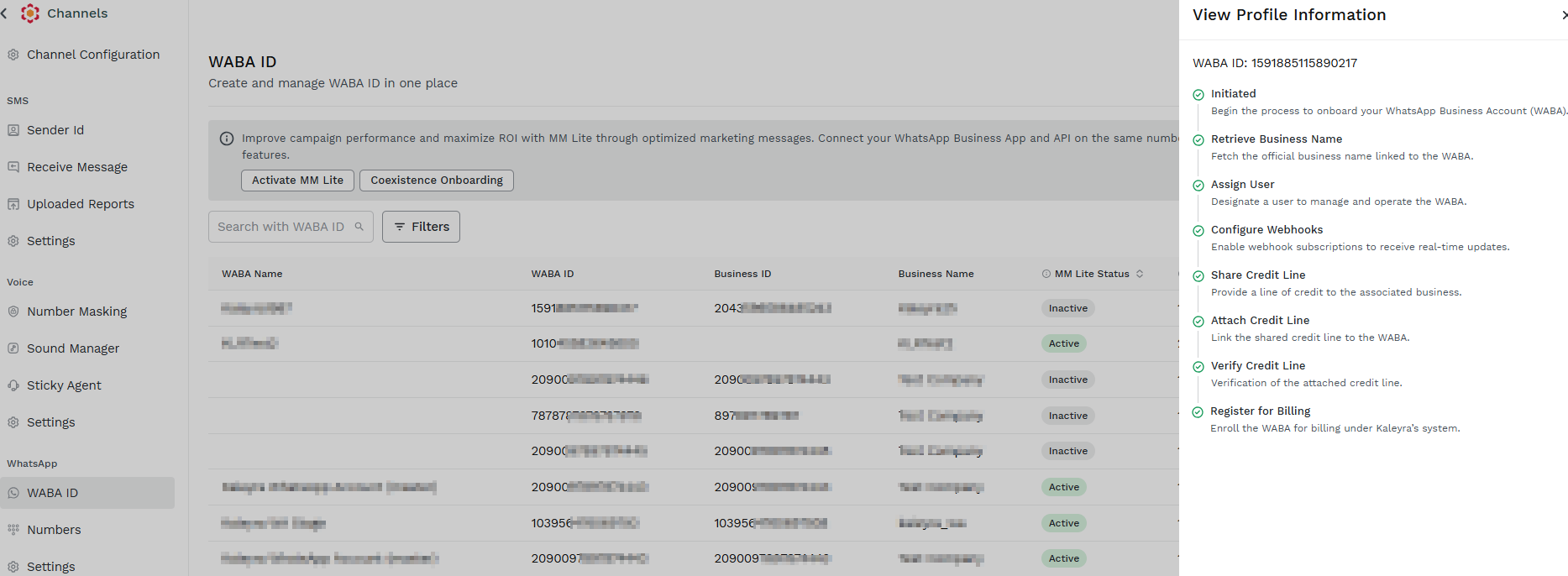
The View Profile Information section, has eight steps to onboard the WABA ID. These includes:
- Initiated - Begin the process to onboard your WhatsApp Business Account (WABA).
- Retrieve Business Name - Fetch the official business name linked to the WABA.
- Assign User - Designate a user to manage and operate the WABA.
- Configure Weebhooks - Enable webhook subscriptions to receive real-time updates.
- Share Credit Line - Provide a line of credit to the associated business.
- Attach Credit Line - Link the shared credit line to the WABA.
- Verify Credit Line - Verification of the attached credit line.
- Register for billing - Enroll the WABA for billing under Kaleyra’s system.
Note:
If any step in the View Profile Information process is blocked or incomplete, the system indicates exactly where the onboarding has been stopped.
Configuration
The Configuration feature allows you to manage the WABA assets (templates and phone numbers).
To view the configuration of the Business Profile Information section, perform the following steps:
- Perform the steps from 1 through 2 of the Add a New WABA ID page.
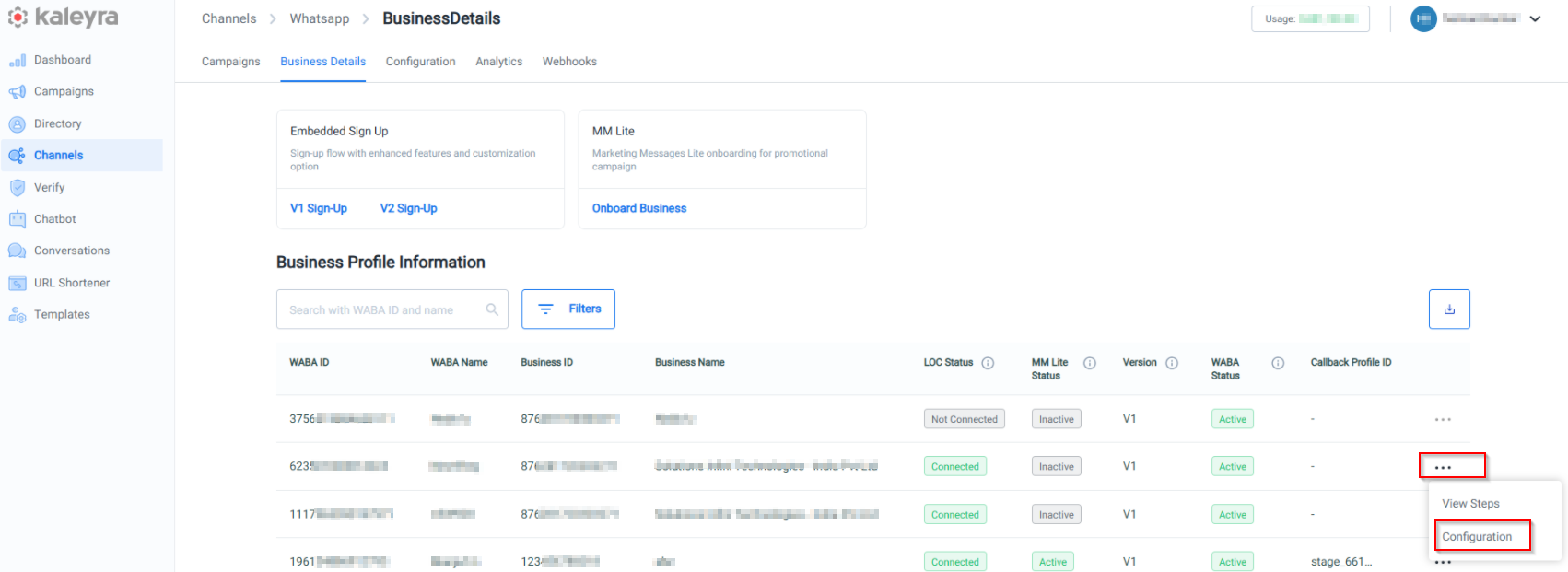
- Select the Business Details row for which you want to view the configuration, click the ellipses (three dots) and then click Configuration.
The Configuration tab appears.

For more information on the WhatsApp Configuration, see Add a Number and Add WhatsApp Template from UI pages.
Activate MM Lite
The Activate MM Lite feature allows you to enable Marketing Messages Lite for a WABA. The MM Lite Status in Business Profile Information indicates whether the feature is currently Active or Inactive.
To activate the MM Lite, perform the following steps:
-
Sign in to your Kaleyra Platform.
The Channels page appears.
- On the left navigation bar from the WhatsApp section, click WABA ID.
The WABA ID page appears.
-
On the WABA ID page, click Activate MM Lite. The MM Lite Embedded Sign up pop-up appears.
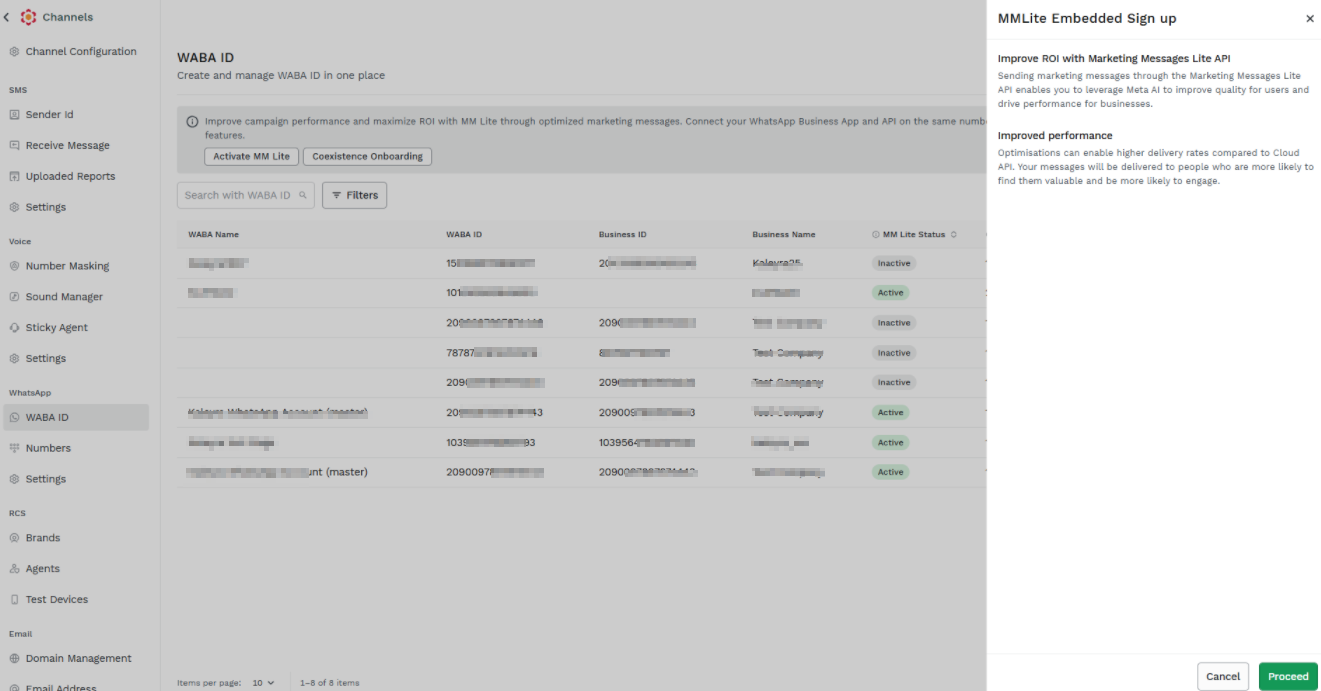
4. Click Proceed. Follow the steps from 4 of the Add a New WABA ID pages.
Coexistence Onboarding
Coexistence Onboarding allows businesses to connect an eligible WhatsApp Business App phone number to Kaleyra while continuing to use the WhatsApp Business App. This enables businesses to manage customer conversations manually through the WhatsApp Business App and use Kaleyra's WhatsApp Business Platform capabilities for API-based messaging.
WorkFlow:
-
Select the WABA to which the phone number will be associated.
-
Start Coexistence Onboarding from the Kaleyra platform.
-
Connect the WhatsApp Business App associated with the phone number.
-
Verify the business/phone number as required by the onboarding flow.
-
Grant the required permissions requested during the onboarding process.
-
Complete the onboarding and allow Kaleyra to synchronize the WhatsApp assets.
-
Verify the phone number status in Kaleyra.
-
Once onboarding is complete, the number can be used for the supported WhatsApp Business App + API coexistence experience.
To activate Coexistence Onboarding, perform the following steps:
-
Sign in to your Kaleyra Platform.
The Channels page appears.
- On the left navigation bar from the WhatsApp section, click WABA ID.
The WABA ID page appears.
3. On the WABA ID page, click Coexistence Onboarding. The Coexistence Onboarding pop-up appears.
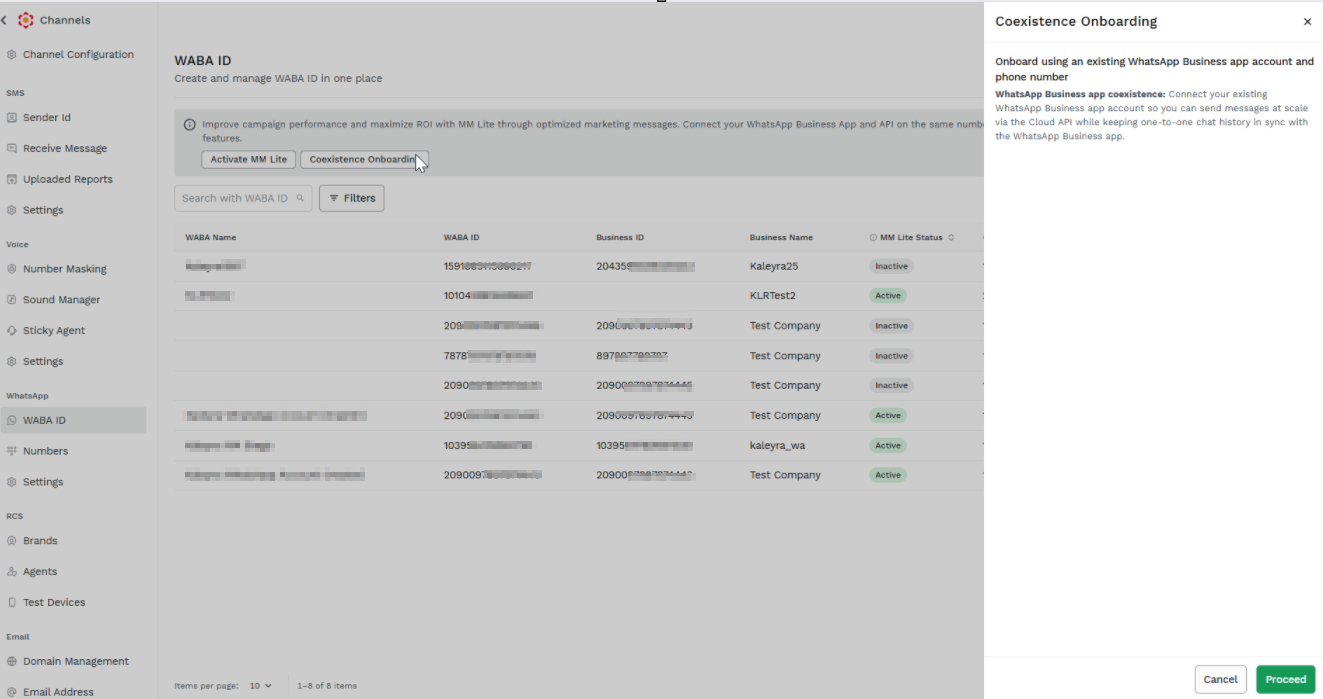
4. Click Proceed. Follow the steps from 4 of the Add a New WABA ID pages.
-
Updated 25 minutes ago